GoHighLevel Order Submitted Trigger: Setup Guide (2026)
By Dr Priya Jaganathan, GoHighLevel Certified Admin · HL Growth Partner, Australia · Updated 17 October 2026 · 9 min read
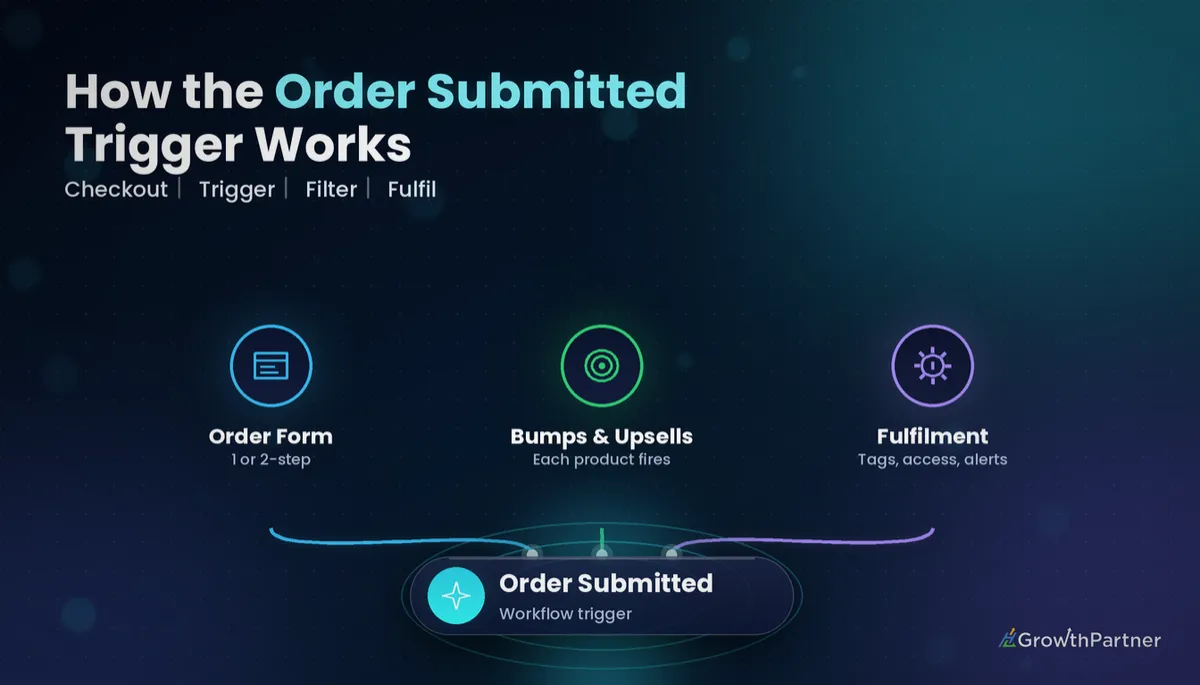
The GoHighLevel Order Submitted trigger is the workflow trigger that fires every time someone buys a product through one of your order forms. Used well, it turns a single checkout into a precise sequence of course access, onboarding emails, tags and sales alerts, one for every product in the cart.
This guide is part of our workflow-trigger series. Below I cover exactly what fires it, how it differs from the Order Form Submission and Payment Received triggers, which filters matter, a step-by-step setup, five recipes we build for clients, and how to test the whole thing before a real buyer ever touches it.
Quick Facts
| Trigger name | Order Submitted (Workflows → Add New Trigger) |
| Fires when | An order is placed through a 1-step or 2-step order form in a funnel or website |
| Fires how often | Once for each product purchased: primary product, order bump and upsell |
| Filters | Product, price, source (funnel/website), submission type |
| Re-entry | Turn on “Allow Multiple” so the same contact can re-enter for an upsell |
| Source | HighLevel help article “Workflow Trigger - Order Submitted” (2026) |
What actually fires the Order Submitted trigger
According to HighLevel's help article on the Order Submitted trigger (2026), it fires when an order is placed through an order form. That covers both 1-step and 2-step order forms, whether they sit inside a funnel or a website.
The detail that changes how you build is this: it fires for each product purchased. If a buyer takes the primary product, ticks the order bump and then accepts a one-click upsell, that is three separate trigger events for the same contact.
Why per-product firing matters
Per-product firing means you can treat every line item as its own automation. The bump can kick off its own onboarding, and the upsell can create its own opportunity, without you writing tangled logic to work out what was in the cart.
If you are still designing the offer stack itself, start with our walkthrough of building GoHighLevel order forms with bumps and upsells, then come back here to wire up the automation.
Order Submitted vs Order Form Submission vs Payment Received
Three triggers sound similar and get confused constantly in the accounts we audit. Picking the wrong one is the most common reason a HighLevel order submitted workflow either fires too often or not at all.
| Trigger | Fires on | How often per checkout | Best used for |
|---|---|---|---|
| Order Submitted | An order placed through a 1-step or 2-step order form | Once per product (primary, bump, upsell) | Product-specific fulfilment, tagging, access |
| Order Form Submission | The order form being submitted | Once per form submission | One “thanks for your order” flow, lead capture on step 1 |
| Payment Received | A payment being recorded in HighLevel | Per payment event | Money-confirmed actions, invoices, payment-based reporting |
The short version: Order Form Submission tells you a form was sent, Order Submitted tells you what was bought, and Payment Received tells you money landed. We cover the last one in depth in our GoHighLevel Payment Received trigger guide.
When to use two of them together
Many of our client builds use Order Submitted for fulfilment and Payment Received as a safety net. That pairing is Recipe 5 below.
Filters that make the Order Submitted trigger precise
Without filters, the trigger fires on every product across every order form in the sub-account. That is rarely what you want once you sell more than one thing.
HighLevel's help article (2026) lists four filters you can add:
- Product – limit the workflow to one or more specific products.
- Price – target a particular price on a product, handy when one product has several price points.
- Source – restrict to a specific funnel or website.
- Submission type – separate the type of purchase, which is how you split primary product, bump and upsell logic.
Stack filters to narrow things down. For the deeper logic of how multiple filters combine, see our guide to GoHighLevel workflow trigger filters.
How to set up the GoHighLevel Order Submitted trigger, step by step
This setup assumes your products and order form already exist in the sub-account. Allow about fifteen minutes for your first one.
Step 1: Create the workflow
Go to Automation → Workflows → Create Workflow → Start from Scratch. Name it by outcome, for example “ORDER | Course A | Primary | Grant Access”, so it sorts cleanly in the list.
Step 2: Add the trigger
Click Add New Trigger and search for Order Submitted. Give the trigger a clear name of its own as well.
Step 3: Add your filters
Add a Product filter first, then Source if the product is sold through more than one funnel. Add Submission type when the workflow should react only to the primary purchase, the bump or the upsell.
Step 4: Turn on Allow Multiple
Open the workflow Settings tab and enable Allow Multiple (re-entry). HighLevel's help article (2026) notes this is needed so the same contact can enter again when an upsell follows the primary purchase.
Step 5: Build the actions and publish
Add your actions, save, and switch the workflow from Draft to Publish. Then test it properly, which we cover further down.
Five HighLevel order submitted workflow recipes
These are the patterns we deploy most for coaches, course creators and service businesses. Each one is its own workflow with its own filters.
Recipe 1: Grant course access on the primary product
- Filters: Product = your course; Submission type = primary.
- Actions: Membership/course grant offer, add tag “customer-course-a”, send the login email.
Keep access grants on the primary product only so a bump never accidentally unlocks the main course. Our memberships and courses setup guide covers offers and access in detail.
Recipe 2: Bump-specific onboarding
- Filters: Product = the bump product; Submission type = bump.
- Actions: Add tag “bought-bump-templates”, send a short email with the bump deliverable, wait one day, send a “how to use it” follow-up.
Because the trigger fires separately for the bump, this flow runs alongside Recipe 1 rather than replacing it. The buyer gets both, in the right order.
Recipe 3: Upsell tagging and opportunity creation
- Filters: Product = the upsell; Submission type = upsell.
- Actions: Add tag “upsell-buyer”, create or update an opportunity in your Clients pipeline, assign to the delivery lead.
Upsell buyers are often your best future clients. Putting them straight into a pipeline with the Create/Update Opportunity action means nobody has to remember to do it manually.
Recipe 4: High-value order alert to the owner
- Filters: Product = your premium offer, plus a Price filter on the high-ticket price.
- Actions: Internal notification by SMS or LC Email to the business owner, create a task “Personal welcome call within 24 hours”.
A personal touch on the biggest orders reduces refund requests and builds referrals. Let the filter decide what counts as high value, not a team member scanning the payments list.
Recipe 5: Failed-flow safety net via Payment Received
Order Submitted is your fulfilment engine, but it pays to have a second check. Build a separate workflow on the Payment Received trigger that confirms the buyer carries the expected access tag.
- Trigger: Payment Received, filtered to the same product.
- Actions: Wait a few minutes, then an If/Else branch: if the contact lacks the access tag, notify the team and add a “fulfilment-check” tag.
It costs nothing to run and catches the rare case where a fulfilment workflow was paused, edited mid-launch or left in draft.
Allow Multiple: the setting that breaks upsell flows
By default, a contact who is already in a workflow, or has been through it, may not enter again. With per-product firing, that is a real problem.
Picture one workflow handling both the primary product and the upsell. The primary purchase enrols the contact, then the upsell fires moments later and is blocked. The upsell buyer silently gets nothing.
Two ways to avoid it:
- Enable Allow Multiple on any workflow where the same contact can legitimately trigger more than once.
- Better still, split primary, bump and upsell into separate workflows so each enrolment is independent.
We do both on client builds. Separate workflows keep the logic clean, and Allow Multiple protects repeat buyers who purchase the same product again later.
Testing your order submitted workflow in test mode
Never test fulfilment with a live card and a refund. Put the order form's payment integration into test mode and run genuine test purchases end to end.
A simple test checklist
- Use a fresh test contact with an email address you control.
- Buy the primary product only and confirm one enrolment.
- Repeat with the bump ticked and confirm two enrolments.
- Repeat with the bump and upsell and confirm three enrolments.
- Check workflow Execution Logs for each run and confirm tags, access and opportunities.
Switch the payment integration back to live mode before launch. A surprising number of “broken” funnels we fix are simply still in test mode.
A note on Australian GST receipts
If you sell from Australia, your order receipts need to meet ATO tax invoice requirements where GST applies. The Order Submitted trigger handles automation, not tax compliance, so set up your product pricing, tax settings and receipt wording deliberately.
We suggest confirming your GST treatment with your accountant, then using an Order Submitted workflow to send a branded follow-up with any extra information your customers need. Keep receipts and fulfilment emails separate so neither gets lost.
Common mistakes to avoid
- Using Order Form Submission when you need product-level logic, then wondering why bumps are ignored.
- Leaving the trigger unfiltered, so every product in the sub-account fires every workflow.
- Forgetting Allow Multiple on a workflow that handles more than one purchase per contact.
- Granting course access on the bump or upsell instead of the primary product.
- Testing with live payments, or forgetting to switch test mode off before launch.
- Building one giant workflow for every product instead of one clear workflow per outcome.
If you want your order forms, bumps, upsells and fulfilment workflows built and tested properly, book a strategy call with the HL Growth Partner team.
For the platform's own reference, read HighLevel's official Order Submitted trigger article.
Frequently asked questions
What is the GoHighLevel Order Submitted trigger?
It is a workflow trigger that fires when an order is placed through a 1-step or 2-step order form in a funnel or website. It fires once for each product purchased, including the primary product, order bump and upsell.
How is Order Submitted different from Order Form Submission?
Order Form Submission fires once per form submission, regardless of how many products were bought. Order Submitted fires for each product, so it suits product-specific fulfilment such as course access or bump onboarding.
Should I use Order Submitted or Payment Received?
Use Order Submitted for product-level fulfilment from order forms. Use Payment Received for actions that should depend on a payment being recorded, or as a safety-net check that fulfilment actually happened.
What filters can I add to the Order Submitted trigger?
HighLevel lists product, price, source (funnel or website) and submission type. Combining product with submission type is the cleanest way to separate primary, bump and upsell workflows.
Why didn't my upsell workflow fire?
The most common cause is that the contact already entered the workflow for the primary purchase and re-entry is blocked. Enable Allow Multiple in the workflow settings, or build a separate workflow filtered to the upsell.
Can I test the Order Submitted trigger without charging a real card?
Yes. Put your payment integration into test mode, place test orders through the order form and check the workflow Execution Logs. Remember to switch back to live mode before launch.
Does the Order Submitted trigger handle Australian GST?
No. The trigger only starts automations. GST treatment depends on your product pricing and tax settings, so confirm the details with your accountant and keep receipts compliant with ATO requirements.
Related Articles on HL Growth Partner
More workflow triggers
- Form Submitted trigger setup guide
- Contact Created trigger setup guide
- Pipeline Stage Changed trigger setup guide
