GoHighLevel Workflow Trigger Filters Explained (2026)
By Dr Priya Jaganathan, GoHighLevel Certified Admin · HL Growth Partner, Australia · Updated 2 October 2026 · 9 min read
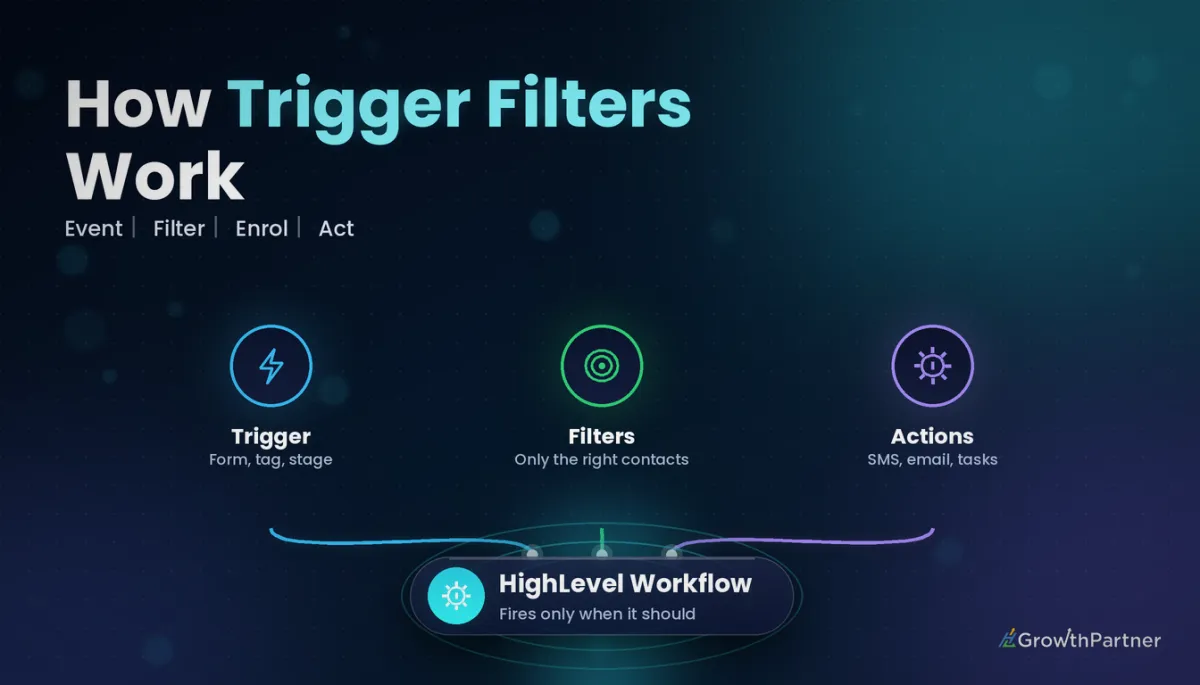
GoHighLevel workflow trigger filters decide which contacts are allowed into a workflow in the first place. Get them right and every automation fires for exactly the right person, at the right moment, once. Get them wrong and one form submission can push a contact into four nurture sequences at the same time.
In this guide I'll walk through how HighLevel trigger filters work on the triggers agencies use most, how AND and OR logic actually behaves, when to filter at the trigger versus using If/Else or Goals, and how to test your filters before a client's database finds the gaps for you.
Quick Facts
| Where filters live | Inside each trigger, via the Add Filters option after you pick the trigger event |
| Multiple filters on one trigger | Combined with AND logic — every filter must match |
| Multiple triggers on one workflow | Behave as OR — any one trigger firing enrols the contact |
| Tag filter operators | Equals to, Not equals to, Any of, None of (with multi-select) |
| Unfiltered trigger | Fires for every event of that type in the sub-account |
| Finding workflows by trigger | Advanced Filters and Smart Lists on the Workflows list page |
What GoHighLevel workflow trigger filters actually do
Every workflow trigger listens for a category of event: a form submitted, a tag added, an opportunity moving stage, an appointment changing status. On its own, a trigger is broad. It fires for every event of that type across the whole sub-account.
Filters narrow that category down to the specific event your workflow cares about. A trigger says "something happened"; a filter says "and it was this particular thing."
HighLevel's own list of workflow triggers notes the optional filters available on many triggers. The exact filter fields differ by trigger, so it's worth opening each trigger's filter menu rather than assuming they all behave alike.
Why the trigger is the cheapest place to filter
A filter on the trigger stops the wrong contact before they enter. No actions queue up and your enrolment history stays clean, which matters for re-entry and reporting.
How to add HighLevel trigger filters, step by step
- Open the workflow and click Add New Trigger.
- Choose the trigger event, for example Form Submitted.
- Click Add Filters and pick the field to filter on, such as the specific form.
- Choose the operator and value, then add further filters if needed.
- Rename the trigger so the filter is obvious at a glance (e.g. "Form Submitted – Free Audit"), then save.
Form Submitted + form is X
This is the filter I add first on almost every lead workflow. Without it, the workflow fires for every form in the sub-account, including the newsletter signup, the job application and the client onboarding form.
Pick the specific form in the filter. If two forms genuinely feed the same follow-up, you can select both, but keep that deliberate rather than accidental.
Contact Tag + tag is X
The Contact Tag trigger fires when a tag is added to or removed from a contact. HighLevel's changelog for advanced tag filtering describes four operators: Equals to, Not equals to, Any of and None of, all with multi-select.
The same update allows multiple Tag filter instances in one trigger, combined with AND logic. That unlocks negative filtering, such as "Tag equals lead" plus "Tag not equals low-quality". A consistent tag naming strategy makes these filters far easier to maintain.
Pipeline Stage Changed + pipeline and stage
Opportunity triggers almost always need two filters: the pipeline, and the stage within it. Filter only on the stage and you risk firing on an identically named "Won" stage in another pipeline.
Appointment Status + calendar
Appointment triggers should be filtered by calendar and, where relevant, by the status you care about. A no-show recovery sequence built for discovery calls should not fire when a paid coaching session is marked as a no-show.
AND vs OR: how trigger filters and multiple triggers combine
- Filters inside one trigger use AND. The event must satisfy every filter on that trigger.
- Separate triggers on one workflow act as OR. If any one trigger fires with its filters satisfied, the contact enrols.
Building OR logic with multiple triggers
Want the workflow to start when form A is submitted or when the "webinar-registered" tag is added? Add two separate triggers, each with its own filters. They don't need to be the same trigger type.
The flip side: multiple triggers can enrol the same contact twice if both events happen. A contact who submits form A and has the tag applied by another workflow will satisfy both triggers. Your re-entry setting decides what happens next.
Building AND logic across different event types
You can't add a filter that says "form submitted AND appointment booked" across two different events at the trigger level. Trigger filters check the event that fired plus details of that event or contact.
For cross-event logic, trigger on one event and use an If/Else branch to check the other condition, such as a tag or custom field set by the earlier event.
| You want… | Set it up as | Watch out for |
|---|---|---|
| One event with several conditions | One trigger, multiple filters (AND) | Over-filtering so nothing ever enrols |
| Any of several events | Multiple triggers (OR) | Same contact satisfying two triggers |
| Any of several tags on one trigger | Tag filter with "Any of" | Tags added in bulk by imports |
| Tag present but another tag absent | Two Tag filters: Equals to + Not equals to | Tag added in the wrong order |
| Event A and, earlier, event B | Trigger on A, If/Else checks a tag or field from B | Event B not setting a reliable marker |
Trigger filters vs If/Else vs Goals: which one to use
| Tool | When it acts | Best for |
|---|---|---|
| Trigger filter | Before enrolment | Keeping the wrong contacts out entirely |
| If/Else | At a point inside the workflow | Sending enrolled contacts down different paths |
| Goal | Any time while the contact is in the workflow | Jumping ahead or exiting when an outcome is reached |
My rule of thumb: if a contact should never be in this workflow, filter at the trigger. If they belong in the workflow but need different messaging, use an If/Else. My If/Else conditions guide covers branch design in detail.
Goals solve a different problem. A contact who books a call halfway through a nurture sequence should stop receiving "book a call" emails. That's a job for workflow goals and exit conditions, not a trigger filter.
Common trigger filter patterns per trigger
These are the filter combinations I set up most often in agency sub-accounts. Field names vary slightly between triggers, so treat the middle column as the intent rather than the exact label.
| Trigger | Typical filters | Typical use |
|---|---|---|
| Form Submitted | Specific form | Lead magnet delivery, enquiry follow-up |
| Contact Tag | Tag added, Equals to or Any of a named tag; Not equals to an exclusion tag | Hand-offs between workflows, segment nurture |
| Pipeline Stage Changed | Pipeline + destination stage | Proposal sent, deal won, onboarding kick-off |
| Appointment Status | Calendar + status (e.g. confirmed, no-show) | Reminders, no-show recovery, post-call follow-up |
| Customer Replied | Channel; reply content where relevant | Routing SMS replies, stopping sequences on reply |
| Contact Changed | Specific field changed to a defined value | Lifecycle updates from custom fields |
Use the Workflows list to audit your triggers
Once a sub-account has dozens of workflows, finding every automation listening to the same form is hard. HighLevel's Advanced Filters and Smart Lists for workflows let you filter the workflow list by trigger type and save that view.
Testing trigger filters before you publish
Filters fail silently. A workflow that never enrols anyone looks exactly like a workflow that's waiting for its first lead.
- Create a test contact with your own email and mobile, and tag it clearly as a test.
- Trigger the real event: submit the actual form, add the actual tag, move a test opportunity.
- Check the workflow's enrolment history to confirm the contact entered.
- Now trigger a near-miss: a different form, a different pipeline, the excluded tag. Confirm it did not enrol.
- Check the contact's record for any other workflows that unexpectedly fired.
The near-miss test is the one people skip, and it's the one that catches over-broad filters. My workflow testing and debugging guide covers the execution logs in more depth.
Why unfiltered triggers cause duplicate enrolments
Duplicate enrolments are the most common symptom I see in inherited GoHighLevel builds. The root cause is nearly always the same: several workflows listening to the same broad event.
Picture a sub-account with a welcome sequence, a lead-scoring workflow and a sales notification workflow, all on an unfiltered Form Submitted trigger. One newsletter signup now sends a sales alert, adds lead score and starts a sales nurture.
How re-entry makes it worse
If re-entry is allowed, the same contact can also enrol repeatedly in one workflow every time a matching event fires. Combine that with an unfiltered tag trigger and a tag being removed and re-added by another automation, and you get loops.
Read up on workflow re-entry settings before you turn it on, and pair it with tight filters rather than relying on it alone.
The fix
Filter every trigger to the narrowest event that makes sense. Then give each event one owning workflow, and let that workflow hand off to others with a specific tag rather than having several workflows react to the same raw event.
Common mistakes to avoid
- Leaving Form Submitted unfiltered because there's "only one form" today. A second form always arrives eventually.
- Filtering by stage name without the pipeline, so identically named stages in other pipelines also fire the workflow.
- Using multiple triggers when you meant AND, then wondering why contacts enrol on only half the conditions.
- Putting exclusion logic in an If/Else when the contact should never have entered, which inflates enrolment counts and complicates re-entry.
- Skipping the near-miss test, so over-broad filters only surface when a client complains.
If you want a clean audit of the triggers and filters across your client sub-accounts, book a strategy call with the HL Growth Partner team.
Frequently asked questions
What are GoHighLevel workflow trigger filters?
Trigger filters are conditions you add to a workflow trigger so it only fires for specific events. For example, a Form Submitted trigger can be filtered to one particular form. Without filters, the trigger fires for every event of that type in the sub-account.
Do multiple filters on one trigger use AND or OR?
Multiple filters on a single trigger are combined with AND logic, so the event must satisfy all of them. HighLevel's tag filtering update confirms this for multiple Tag filters within one trigger. If you need OR logic, add separate triggers instead.
What happens when a workflow has more than one trigger?
Separate triggers act as OR. If any one trigger fires and its own filters are satisfied, the contact enrols. This also means one contact can satisfy two triggers, so check your re-entry setting.
Should I use a trigger filter or an If/Else condition?
Use a trigger filter when the contact should never be in the workflow at all. Use an If/Else when the contact belongs in the workflow but needs a different path or message. Filtering at the trigger keeps enrolment history and reporting cleaner.
How do I filter a Contact Tag trigger to exclude certain contacts?
Add a second Tag filter using the Not equals to or None of operator. For example, Tag equals "lead" plus Tag not equals "low-quality" lets only qualified leads through. Both filters must match because they are combined with AND.
Why are contacts entering my workflow twice?
The usual causes are multiple triggers that the same contact satisfies, re-entry being allowed, or an unfiltered trigger reacting to events created by other workflows. Tighten the filters, review re-entry and check whether another automation is re-adding the triggering tag.
How do I test a trigger filter safely?
Use a clearly tagged test contact and fire the real event, then confirm enrolment in the workflow history. Next, fire a near-miss event such as a different form or pipeline and confirm the contact did not enrol. Both checks together prove the filter is neither too broad nor too narrow.
How can I find every workflow using the same trigger?
On the Workflows list page, use Advanced Filters to filter by trigger type and save the result as a Smart List. This makes it quick to spot several workflows listening to the same form or tag, which is a common source of duplicate enrolments.
Related Articles on HL Growth Partner
Workflow building and maintenance
- Wait Steps & Business Hours
- Workflow Version History & Rollback
- Workflow Folders & Naming Conventions
