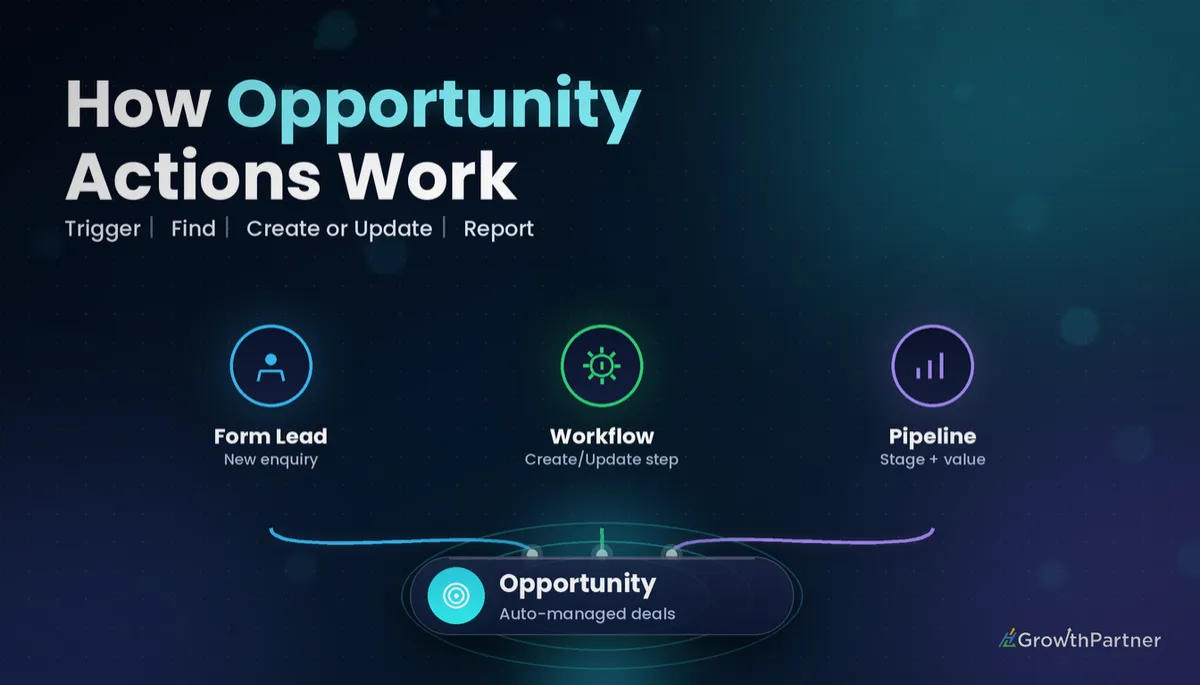
GoHighLevel Create/Update Opportunity Action (2026)
By Dr Priya Jaganathan, GoHighLevel Certified Admin · HL Growth Partner, Australia · Updated 10 October 2026 · 9 min read
The GoHighLevel create opportunity action is the step that turns a lead into a deal you can actually track: it puts the contact into a pipeline, at a stage, with a name, a value and a status. Get it right and your pipeline becomes a live forecast. Get it wrong and you end up with three "New Lead" cards for the same person and a revenue number nobody trusts.
This guide walks through how the HighLevel workflow opportunity action family works in 2026, how duplicate handling behaves, how to update an opportunity in a GHL workflow when a form is submitted, an appointment is booked or an invoice is paid, and how to pair it with the Pipeline Stage Changed trigger without creating a mess.
Quick Facts
| Current actions | Separate Create Opportunity and Update Opportunity workflow actions |
| Legacy action | The combined Create/Update Opportunity action is being phased out; existing workflows keep working |
| Duplicate setting | "Allow Duplicate Opportunities" is off by default |
| Finding a deal | Find Opportunity returns one match (first or latest created) and has a "not found" path |
| Stage trigger filters | Pipeline Stage Changed can be filtered by pipeline stage, status and assigned user |
| Source | HighLevel help centre workflow action and trigger articles, 2026 |
What the GoHighLevel create opportunity action actually does
An opportunity in HighLevel is a deal record attached to a contact. It lives in one pipeline, sits in one stage, and carries a status of open, won, lost or abandoned. If you need a refresher on the record itself, our guide to setting up GoHighLevel pipelines and opportunities covers the building blocks.
For years most accounts used a single combined action called Create/Update Opportunity. According to the HighLevel help centre article on the Create/Update Opportunity action (2026), that combined action is being phased out in favour of two separate actions: Create Opportunity and Update Opportunity. Workflows already using the combined action continue to run as they are.
That split matters. Creating a deal and changing a deal are different jobs with different risks, and keeping them apart makes your workflows easier to read and far easier to debug.
The fields you can set
Exact labels shift slightly between builder versions, so treat this as the practical list rather than a screenshot of the menu:
- Pipeline and stage — choose the pipeline first, because the stage list depends on it.
- Opportunity name — merge fields such as the contact's name plus the service work well.
- Monetary value — the number that feeds your pipeline value and forecasting.
- Status — open, won, lost or abandoned, with a lost reason when the status is lost.
- Source — where the deal came from, useful for attribution reporting.
- Owner — set in the action where your builder offers it, or with the separate "Add Owner to Opportunity" action.
How the HighLevel workflow opportunity action handles duplicates
The single biggest source of pipeline clutter we see in client accounts is duplicate deals. Someone submits a form twice, books after enquiring, or re-enters a workflow, and each run drops a fresh card into "New Lead".
The Create Opportunity action has a setting called "Allow Duplicate Opportunities". The HighLevel help centre documents it as off by default. With it off, HighLevel checks for a similar existing opportunity for that contact rather than blindly creating another one. With it on, a new card is created every time the action runs.
Leave it off for almost every lead-capture workflow. Turn it on only when one contact can genuinely hold several live deals at once, such as a client who buys separate projects, a property buyer looking at multiple listings, or a clinic tracking separate treatment plans.
Using Find Opportunity to target the right deal
When you need to change a specific deal, pair Update Opportunity with Find Opportunity. The HighLevel help centre article on Find Opportunity (2026) explains that it searches the contact's opportunities using your filters, combines those filters with AND logic, and returns only one match — either the first or the most recently created.
It also gives you an "Opportunity Not Found" path. That is where you place a Create Opportunity step, so the workflow updates the deal if it exists and creates one if it does not. The found opportunity then becomes the record that later opportunity actions in that branch act on.
One caveat from the same help centre documentation: the legacy combined action does not use an opportunity located by Find Opportunity, and it does not update the opportunity that triggered the workflow. That alone is a good reason to rebuild older workflows with the separate actions.
Update an opportunity in a GHL workflow from real events
The real value of the action is moving deals automatically when something happens in the business. Your team should not be dragging cards around after every booking.
Form submitted
Use Create Opportunity with duplicates off. Set the pipeline, the first stage, a clear name and a default value if you know your average deal size. Set the source to the form or campaign name so your reports can tell which channel produced the deal.
Appointment booked
Use Find Opportunity filtered to the right pipeline and open status, then Update Opportunity to move the stage to "Booked". On the not-found path, create the deal straight into "Booked" — people who book without filling in a form are common, especially from calendar links in emails.
Invoice paid
Find the open opportunity, update the status to won and set the value to the paid amount. Using the real paid amount rather than a guessed default keeps won revenue accurate in your reports.
Before any of these fire, tighten the trigger itself. Our walkthrough of GoHighLevel workflow trigger filters shows how to stop a generic trigger catching the wrong forms or calendars.
Trigger-to-action settings for the GoHighLevel opportunity action
This is the starting configuration we use on client builds. Adjust the stage names to match your own pipeline.
| Trigger | Recommended action(s) | Stage / status | Duplicates | Value |
|---|---|---|---|---|
| Form Submitted (enquiry) | Create Opportunity | New Lead / open | Off | Average deal size or blank |
| Appointment booked | Find Opportunity → Update (found) or Create (not found) | Booked / open | Off | Keep existing |
| Appointment no-show | Find Opportunity → Update Opportunity | No-Show / open | Not applicable | Keep existing |
| Invoice paid or payment received | Find Opportunity → Update Opportunity | Won stage / won | Not applicable | Actual amount paid |
| Repeat purchase from existing client | Create Opportunity | New Project / open | On | Quoted amount |
| Pipeline Stage Changed (to "Lost") | Update Opportunity, then follow-up actions | Lost / lost with reason | Not applicable | Keep existing |
Combining the opportunity action with Pipeline Stage Changed
The Pipeline Stage Changed trigger fires when an opportunity moves stage. The HighLevel help centre lists filters for pipeline stage, status and assigned user, so you can run a workflow only when a deal lands in a particular stage.
The clean way to think about it is this: opportunity actions move deals, and stage triggers react to the move. One workflow updates the stage when an invoice is paid; a separate workflow listens for "Won" and sends the onboarding sequence, creates tasks and notifies the team.
Be careful when a stage-triggered workflow also updates the stage. If two workflows each move the deal and each listen for the other's stage, you can create a ping-pong effect. Map out which workflow owns each stage before you publish.
Branching with If/Else on opportunity fields
If/Else conditions let you route contacts based on opportunity details such as the pipeline, stage, status or value. Our guide to building If/Else branches in GoHighLevel workflows covers the condition builder in depth.
Three branches we use often:
- High-value routing — if the value is above your threshold, assign a senior closer and alert them.
- Stage guard — if the deal is already won, skip the "move to Booked" step so you never drag a paying client backwards.
- Pipeline check — if the contact already has a deal in another pipeline, update that one instead of creating a new one.
The stage guard is the one most builds miss. Without it, a past client who books a check-in call can be bumped from "Won" back to "Booked", which quietly distorts your conversion reporting.
Monetary value: the field that makes forecasting work
An opportunity without a value is just a card. With a value, your pipeline becomes a forecast of what is likely to close and when.
Set a sensible default value at creation, then overwrite it with the quoted amount when a proposal goes out and the paid amount when the deal is won. If you want to go further, our article on setting up a GoHighLevel pipeline to forecast revenue explains how stage design and value work together.
Keep values in one currency and one convention — either GST-inclusive or exclusive — across every workflow. Mixed conventions are the quiet killer of an accurate forecast.
Avoiding duplicate deals at the source
Duplicate opportunities often start as duplicate contacts. If the same person exists twice with different emails or phone formats, no opportunity setting will save you, because HighLevel sees two different people.
Fix the contact layer first. Our guide to merging and preventing duplicate contacts in GoHighLevel covers the settings and clean-up steps. Then keep "Allow Duplicate Opportunities" off, use Find Opportunity before updates, and review re-entry settings on any workflow that creates deals.
Common mistakes to avoid
- Turning on "Allow Duplicate Opportunities" in a lead-capture workflow, then wondering why every enquiry appears twice.
- Updating an opportunity without Find Opportunity first, so the wrong deal (or no deal) gets changed when a contact has several.
- Leaving the monetary value blank, which makes pipeline value and forecasts meaningless.
- Building new workflows on the legacy combined action instead of the separate Create and Update actions.
- Letting a booking workflow move won clients back to an earlier stage because there is no If/Else stage guard.
- Setting a status of lost without a lost reason, which leaves you guessing why deals fall over.
If you want a pipeline and workflow build that keeps every deal in the right stage, book a strategy call with the HL Growth Partner team.
Frequently asked questions
Is the Create/Update Opportunity action still available in GoHighLevel?
Existing workflows that use the combined Create/Update Opportunity action continue to run. HighLevel's help centre says the combined action is being phased out and recommends the separate Create Opportunity and Update Opportunity actions for new builds. Rebuilding older workflows with the separate actions also gives you access to Find Opportunity.
What does "Allow Duplicate Opportunities" do?
When it is on, the action creates a new opportunity every time it runs, even if a similar one already exists for the contact. It is off by default. Keep it off for lead capture and only turn it on when one contact can hold several genuine deals at once.
How do I update an opportunity in a GHL workflow without changing the wrong deal?
Add a Find Opportunity step first and filter it by pipeline, stage or status. It returns one match, either the first or the most recently created, and any Update Opportunity step after it acts on that deal. Use the not-found path to create a deal when none exists.
Can I move a deal to won when an invoice is paid?
Yes. Trigger the workflow on the payment or invoice event, find the open opportunity, then update the status to won and move it to your won stage. Set the value to the amount actually paid so your revenue reports stay accurate.
Will updating the stage in a workflow fire the Pipeline Stage Changed trigger?
Plan as if it will, and test it in your own account before going live. Give each stage a single owning workflow and avoid two workflows that move a deal into each other's trigger stages, which can cause deals to bounce between stages.
Can I use If/Else to check opportunity fields?
Yes. If/Else conditions can branch on opportunity details such as pipeline, stage, status and value. A common use is a stage guard that skips any stage change when the deal is already won.
Why do I still get duplicate opportunities with the duplicate setting off?
Usually because the contact itself is duplicated, so HighLevel treats them as two people with one deal each. Merge duplicate contacts and tighten your contact duplicate settings first. Also check workflow re-entry settings on any workflow that creates deals.
Related Articles on HL Growth Partner
Pipelines and reporting
More workflow actions
- The Update Contact Field workflow action explained
- Assign To User and contact owner rules
- Chaining workflows with Add To Workflow
