GoHighLevel Update Contact Field Action: Workflows (2026)
By Dr Priya Jaganathan, GoHighLevel Certified Admin · HL Growth Partner, Australia · Updated 8 October 2026 · 9 min read
The GoHighLevel update contact field action is the quiet workhorse of almost every sub-account we audit. It writes, overwrites or clears contact data from inside a Workflow, which means your custom fields hold clean values that triggers, If/Else branches and Smart Lists can actually rely on.
Most messy CRMs we inherit don't have a tagging problem or a pipeline problem. They have a data problem: lead source stored in five places, lifecycle stage living in someone's head, and "last contacted" never updated. This guide walks through how the HighLevel Update Contact Field action behaves, the build patterns we use with clients, and how to test it before it touches real contacts.
Quick Facts
| Where it lives | Automation → Workflows → add an action with the + icon → Update Contact Field |
| What it writes to | Standard and custom contact fields |
| Clearing values | Supported for custom fields only (not standard fields such as name or email) |
| Value types | A static value you type, or a dynamic value pulled from the contact, trigger or earlier steps |
| Write behaviour | Replaces the existing value in the selected field |
| Audit trail | Every change is visible in the workflow's Execution Logs |
What the GoHighLevel update contact field action actually does
At its simplest, the action picks a field on the contact record and sets it to a value. HighLevel's own help documentation describes it as writing new values to standard or custom contact fields, or clearing values on custom fields, directly from a workflow.
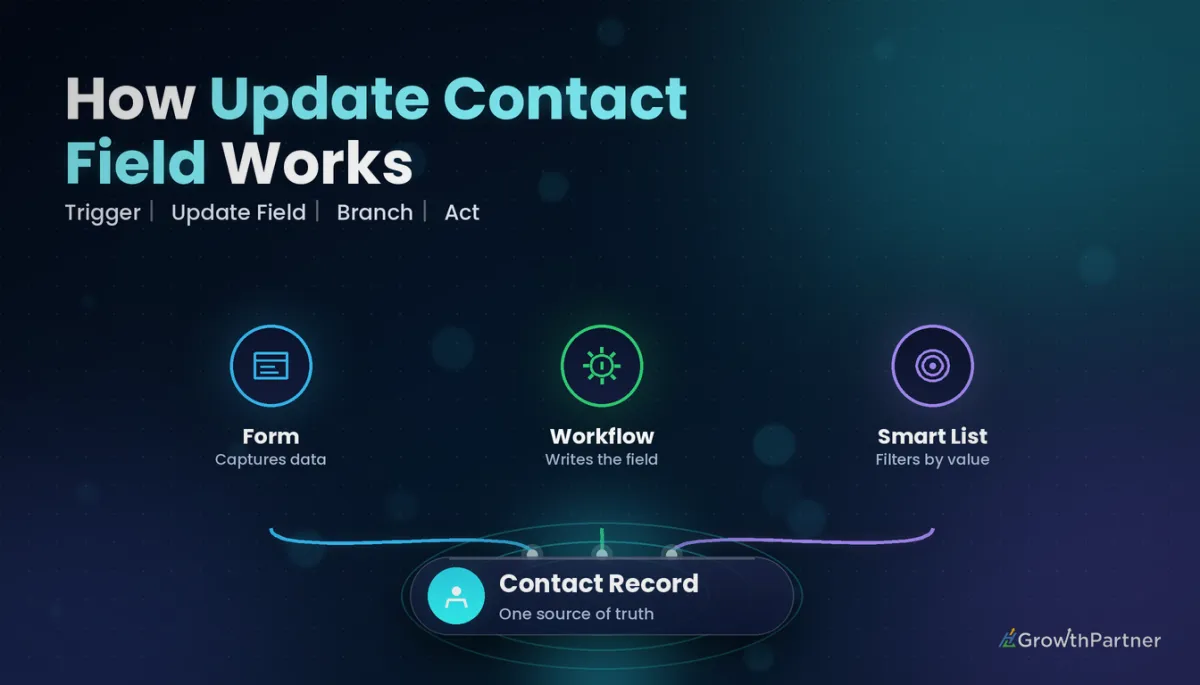
That sounds trivial until you realise what it unlocks. Once a value is written to a field, every other part of the platform can read it: trigger filters, If/Else conditions, Smart List filters, email merge fields and reporting.
Static values vs dynamic values
You can set a field in two broad ways. A static value is something you type once, such as "Facebook Lead Ad" or "MQL". A dynamic value is pulled in at run time using custom values and merge fields, such as a date from the trigger, a value from another field, or data captured earlier in the workflow.
- Static: best for stamps and labels that never change (lead source, campaign name, lifecycle stage).
- Dynamic: best for copying data between fields, recording dates and timestamps, or passing information from a trigger into a permanent field.
- Date-type fields: the editor switches to date-specific options rather than a plain text box, so you can set a fixed date or a calculated one.
The core build pattern: trigger, update field, If/Else, act
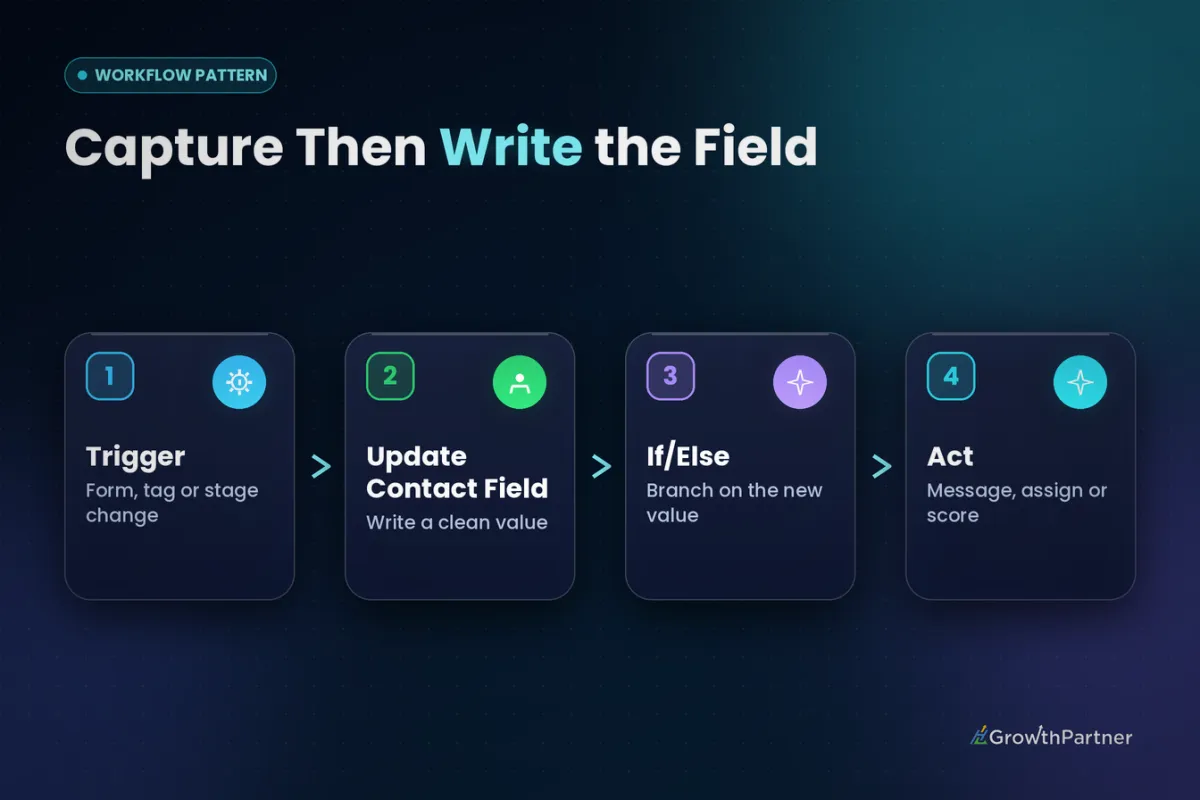
Nearly every reliable build we hand over follows the same four steps. A trigger captures the event, an Update Contact Field action writes a clean value, an If/Else checks that value, and then the right action fires.
- Trigger: form submitted, appointment booked, opportunity stage changed, payment received.
- Update Contact Field: stamp the fact (source, stage, date) onto a dedicated field.
- If/Else: branch on the field value, not on fragile tags or form answers.
- Act: send the right message, assign the right user, move the opportunity, add to a nurture.
Why write the field before branching? Because the field outlives the workflow. A form answer is only easy to reference in the moment, but a field is still there next month when a different workflow, a Smart List or a report needs it. Our guide to GoHighLevel If/Else conditions covers the branching side in depth.
The other half of the pattern is upstream. Use trigger filters to stop the wrong contacts entering in the first place, then let the field and If/Else handle the nuance. We break down that split in our walkthrough of GoHighLevel workflow trigger filters.
Five HighLevel Update Contact Field patterns we use in every sub-account
1. Stamp the lead source (once)
When a lead comes in from a specific form, ad or funnel, write a static value like "Google Ads – Brisbane" to a Lead Source custom field. Put an If/Else in front that checks whether the field is empty, so you capture first-touch source and never overwrite it on the second enquiry.
If you want both first-touch and last-touch, use two fields. First Lead Source gets the guarded write; Latest Lead Source gets overwritten every time.
2. Set the lifecycle stage
Create a dropdown custom field with fixed options such as Subscriber, Lead, MQL, SQL, Customer and Past Customer. Then each workflow that represents a real milestone updates the stage: booked call becomes SQL, paid invoice becomes Customer.
A dropdown matters here. Free-text lifecycle fields drift into ten spellings of the same stage, and every Smart List filter you build afterwards breaks quietly. Our custom fields setup guide covers choosing the right field type before you build.
3. Record a last-contacted or last-booked date
Add a date-type custom field such as Last Booked Date, and update it whenever an appointment is booked. Because date fields get date-specific options in the action, you can record the current date rather than relying on someone to type it.
4. Copy values between fields
Forms and integrations often dump data into the wrong place, or into a field that's named for one campaign. Use a dynamic value to copy it into your canonical field, for example copying a "Company (Webinar Form)" field into the main Company Name field.
If the value needs cleaning first (title case, trimming, reformatting a date or phone number), run it through a formatter action before the write so the stored value is consistent.
5. Clear a field when it stops being true
Some fields should only hold a value while a condition is live: Current Promo Code, Next Appointment Type, Active Quote Amount. When the promo expires or the quote is accepted, clear the field so later automation doesn't act on stale data.
Remember the limit: clearing is supported for custom fields, not standard fields like first name, last name or email. If you find yourself wanting to wipe a standard field, that's usually a sign the data belongs in a custom field instead.
Overwrite vs empty values: how the action behaves
This is where most builds go wrong. The action replaces whatever is in the field with the new value, so the order of your workflows and the guards in front of each write matter more than the write itself.
| Situation | What happens | What we recommend |
|---|---|---|
| Field already has a value, action writes a new static value | Old value is replaced | Guard with If/Else if the original value must be preserved (first-touch source) |
| Dynamic value resolves to blank (source field or merge field is empty) | Not clearly documented; behaviour can vary by field type | Check the source field is not empty before the write, and test with a blank contact |
| You need a custom field emptied on purpose | Use the clear option on the custom field | Clear explicitly; never rely on writing "nothing" to blank a field |
| You need a standard field emptied | Clearing standard fields isn't supported | Rethink the data model, or store the value in a custom field instead |
| Two workflows write the same field | Whichever runs last wins | Give one workflow ownership of each field and document it |
The empty-value row is the one we see bite agencies. HighLevel users have raised feature requests on the ideas board about setting fields to blank through normal value updates, which tells you it isn't something to assume. Explicitly clear when you mean clear, and guard every dynamic write so an empty merge field never wipes good data.
Pairing field updates with Smart Lists and lead scoring
Clean fields are what make segmentation easy. Once lifecycle stage, lead source and last-booked date are reliable, a Smart List for "SQLs from Google Ads not booked in 60 days" is three filters, not a spreadsheet export. Our guide to GoHighLevel Smart Lists and segments shows how to save and share those views with your team.
Lead scoring works the same way. A score is only as good as the data feeding it, so we write qualifying answers (budget band, service interest, timeline) to dropdown fields first, then let the scoring logic read those fields. The full build is in our lead scoring workflow setup walkthrough.
Testing your update contact field workflows before go-live
Never publish a field-writing workflow straight onto your live database. A single wrong overwrite can rewrite lead source on thousands of contacts, and there's no bulk undo button for that.
- Use test contacts: create two or three dummy contacts, including one with empty fields and one with existing values, so you see both the first-write and the overwrite cases.
- Read the Execution Logs: HighLevel shows every field change in the workflow's Execution Logs, so check the value that was actually written, not just that the step ran.
- Open the contact record: confirm the field shows the expected value and format (especially dates and dropdowns).
- Enable re-entry deliberately: decide whether a contact should be able to run the workflow twice, because a second run means a second overwrite.
For the official step-by-step setup and the latest supported field types, see HighLevel's help article on the Workflow Action – Update Contact Field.
Common mistakes to avoid
- Overwriting first-touch data: writing lead source on every form submission without an If/Else guard, so the original source is lost.
- Using free-text fields for stages: lifecycle stage, service type and status should be dropdowns, or your Smart Lists will miss contacts.
- Unguarded dynamic writes: copying a value from a field that might be empty, and wiping good data in the process.
- Two workflows owning one field: competing writes mean the last workflow to run decides the value, and nobody knows which one that was.
- Expecting to clear standard fields: clearing is for custom fields; plan your data model around that.
- Skipping the logs: a green "executed" step doesn't mean the right value landed. Check what was written.
If you want a clean custom-field and workflow structure built for your sub-accounts, book a strategy call with the HL Growth Partner team.
Frequently asked questions
What does the GoHighLevel Update Contact Field action do?
It writes a new value to a standard or custom contact field from inside a Workflow, or clears the value of a custom field. The value can be static text you type or a dynamic value pulled from the contact, the trigger or earlier workflow steps. Every change is recorded in the workflow's Execution Logs.
Does Update Contact Field overwrite existing values?
Yes. When the action runs, the selected field's existing value is replaced with the new one. If you need to preserve the original value, such as first-touch lead source, put an If/Else in front that only writes when the field is empty.
Can I clear a standard field like email or phone with this action?
No. Clearing is supported for custom fields, not standard fields such as first name, last name or email. If you regularly need to blank a value, store it in a custom field instead.
What happens if a dynamic value is empty when the action runs?
This isn't clearly documented, and behaviour can vary by field type, so don't rely on it. Add an If/Else that checks the source field is not empty before writing, and use the explicit clear option when you genuinely want a custom field emptied.
Can I use Update Contact Field with date fields?
Yes. When you choose a date-type field, the action shows date-specific options instead of a plain text input, so you can set a fixed date or a calculated one. This is how we record values like Last Booked Date or Renewal Date automatically.
Should I use a custom field or a tag for lifecycle stage?
Use a dropdown custom field. A contact should have one current lifecycle stage, and a field replaces the old value when it changes, whereas tags accumulate and need extra workflows to remove the old ones. Fields also read cleanly in Smart Lists, reports and merge fields.
How do I test an Update Contact Field workflow safely?
Run it on two or three test contacts, including one with empty fields and one with existing values. Then check the Execution Logs and the contact record to confirm the exact value and format written. Only publish to live contacts once both the first-write and overwrite cases behave as expected.
Related Articles on HL Growth Partner
Data structure
- GoHighLevel tags vs custom fields
- GoHighLevel custom values setup guide
- GoHighLevel tag strategy and naming conventions
Workflow building
- GoHighLevel workflow formatter actions
- Chaining workflows with Add to Workflow
- Workflow Split action for A/B tests
