GoHighLevel Workflow Chaining: Add to Workflow (2026)
By Dr Priya Jaganathan, GoHighLevel Certified Admin · HL Growth Partner, Australia · Updated 3 October 2026 · 9 min read
GoHighLevel workflow chaining is the habit of building small, single-purpose workflows and passing contacts between them, instead of cramming an entire customer journey into one enormous canvas. The glue is the HighLevel Add to Workflow action, backed by its partner, Remove from Workflow.
This guide shows how we build modular automations for Australian service businesses: one lean entry workflow, then reusable modules for nurture, booking and post-booking. You'll learn when chaining is worth it, how to name and pass context between modules, and how to stop contacts getting enrolled twice or looping forever.
Quick Facts
| Add to Workflow | Workflow action that enrols the contact into another workflow you select |
| Pass Input Trigger Parameters | Optional setting that carries the original trigger's data into the receiving workflow (not outputs created later, such as Custom Code results) |
| Remove from Workflow options | Current Workflow, Another Workflow, All Except Current Workflow, All Workflows |
| Allow Re-entry | Lets a contact enter again after completing or being removed, never while still active |
| Re-entry exception | Appointment- and invoice-based triggers allow multiple entries regardless of the setting |
| Go To action | Jumps a contact to another action; only placeable as the last step of a workflow or branch |
What GoHighLevel workflow chaining actually means
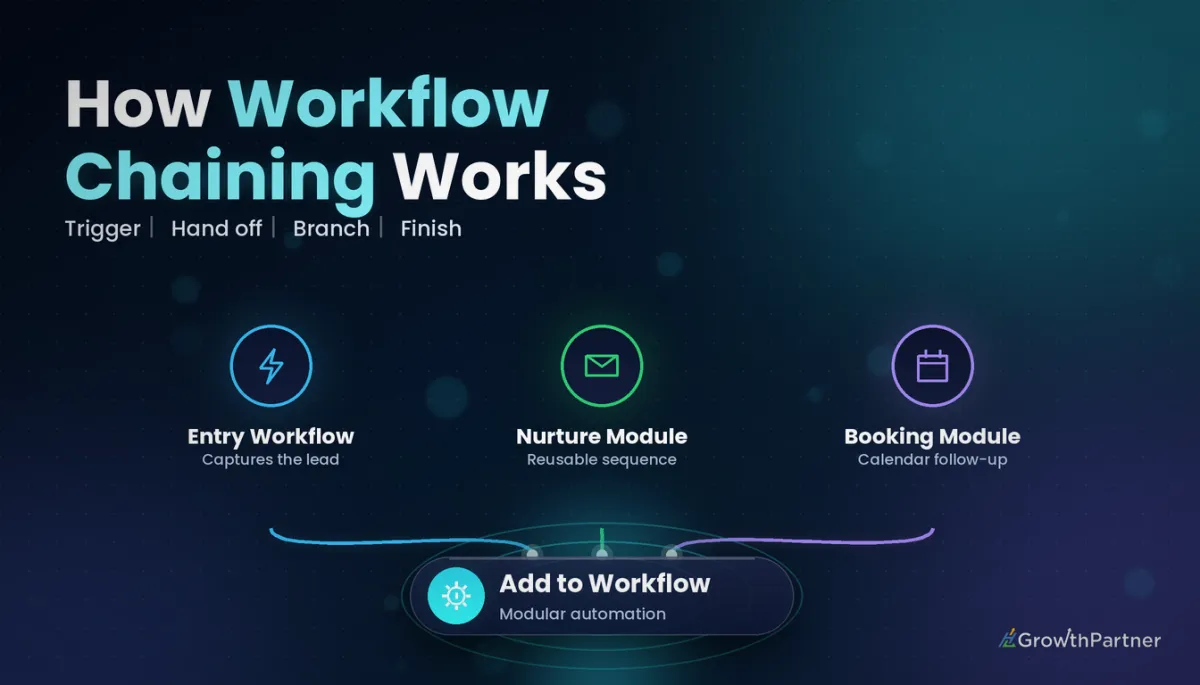
A chained build has one job per workflow. The entry workflow listens for a trigger (a form submission, a tag, a new opportunity), tidies the record, then hands the contact to a module.
Each module does one thing well: nurture a cold lead, chase a booking, run post-appointment follow-up. When a module finishes or its goal is hit, it either hands off to the next module or simply ends.
The two actions that make it work
According to HighLevel's help article on the Add to Workflow action, it automatically enrols a contact from the current workflow into another one you pick. Its optional Pass Input Trigger Parameters setting carries the original trigger event's data across.
The Remove from Workflow action is the off-switch. It offers four choices:
- Current Workflow – end this enrolment right here.
- Another Workflow – pull the contact out of a specific workflow you select.
- All Except Current Workflow – clear every other active enrolment, keep this one running.
- All Workflows – stop everything for this contact.
Where Go To and Goal steps fit
Go To and Goal Event steps move a contact inside one workflow; Add to Workflow moves them between workflows. HighLevel's Go To article notes the action can only sit as the last step of a workflow or branch, so it suits loop-backs and re-routing rather than mid-sequence jumps.
A Goal Event jumps the contact straight to the goal step the moment its condition is met, wherever they are in the sequence. If they reach the goal step without meeting it, you choose End this workflow, Continue Anyway, or Wait until the Goal is met. We cover the patterns in our guide to workflow goals and exit conditions.
When to chain workflows vs keep one workflow
Chaining is not automatically better. Chain when logic is reused or owned by different people; keep one workflow when the journey is short and only ever runs one way.
| Situation | Better choice | Why |
|---|---|---|
| Three lead sources share the same nurture sequence | Chain | Edit the nurture once, every source benefits |
| A five-step lead magnet delivery with no branches | Single workflow | A handoff adds moving parts with no payoff |
| Booking reminders used by sales and support teams | Chain | One booking module, many entry points |
| Canvas has grown past what fits on a screen | Chain | Smaller modules are easier to test and debug |
| Steps rely on Custom Code outputs from earlier steps | Single workflow, or save to custom fields first | Trigger parameters don't carry later outputs |
If you're on the Advanced Builder, also consider Go-To Connections for Triggers. HighLevel documents that each trigger can point to its own starting action on the canvas, which sometimes removes the need for a separate entry workflow altogether.
Example build: entry, nurture, booking and post-booking modules
Here's the structure we use for a typical Australian clinic or coaching business. It's four workflows, each with a single responsibility.
| Workflow | Enters via | Does | Hands off / exits |
|---|---|---|---|
| 00 Entry – Website Enquiry | Form submitted trigger | Sets source tag, writes lead source custom field, creates opportunity | Add to Workflow → Nurture module |
| MOD – Nurture – Cold Lead | Add to Workflow from any entry | Email and SMS sequence with wait steps, goal on booking | Goal met → Add to Workflow → Booking module, then Remove from Current Workflow |
| MOD – Booking – Confirm & Remind | Add to Workflow, or appointment trigger | Confirmation, reminders, no-show branch | Showed → Add to Workflow → Post-booking module |
| MOD – Post-Booking – Review & Upsell | Add to Workflow from Booking | Thank-you, review request, offer, internal task | Ends; Remove from All Except Current if needed |
Building the entry workflow
Keep the entry workflow tiny. Its job is to normalise data, not to talk to the lead.
- Add a tag that records the source, for example
src-website-enquiry. - Update a custom field such as Lead Source or Offer Interested In.
- Create or update the opportunity in the right pipeline stage.
- Add to Workflow → your nurture module, with Pass Input Trigger Parameters on if the module personalises from form data.
Handing off between modules
When the nurture goal is met, add the contact to the Booking module first, then use Remove from Workflow → Current Workflow. Doing it in that order means the contact is never in limbo between the two.
Naming modules so your team can find them
Chaining multiplies the number of workflows in a sub-account. Without a naming convention, the Add to Workflow dropdown becomes a guessing game.
We prefix every workflow by role: 00 Entry for anything with a real trigger, MOD for modules that only receive contacts from other workflows, and UTIL for housekeeping such as tag clean-ups. Pair the prefix with a stage and a plain-English purpose.
Group them in folders by journey, not by date built. Our full system is in the guide to workflow folders and naming conventions, and it carries cleanly into snapshots when you roll the build out to client sub-accounts.
Passing context with tags and custom fields
Pass Input Trigger Parameters only sends the original trigger event's data. HighLevel's help article is explicit that outputs generated later in the workflow, such as a Custom Code response, are not passed.
So treat the contact record as your shared memory. Anything a downstream module needs should be written to a custom field or tag before the handoff.
- Custom fields for values: lead source, chosen service, quoted price, assigned clinician.
- Tags for states:
mod-nurture-active,booked,no-show. - Opportunity stage for pipeline position, so reporting stays honest.
Then inside each module, use If/Else on those fields to personalise. Consistent tag names matter here more than anywhere else; our tag strategy and naming guide covers prefixes that keep state tags separate from interest tags.
Avoiding double enrolment and loops
Chaining's biggest risk is a contact entering the same module twice or bouncing between two modules forever. HighLevel's documented rule helps: with Allow Re-entry on, a contact can re-enter after completing or being removed, but never while still active in that workflow.
There's an important exception. HighLevel notes that workflows with an appointment- or invoice-based trigger allow multiple entries regardless of the Allow Re-entry setting, so a Booking module with its own appointment trigger needs extra guards.
Guards we add to every module
- Leave Allow Re-entry off on modules unless the journey genuinely repeats.
- Check an "active" tag at the top of the module with If/Else; if present, end.
- Never let Module A add to Module B while B can add back to A without a state change in between.
- Use Remove from Workflow → Another Workflow when a contact jumps ahead, so they don't keep receiving old nurture emails.
I couldn't confirm in HighLevel's documentation exactly how Add to Workflow interacts with a destination's re-entry setting in every edge case, so test it in your own account. Our deeper dive on workflow re-entry settings walks through scenarios worth checking.
Testing chained workflows before you publish
Test the chain end to end with a real test contact, not module by module in isolation. Handoff bugs only show up at the seams.
- Create a test contact with your own email and mobile.
- Fire the entry trigger exactly as a lead would, for example by submitting the live form.
- Open each module's Enrollment History and confirm the contact appears with an "added to workflow" event.
- Check the Execution Logs for failed or skipped steps, then confirm fields and tags were written before each handoff.
- Re-run the entry trigger to prove the contact isn't double-enrolled.
HighLevel's help article on Execution Logs and Enrollment History lists event filters including added to workflow, executed, failed, finished and waiting, which makes tracing a contact across modules much quicker. For a full checklist, see our guide to workflow testing and debugging.
Common mistakes to avoid
- Expecting Custom Code outputs to travel with Pass Input Trigger Parameters instead of saving them to custom fields first.
- Removing the contact from the current workflow before adding them to the next one, leaving a gap if a step fails.
- Giving modules vague names like "Follow up v2", so the wrong workflow gets picked from the dropdown.
- Forgetting that appointment- and invoice-triggered workflows accept multiple entries regardless of Allow Re-entry.
- Building two modules that can add each other back with no state change, creating a loop.
- Splitting a short, linear workflow into modules just because chaining feels more advanced.
If you want a modular workflow architecture mapped and built for your sub-account or snapshot, book a strategy call with the HL Growth Partner team.
Frequently asked questions
What is GoHighLevel workflow chaining?
GoHighLevel workflow chaining is building small, single-purpose workflows and moving contacts between them with the Add to Workflow action. An entry workflow handles the trigger and data, then hands the contact to reusable modules such as nurture or booking. It makes large automations easier to edit, test and reuse.
What does the HighLevel Add to Workflow action do?
It enrols the contact from the current workflow into another workflow you select. HighLevel describes it as a way to move contacts between stages of a customer journey. An optional Pass Input Trigger Parameters setting carries the original trigger's data into the receiving workflow.
Does Pass Input Trigger Parameters send Custom Code results?
No. HighLevel's help article says it passes only the original trigger event data, not outputs generated later in the workflow such as data returned by a Custom Code API call. Save anything the next module needs to a custom field before the handoff.
What options does Remove from Workflow have?
Remove from Workflow offers four options: Current Workflow, Another Workflow, All Except Current Workflow and All Workflows. Use Current Workflow after a handoff, and Another Workflow when a contact skips ahead and should stop receiving an older sequence.
Can a contact be in the same workflow twice at once?
Under HighLevel's documented re-entry rules, a contact can re-enter a workflow only after completing it or being removed, and only when Allow Re-entry is on. The exception is workflows with appointment- or invoice-based triggers, which allow multiple entries regardless of the setting. Always test your own chain to confirm behaviour.
Should I use Go To or Add to Workflow?
Use Go To to move a contact to another action inside the same workflow, for example looping back after a condition fails. HighLevel notes Go To can only be the last step of a workflow or branch. Use Add to Workflow when you want to hand the contact to a separate, reusable workflow.
How do I test a chained workflow?
Run a real test contact through the live entry trigger, then check each module's Enrollment History and Execution Logs. Confirm tags and custom fields were written before each handoff. Finally, re-fire the trigger to make sure the contact isn't enrolled twice.
Related Articles on HL Growth Partner
Workflow logic
- GoHighLevel If/Else Conditions Guide
- Wait Steps and Goal Events Setup
- Workflow Trigger Filters Explained
