GoHighLevel Workflow If/Else: Branching Logic (2026)
By Dr Priya Jaganathan, GoHighLevel Certified Admin · HL Growth Partner, Australia · Updated 9 October 2026 · 10 min read
The GoHighLevel workflow If/Else action is where an automation stops treating every contact the same and starts making decisions. Used well, one workflow can qualify a lead, route it to the right service team and keep existing customers out of your cold nurture sequence.
Used badly, it becomes a tangle of nested branches nobody on your team dares to touch. This guide walks through how the HighLevel If/Else condition actually works, how to structure branches so they behave predictably, and the routing recipes we build most often for Australian service businesses and agencies.
Quick Facts
| What it does | Routes contacts down different workflow paths based on conditions you define (HighLevel Help Centre, 2026) |
| Number of branches | As many as your logic needs, each leading to its own path (HighLevel Help Centre, 2026) |
| The "None" branch | Created automatically for contacts that match no branch; it takes no conditions and can only be renamed (HighLevel Help Centre, 2026) |
| AND / OR logic | AND means every condition must be true; OR means any one condition is enough (HighLevel Help Centre, 2026) |
| Dynamic values | Conditions can compare against dynamic custom values from earlier steps or stored fields (HighLevel Help Centre, 2026) |
How the GoHighLevel workflow If/Else action really works
You add If/Else like any other step: click the plus icon in the workflow builder and choose If / Else from the action list. From there you either build the logic yourself or start from one of the suggested condition setups HighLevel offers.
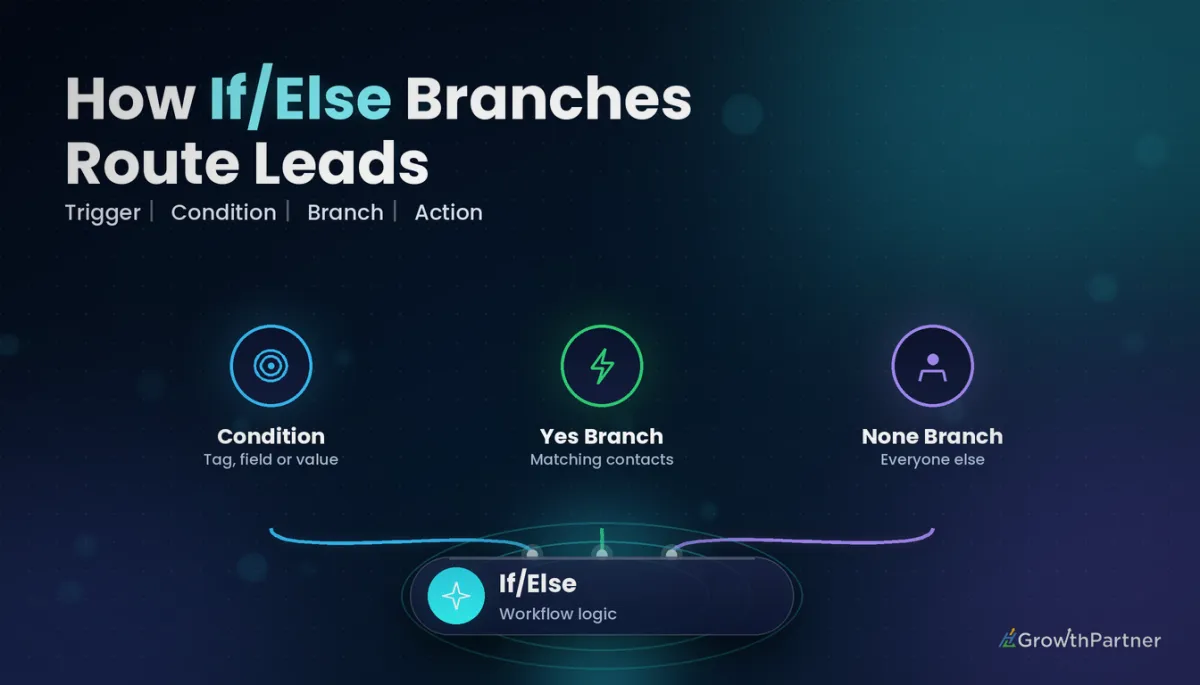
Each If/Else step contains one or more named branches. A branch holds a set of conditions, and a contact who satisfies them continues down that branch's path. Every path below the split is independent, so you can add emails, tasks, waits or other actions to each one.
According to the official HighLevel help article on the If/Else workflow action, the action is no longer a simple yes/no switch. You can add multiple branches, duplicate them, rename them and reorder them, with a fallback branch catching everyone else.
Branches, segments and conditions
Inside a branch, conditions are grouped into segments. The logic is simple once you see it laid out:
- Condition – one test, such as "Contact Tag includes hot-lead" or "Postcode starts with 2".
- AND – every condition joined this way must be true for the contact to qualify.
- OR – any one of the joined conditions is enough.
- Segment – a group of conditions you can add to a branch to build more complex rules.
Mixing AND and OR in the same branch is where most builders trip up. If a rule reads awkwardly when you say it out loud, split it into two branches instead of one clever segment.
The "None" branch is your safety net
HighLevel creates the None branch automatically. It has no conditions, cannot be reordered, and simply catches every contact that did not match one of your defined branches.
Never leave it empty by default. At minimum, add an internal notification or a tag such as routing-unmatched so you can see who is falling through. An empty None branch is where leads quietly disappear.
What a HighLevel If/Else condition can check
The power of conditional branching in GHL workflows comes from the range of data you can test. The exact field list depends on your trigger and account setup, but the categories below are the ones we use daily.
| Data category | Example condition | Typical use |
|---|---|---|
| Tags | Tag includes "existing-customer" | Separate customers from new leads |
| Standard contact fields | State is "QLD"; email is empty | Regional routing, data-quality checks |
| Custom fields | "Service Type" equals "Solar" | Service-specific follow-up |
| Opportunity data | Pipeline stage or lead value | Prioritise high-value deals |
| Appointment data | Appointment status is "No-show" | Rebook versus thank-you paths |
| Date and time | Current day of week is Saturday | Weekend versus weekday messaging |
Tags are the easiest condition to read at a glance, which is why a clean naming convention matters. If your account has "Hot Lead", "hot_lead" and "HOT-LEAD" all in play, your branches will miss contacts. Our guide to building a GoHighLevel tag strategy and naming convention covers how to fix that before you branch on tags.
Custom fields are better for anything with more than two possible values, such as service type, budget band or region. Where a value is not reliably populated, stamp it first using an Update Contact Field action earlier in the workflow, then branch on it.
Ordering If/Else branches so they behave predictably
Because you can drag branches into a different order, it is tempting to assume HighLevel always picks the first matching branch. HighLevel's help documentation does not spell out how overlapping branches are resolved, so do not build logic that depends on it.
Instead, make your branches mutually exclusive. Every contact should be able to match one branch, and only one.
- If "VIP" and "Existing customer" can both be true, add "Tag does not include VIP" to the existing-customer branch.
- Put your most specific branches at the top anyway, so the builder reads top-down like a decision list.
- Test a contact that matches two branches on purpose, then check the execution log to see what happened.
Conditional branching in GHL workflows: nesting vs Go To
Once a workflow grows past a few decisions, you face a structural choice. You can nest another If/Else inside a branch, or you can send contacts to a shared point in the workflow with the Go To action.
| Approach | Best for | Watch out for |
|---|---|---|
| Single If/Else with several branches | One decision with many outcomes (service type, region) | Overlapping conditions between branches |
| Nested If/Else | A genuine second question that only applies to one path | Deep trees that are hard to read and duplicate actions |
| Go To action | Rejoining branches to shared steps, or looping back after a wait | Infinite loops if there is no exit condition |
| Add to Workflow (chaining) | Hand-offs to a separate, reusable workflow | Re-entry settings and duplicate enrolments |
Our rule of thumb: no more than two levels of nesting. If you need a third, the branch probably deserves its own workflow. When branches end up repeating the same five actions, merge them back together with the GoHighLevel Go To action rather than copying steps.
Practical If/Else recipes for service businesses
These are the branching patterns we deploy most often across client sub-accounts. Each one is a starting point you can adapt.
Recipe 1: Lead qualification routing
Trigger on a form submission that asks for budget and timeframe. Then branch:
- Qualified – budget field meets your minimum AND timeframe is "within 30 days". Create an opportunity in the "Hot" stage, notify the sales rep and send a booking link.
- Nurture – budget is below your minimum OR timeframe is "just researching". Add a nurture tag and enrol in a longer email sequence.
- None – missing data. Create a task for a human to call and qualify manually.
Recipe 2: Service-type routing
For multi-service businesses, such as an electrician who also installs solar and air conditioning, store the enquiry type in a dropdown custom field. One If/Else with a branch per service sends each contact the right confirmation SMS, assigns the right team member and moves the opportunity into the right pipeline.
If routing also depends on location, combine service type with postcode or region. For larger teams, see how we handle territory routing and lead assignment in GoHighLevel without building one branch per suburb.
Recipe 3: Existing customer vs new lead
Nothing annoys a loyal client more than receiving a "Welcome! Here's what we do" email. Put an If/Else near the top of any inbound workflow that checks for a customer tag or a won opportunity.
- Existing customer – route to account management, skip the intro sequence and offer a priority booking.
- New lead – continue into the standard speed-to-lead follow-up.
Testing your If/Else branches before going live
Every branch needs its own test contact. Create a handful of internal contacts, each set up to match exactly one branch, plus one designed to match nothing and land in None.
Run each through the workflow and review the execution history to confirm the path taken. For a full testing routine, including how to read the logs when a contact takes the wrong branch, follow our GoHighLevel workflow testing and debugging checklist.
Remember that conditions are checked when the contact reaches the If/Else step, not when they enter the workflow. If a field is updated by a wait-delayed step or an external integration, place the branch after that data arrives.
Keeping branching workflows readable
A workflow is only as good as the next person's ability to maintain it. A few habits keep branching logic tidy across sub-accounts:
- Rename every branch in plain English, for example "Solar – QLD" rather than "Branch 2".
- Rename the None branch to describe what it catches, such as "Unmatched – manual review".
- Use the same branch names across snapshots so your team recognises the pattern in every sub-account.
- Keep one decision per If/Else step; do not hide two questions in one segment.
- Add an internal note or a dedicated tag at the start of each branch so contact records show which path was taken.
Common mistakes to avoid
- Leaving the None branch empty, so unmatched contacts silently stop with no follow-up.
- Overlapping branch conditions that let one contact qualify for two paths.
- Branching on data that does not exist yet, such as a field populated by a later step or a slow integration.
- Inconsistent tag spelling, which makes tag-based conditions miss contacts.
- Nesting three or four levels deep instead of using Go To or a separate workflow.
- Skipping branch-by-branch testing and only discovering a broken path when a client complains.
If you want HL Growth Partner to map and build branching workflows for your sub-accounts, book a strategy call with the HL Growth Partner team.
Frequently asked questions
What does the If/Else action do in a GoHighLevel workflow?
The If/Else action checks a contact against conditions you define and sends them down a matching branch. Each branch has its own path of actions, so one workflow can treat different contacts differently. Contacts that match no branch go to the automatic None branch.
How many branches can a HighLevel If/Else condition have?
HighLevel's help documentation says you can create as many branches as you need to cover your logic. In practice, keep it to the number of outcomes you can test and explain easily. If you need dozens, consider restructuring with custom fields or separate workflows.
What is the None branch in GHL If/Else?
The None branch is created automatically and catches every contact that does not meet the conditions of any other branch. It has no conditions of its own and can be renamed but not reordered. Always add at least a notification or tag to it so unmatched contacts are visible.
What is the difference between AND and OR in If/Else conditions?
AND means every joined condition must be true for the contact to match the branch. OR means any one of the joined conditions is enough. If a rule mixing both is hard to explain aloud, split it into separate branches.
Does branch order matter in a GoHighLevel If/Else?
You can reorder branches, but HighLevel's documentation does not clearly define what happens when a contact matches more than one. The safest approach is to write mutually exclusive conditions so each contact can only match one branch. Then test a deliberately overlapping contact to confirm behaviour in your account.
Should I nest If/Else actions or use Go To?
Nest an If/Else only when a second question applies to just one path, and keep nesting to about two levels. Use the Go To action when several branches need to rejoin shared steps. For large, reusable logic, move it into its own workflow and chain to it.
Can If/Else check custom fields and opportunity data?
Yes, If/Else conditions can test custom fields, standard contact fields, tags and related records such as opportunities and appointments. The exact fields available can depend on the workflow trigger. Make sure the data is populated before the contact reaches the branch.
How do I test If/Else branches safely?
Create internal test contacts that each match exactly one branch, plus one that matches nothing. Run them through the workflow and check the execution history to confirm the path each one took. Fix any overlap or gap before switching the workflow to live traffic.
Related Articles on HL Growth Partner
Branching and workflow flow
- Split action for A/B testing in GoHighLevel workflows
- Chaining workflows with Add to Workflow
- Workflow goals and exit conditions explained
