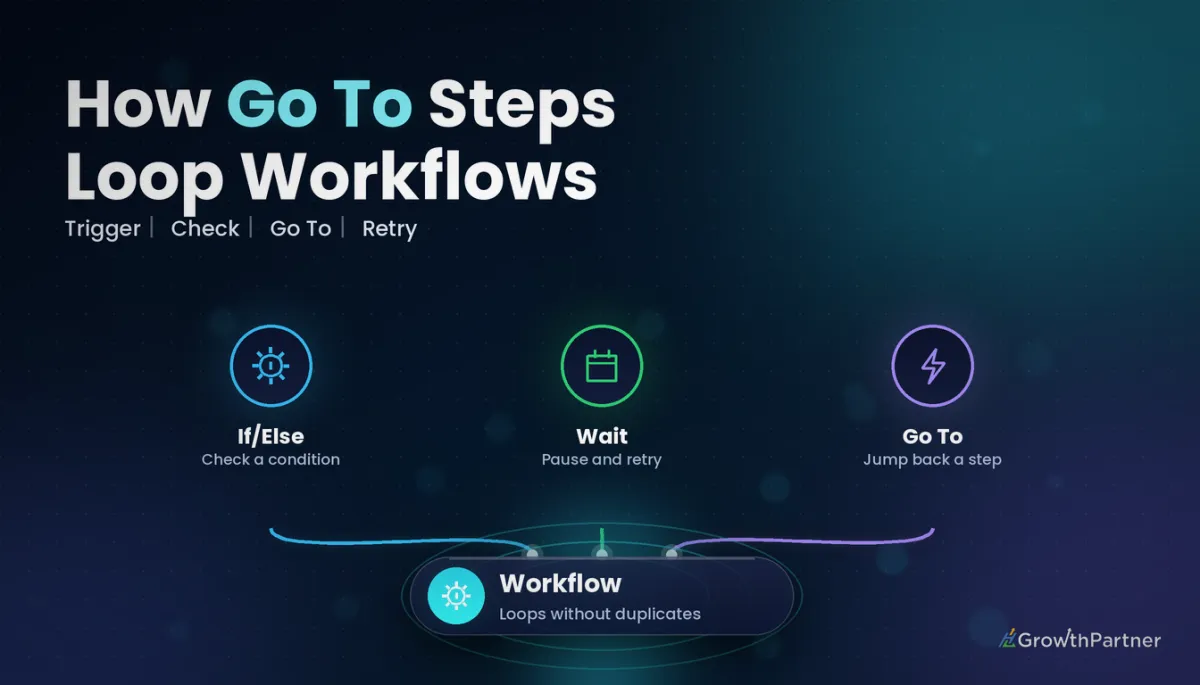
GoHighLevel Workflow Go To Action: Loops & Jumps (2026)
By Dr Priya Jaganathan, GoHighLevel Certified Admin · HL Growth Partner, Australia · Updated 5 October 2026 · 9 min read
The GoHighLevel workflow Go To action is the small step that turns a straight-line automation into one that can loop, retry and merge branches. Used well, it removes duplicated actions and keeps your builder tidy. Used carelessly, it sends the same SMS to a lead every day until they block you.
In this guide I walk through how the HighLevel Go To step actually behaves, the four patterns I use most in client accounts, and the guard rails that stop a loop from running away. Everything here is built for agency owners and operators who manage workflows across multiple sub-accounts.
Quick Facts
| What it does | Sends a contact to another action in the same workflow |
| Where it can sit | Only as the last step of a workflow or of a branch |
| What it can target | A previously created standard action (Send SMS, Wait, Email and so on) or a branch of a previous If/Else step |
| Direction | Only actions and branches above it appear in the dropdown |
| Typical uses | Routing contacts into another branch, or sending them back a few actions when a condition isn't met yet |
What the GoHighLevel workflow Go To action really does
Go To is a routing step, not a messaging step. When a contact reaches it, HighLevel moves that contact to the action you picked and they carry on from there as if they had arrived naturally.
According to HighLevel's official Go To help article, you can point it at any standard action you have already created, such as Send SMS, Wait or Email, or at a branch of an earlier If/Else step. That second option is the one most people miss.
Two rules shape everything you build with it:
- It must be the final step. Go To can only be added at the end of a workflow or at the end of a branch. You cannot drop it between two actions.
- It only looks upwards. The dropdown lists actions and branches that sit above it, so in practice you are jumping back or sideways into an earlier branch.
- It does not create anything new. It reuses actions that already exist, which is exactly why it is so useful for avoiding copy-paste builds.
When the HighLevel Go To step beats rebuilding a branch
Most messy workflows I audit have the same smell: identical Email, Wait and SMS blocks repeated in three different branches. Each copy has to be edited separately, and sooner or later one of them drifts out of date.
Go To lets one sequence serve several branches. You build the follow-up once, then end every other branch with a jump into it. Change the copy in one place and every path picks it up.
I reach for it in three situations:
- A condition has not been met yet and I want the contact to wait and check again.
- Two or more If/Else condition branches need to rejoin a shared sequence.
- A "chase" sequence should repeat a limited number of times before handing off to a human.
Pattern 1: the retry loop with Go To
The retry loop is the classic use. The contact waits, the workflow checks whether something has happened, and if it hasn't, Go To sends them back to the Wait.
A typical build for "has the onboarding form been submitted?" looks like this:
- Wait for 1 day.
- If/Else: does the contact have the tag onboarding-form-complete?
- Yes branch: continue to the welcome sequence.
- No branch: send a reminder, then Go To the Wait step.
On its own, this loop never ends for someone who never submits. That is why every retry loop I build includes a counter or a goal, which I cover below.
Pay attention to the Wait itself, too. If the reminder is an SMS, set the Wait to respect business hours so a loop that fires overnight doesn't land at 2am. My guide to wait steps and business hours covers the settings in detail.
Pattern 2: chase until booked, with a counter
"Chase until booked" is the follow-up sequence agency clients ask for most often. The lead gets a nudge every few days until they book, but only up to a fixed number of attempts.
The counter lives in a custom field. Create a number field such as Booking Chase Count, set to 0 when the contact enters. If you haven't set up number fields before, my custom fields setup guide walks through the field types.
The loop then runs like this:
- Send SMS or Email with the booking link.
- Increase the counter by 1, using a Math Operation or number formatter step, or an Update Contact Field action that writes the new value.
- Wait 2 to 3 days, respecting business hours.
- If/Else: is Booking Chase Count less than your limit (for example 4)?
- Yes branch: Go To the Send step.
- No branch: create a task for a team member, add a tag such as chase-exhausted, and end.
Rotate the message on each pass if you can. A branch on the counter value (1, 2, 3) that leads to different copy, then rejoins via Go To, reads far more naturally than the same text four times.
Pattern 3: merging branches back together
Not every Go To is a loop. Often I use it simply to merge. Say an If/Else splits leads by source: Facebook leads get one opening SMS, website leads get another. After that first touch, both should follow the same nurture.
Build the nurture under one branch only. End the other branch with Go To pointing at the first nurture step. The result is one sequence to maintain instead of two.
Because Go To can target a branch of a previous If/Else, you can also send a contact sideways into a whole branch path. That is handy when a later check reveals they really belong on the other route, for example a lead who replies "price?" and should move into the sales branch.
Go To vs Add to Workflow vs goals: which tool for which job
Go To overlaps with two other features, and choosing the wrong one makes workflows harder to read. Here is how I decide.
| Feature | What it moves the contact to | Best for | Watch out for |
|---|---|---|---|
| Go To action | An earlier action or If/Else branch in the same workflow | Retry loops, merging branches, repeating a sequence | Must be the last step; needs an exit condition to avoid endless loops |
| Add to Workflow | A different workflow | Handing off to a separate process (onboarding, nurture, review requests) | Re-entry settings on the receiving workflow decide whether the contact gets in |
| Goal event | A goal step further down the workflow, skipping everything in between | Pulling contacts out of a chase as soon as they book, pay or reply | Goal criteria must be specific or contacts jump early |
My rule of thumb: if the contact stays in the same process, use Go To. If they are starting a genuinely different process, use workflow chaining with Add to Workflow. And if something happening outside the loop should end it, add a goal.
Goals and Go To work best together. A goal event such as "Appointment booked" placed after the loop means a contact who books mid-chase is pulled straight out, even while they are sitting in a Wait. The counter then only matters for people who never book. I explain the setup in my guide to goals and exit conditions.
Testing a Go To loop before it touches real leads
Loops are the one place where a small mistake multiplies. I never publish a workflow with a Go To without running a test contact through it first.
My testing routine:
- Temporarily shorten every Wait to a few minutes on a draft copy so you can watch several passes.
- Use an internal test contact with your own phone and email, never a real lead.
- Check the contact's execution history to confirm the counter goes up on each pass and the loop exits at the limit.
- Trigger the goal event mid-loop (book a test appointment) and confirm the contact jumps out.
- Restore the real Wait durations before you publish.
Also think about re-entry. If the workflow allows re-entry and the trigger fires again while a contact is mid-loop, you can end up with the same person running two loops in parallel. For chase sequences I usually leave re-entry off.
Common mistakes to avoid
- No exit condition. Always build an exit, either a counter in a custom field or a goal, so contacts can't loop forever.
- A loop with no Wait inside it. If nothing pauses the loop, it can cycle rapidly and fire actions far more often than you meant. Every loop needs a Wait.
- Looping SMS too often. A daily text for two weeks feels like spam to the lead and can damage your sending reputation. Space touches out and cap the attempts.
- Ignoring business hours. Waits that don't respect business hours let loop messages land at night or on weekends.
- Re-entry left on for chase loops. A second trigger can start a parallel loop for the same contact, doubling every message.
- Pointing Go To at the wrong step. Jumping to the If/Else instead of the Wait skips the delay entirely. Check the target name in the dropdown before saving.
If you want a second pair of eyes on your loops, follow-up chases and branch logic before they go live, book a strategy call with the HL Growth Partner team.
Frequently asked questions
What is the Go To action in GoHighLevel workflows?
Go To is a workflow action that sends a contact to another action in the same workflow. You can use it to route a contact into another branch, or to send them back a few actions when a condition hasn't been met yet. It reuses existing actions rather than creating new ones.
Can I put a Go To step in the middle of a workflow?
No. HighLevel only allows Go To as the last step of a workflow or of a branch. If you need the contact to continue after the jump, place the follow-on actions at the destination instead.
Which actions can a Go To step jump to?
It can target any previously created standard action, such as Send SMS, Wait or Email, or a branch of a previous If/Else step. Only actions and branches that sit above the Go To appear in the dropdown.
How do I stop a Go To loop from running forever?
Build an exit into every loop. The simplest options are a number custom field that counts each pass and an If/Else that ends the loop at a set limit, or a goal event that pulls the contact out when they book, pay or reply. Using both is safest.
Should I use Go To or Add to Workflow?
Use Go To when the contact stays in the same process and you want to repeat or merge steps. Use Add to Workflow when the contact is starting a different process, such as onboarding or a review request, that lives in its own workflow.
Does a goal event work while a contact is inside a Go To loop?
Yes, that is one of the best ways to end a loop. Place the goal after the loop, and a contact who meets the goal criteria mid-chase moves straight to it instead of waiting for the counter to run out.
How should I test a workflow that uses Go To?
Run an internal test contact through a draft copy with very short Waits so you can watch several passes. Check the execution history to confirm the counter increases, the loop exits at the limit and the goal pulls the contact out early, then restore the real Wait times before publishing.
Related Articles on HL Growth Partner
Build and maintain workflows
- GoHighLevel Workflow Re-Entry Settings Explained
- Using Formatter Actions in GoHighLevel Workflows
- Workflow Version History and Rollback
