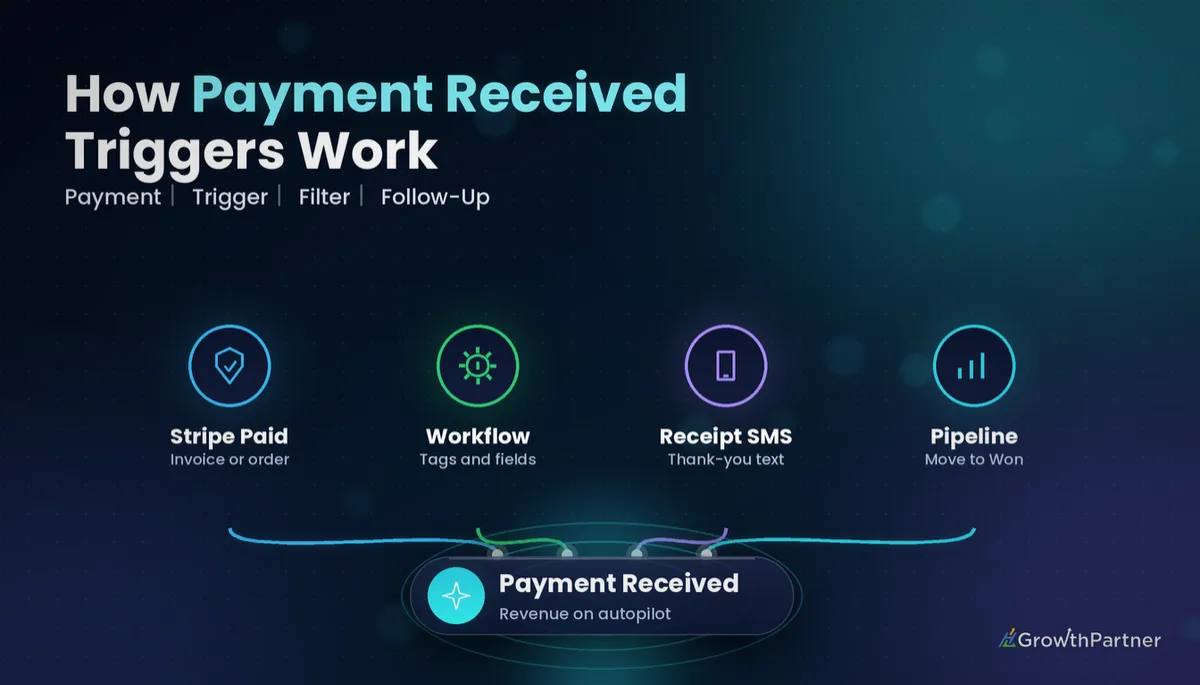
GoHighLevel Payment Received Trigger: Setup Guide (2026)
By Dr Priya Jaganathan, GoHighLevel Certified Admin · HL Growth Partner, Australia · Updated 15 October 2026 · 10 min read
The GoHighLevel Payment Received trigger starts a workflow the moment money actually lands in your account, not when someone fills in a form or opens a checkout page. That makes it the most reliable place to hang your thank-you messages, access delivery, pipeline updates and team alerts.
In this guide I'll walk through what the trigger fires on, the filters HighLevel documents, a clean step-by-step setup, four recipes we use with clients, and how it differs from the Order Submitted, Invoice and Subscription triggers. It's part of our workflow-trigger series, so if you've already set up the Form Submitted trigger, the builder will feel familiar.
Quick Facts
| Trigger name | Payment Received (Automation → Workflows → Add New Trigger) |
| Fires when | A payment is recorded through your HighLevel account |
| Documented sources | Calendar, External, Form, Funnel, Invoice, Manual Payment, Memberships, Website |
| Documented filters | Source, Global Product, Payment Status |
| Contact required? | Yes – the workflow runs on the paying contact’s record |
| Sister triggers | Order Submitted, Invoice, Subscription, Refund |
What the GoHighLevel Payment Received trigger actually fires on
HighLevel's help documentation describes Payment Received as a trigger that starts a workflow when a payment is made through your HighLevel account. The important word is "through" – the payment has to be recorded by HighLevel's payments layer, usually via your connected Stripe or another integrated processor.
According to the official Payment Received trigger article, that covers payments from funnels, invoices, calendars, memberships, forms and even manual entries. In practice, one trigger can catch almost every way a client pays you.
The payment sources HighLevel lists
The Source filter in the trigger lists the following options, per HighLevel's help centre (checked October 2026):
- Calendar – paid appointment bookings.
- External – payments arriving via Stripe, PayPal or the API.
- Form – forms with a payment element.
- Funnel – order forms, upsells and downsells on funnel steps.
- Invoice – one-off and recurring invoices, which is also where Text 2 Pay requests are paid.
- Manual Payment – payments you record by hand against an invoice or contact.
- Memberships – paid offers in the membership area.
- Website – storefront products and subscriptions.
Subscriptions are worth a special note. A recurring charge on a subscription is still a payment, so Payment Received can catch renewals too. If you only care about the subscription lifecycle itself (created, trial-to-active, cancelled), there's a separate trigger for that, which I cover in the comparison section below.
HighLevel payment received workflow filters you can rely on
Without filters, the trigger fires on every successful payment in the sub-account. That's fine for a single-offer business, but most of our clients sell several products, and you don't want a $49 workshop buyer getting the onboarding sequence for a $5,000 coaching program.
HighLevel's documentation names three filters on this trigger. If you're new to stacking them, our guide to workflow trigger filters explains how AND/OR logic behaves across filter rows.
| Filter | What it does | Typical use |
|---|---|---|
| Source | Limits the trigger to one or more payment sources (Funnel, Invoice, Calendar and so on) | Run a different thank-you flow for invoice payers vs funnel buyers |
| Global Product | Limits the trigger to a specific product from your Products library | Grant course access only for the product that includes it |
| Payment Status | Limits the trigger to a payment status, such as Success | Make sure fulfilment only runs on completed payments |
Notice what's not in that list: there's no documented "amount" filter on the trigger itself. If you need to branch by amount, do it inside the workflow with an If/Else condition rather than hunting for a trigger field that may not exist in your account.
HighLevel's interface also changes regularly, and some third-party guides describe the trigger differently (for example, splitting by Order, Invoice and Subscription objects).
How to set up the Payment Received trigger, step by step
This takes about ten minutes once your products and payment processor are connected. Before you start, confirm Stripe (or your processor) is live in Payments → Integrations, otherwise there's nothing for the trigger to listen to.
Step 1: Create the workflow
Go to Automation → Workflows → Create Workflow → Start from Scratch. Name it clearly, for example "PAY – Coaching Program – Paid in Full", so your team can find it in six months.
Step 2: Add the trigger
Click Add New Trigger, search "Payment Received" and select it. Rename the trigger to describe the filter you're about to apply.
Step 3: Add your filters
Click Add filters. Set Source to where this offer is sold, Global Product to the specific product, and Payment Status to Success. Save the trigger.
Step 4: Decide on re-entry
A client who buys twice, or pays monthly, will hit this trigger more than once. Check your workflow re-entry settings so repeat buyers get what they should – and only once where it matters.
Step 5: Build the actions, then publish
Add your actions (recipes below), switch the workflow from Draft to Publish, and save. A draft workflow will never fire, which is the single most common "my trigger is broken" support ticket we see.
Four Payment Received workflow recipes that pay for themselves
These are the patterns we deploy most often for Australian service businesses and coaches. Each one uses only standard workflow actions, so you can build them on any plan with workflows.
Recipe 1: Thank-you SMS and email with receipt details
- Trigger: Payment Received, Payment Status = Success, Global Product = your offer.
- Action: Send SMS – a short, personal thank-you from your business name.
- Action: Send Email – what happens next, who to contact and how to access what they bought.
HighLevel's payment receipts are configured separately in your payment settings, so keep this message human and practical rather than duplicating the receipt.
Recipe 2: Tag and grant course or membership access
- Action: Add Tag – for example "customer-coaching-2026".
- Action: Grant access to the relevant course or offer in Memberships.
- Action: Send the login email or confirm access in your welcome message.
Tags are your audit trail. When a client says "I paid but can't log in", the tag tells you within seconds whether the workflow ran.
Recipe 3: Move the opportunity to Won and update its value
If you track deals in a pipeline, payment is the cleanest signal that a deal has closed. Use the Create/Update Opportunity action to move the contact's opportunity to your Won stage, set the status to Won and update the lead value.
This keeps your pipeline reporting honest, because deals are marked Won by the payment itself rather than by a salesperson remembering to drag a card.
Recipe 4: Internal notification plus a delayed review request
- Action: Internal Notification – SMS or email to the account owner or delivery lead with the contact name and product.
- Action: Wait – long enough for the client to experience the result (often 7–14 days for services).
- Action: Send Review Request, or a personal SMS asking for a Google review.
The delay matters. Asking for a review the minute someone pays feels transactional; asking after they've had a win gets far better responses.
Testing your HighLevel payment received workflow before going live
Never assume a payment workflow works because it saved without errors. Run a real test end to end.
- Use Stripe test mode (or a low-priced test product) and pay with a test contact you own.
- Open the workflow's Execution Logs and confirm the contact entered and every step ran.
- Check the contact record for the tag, the opportunity stage and any membership access.
- Pay a second time with the same contact to confirm your re-entry behaviour is what you expect.
- Switch any test products or test mode off before announcing the offer.
If the workflow doesn't fire, check three things in order: the workflow is Published, the payment shows as successful in Payments → Transactions, and your Source and Global Product filters actually match how the payment came in.
Payment Received vs Order Submitted, Invoice and Subscription triggers
HighLevel has several payment-related triggers, and choosing the wrong one is how businesses end up with duplicate welcome emails. HighLevel's own Subscription and Refund trigger article describes those two as additions alongside Payment Received, Order Submitted and Invoice.
| Trigger | Fires when | Best for |
|---|---|---|
| Payment Received | A payment is recorded from any supported source | Fulfilment, access, pipeline Won, thank-yous across all channels |
| Order Submitted | A customer completes a purchase on an order form, including one-time and recurring orders | Funnel-specific flows, order bumps and upsell logic |
| Invoice | An invoice changes status (for example sent or paid) | Invoice lifecycle, reminders and overdue chasing |
| Subscription | A subscription is created, moves from trial to active, or is cancelled | Onboarding at signup, offboarding and win-back on cancellation |
| Refund | A payment is refunded through HighLevel and your connected integration | Revoking access, removing tags, alerting the team |
My rule of thumb: use Payment Received as your default "they paid" trigger, and only reach for Order Submitted or Invoice when you need something specific to that object. If you're unsure how invoices, subscriptions and Stripe fit together, our overview of HighLevel payments, invoices and subscriptions lays out the whole system.
What about events that happen only in Stripe?
If a charge is created directly in your Stripe dashboard, outside HighLevel, don't assume the trigger will see it the same way as a native HighLevel payment. The Refund trigger documentation, for example, notes that refunds need to go through HighLevel to fire. Keep payments inside HighLevel wherever possible so your automations have one source of truth.
Common mistakes to avoid
- Leaving the workflow in Draft – it saves happily and never fires.
- No product filter – every buyer of every product gets the same onboarding.
- Running Payment Received and Order Submitted for the same offer – clients receive two welcome emails.
- Ignoring renewals – monthly subscribers re-enter the workflow every billing cycle unless you plan for it.
- Taking payments outside HighLevel – manual Stripe charges can skip your automation entirely.
- Skipping a live test – the first real customer becomes your tester.
If you want your payment, fulfilment and pipeline automations built and tested properly the first time, book a strategy call with the HL Growth Partner team.
Frequently asked questions
What does the GoHighLevel Payment Received trigger do?
It starts a workflow when a payment is recorded through your HighLevel account. HighLevel lists sources including funnels, invoices, calendars, memberships, forms, website storefronts, external payments and manual entries. The workflow then runs on the paying contact's record.
Which filters are available on the Payment Received trigger?
HighLevel's help documentation lists Source, Global Product and Payment Status as the filter fields. Source narrows the trigger to where the payment came from, Global Product to a specific product, and Payment Status to outcomes such as Success. Check your own trigger panel, as options can change with platform updates.
Can I filter the Payment Received trigger by amount?
An amount filter isn't documented on the trigger itself. The reliable approach is to trigger on the product or source, then use an If/Else condition inside the workflow to branch by value. That keeps the logic visible and easy to edit.
Does the Payment Received trigger fire on subscription renewals?
A recurring subscription charge is still a payment, so it can trigger the workflow each billing cycle. Review your re-entry settings so renewals don't repeat one-off steps like welcome emails. Use the Subscription trigger if you only want to react to signups, trial conversions or cancellations.
Should I use Payment Received or Order Submitted?
Use Payment Received as your general "they paid" trigger because it covers many sources in one place. Use Order Submitted when you need logic specific to funnel order forms, such as order bumps or upsells. Avoid using both for the same offer, or clients may receive duplicate messages.
Does Text 2 Pay work with the Payment Received trigger?
Text 2 Pay requests are paid against an invoice, so the payment comes through under the Invoice source. Filter by Source = Invoice and the relevant product if you want a dedicated follow-up for Text 2 Pay payers. Test with a small amount first to confirm the behaviour in your account.
Why didn't my Payment Received workflow fire?
The usual causes are a workflow still in Draft, a payment that didn't complete successfully, or filters that don't match how the payment came in. Check Payments → Transactions to confirm the payment, then review the workflow's Execution Logs. Payments taken directly in Stripe outside HighLevel may also not behave like native payments.
Related Articles on HL Growth Partner
More workflow triggers
- GoHighLevel Appointment Status trigger guide
- Pipeline Stage Changed trigger setup
- Customer Replied trigger explained
