GoHighLevel Appointment Status Trigger (2026)
By Dr Priya Jaganathan, GoHighLevel Certified Admin · HL Growth Partner, Australia · Updated 13 October 2026 · 9 min read
Some links below are affiliate links — if you sign up through them, HL Growth Partner may earn a commission at no extra cost to you. It never changes what we recommend.
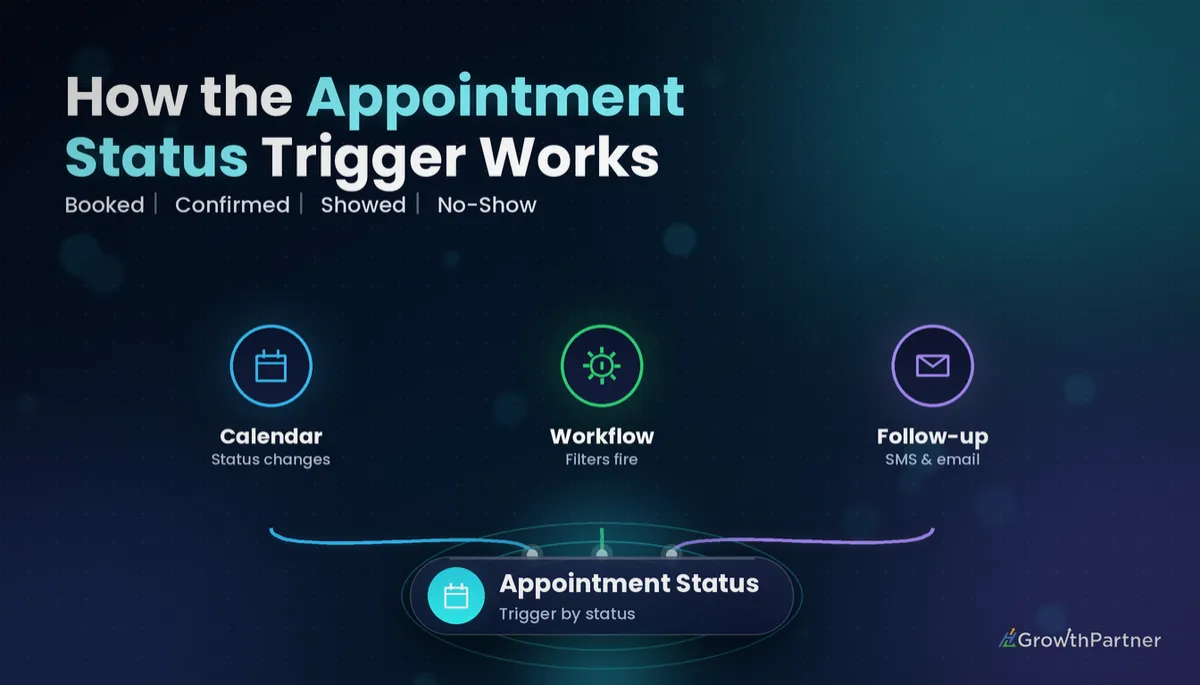
The GoHighLevel appointment status trigger is the workflow trigger that reacts to what actually happens to a booking: whether it gets confirmed, attended, missed or cancelled. If your calendar automations stop at "thanks for booking", this is the trigger that carries them through to the outcome.
In this guide I'll walk through what the trigger does, the statuses it listens for, the filters worth setting, four practical recipes I build for clients, and how it differs from the Customer Booked Appointment trigger. We'll finish with re-entry, testing and the mistakes I see most often in Australian sub-accounts.
Quick Facts
| Trigger name | Appointment Status (found under Automation → Workflows → Add New Trigger) |
| What fires it | An appointment being scheduled or its status changing |
| Statuses listed in HighLevel's help docs | New, Confirmed, Cancelled, Showed, No-show, Invalid |
| Who can be enrolled | The primary contact, appointment guests, or both (added in 2026) |
| Companion action | Update Appointment Status, which sets the same statuses from inside a workflow |
| Related trigger | Customer Booked Appointment, which only reacts to new bookings |
What the GoHighLevel appointment status trigger actually does
HighLevel's own help article describes the trigger as starting a workflow when an appointment is scheduled or when its status changes. That second part is what makes it so useful.
A booking isn't a single event. It's a small lifecycle: someone books, they confirm (or don't), they turn up (or don't), and sometimes they cancel. Each status change is a moment you can automate around.
You'll find the official walkthrough in the HighLevel help article on the Appointment Status trigger, which was last updated in April 2026 at the time of writing.
Where it sits in the workflow-trigger family
If you've read our guide to the Pipeline Stage Changed trigger, the logic will feel familiar. Both triggers watch a record move from one state to another and let you respond to that specific move.
The difference is the record. Pipeline Stage Changed watches opportunities; Appointment Status watches calendar events. Many of my best builds use both together.
The HighLevel appointment status workflow: every status explained
HighLevel's help documentation lists six statuses you can filter on. Here's how I interpret each one in practice.
| Status | What it means | Typical automation |
|---|---|---|
| New | A fresh appointment has been created and is awaiting confirmation | Internal alert, prep checklist, "please confirm" SMS |
| Confirmed | The booking is locked in, either automatically or by a team member | Confirmation email, calendar details, reminder sequence |
| Showed | The contact attended | Thank-you message, review request, pipeline move |
| No-show | The contact didn't attend | Reschedule nudge, task for the closer |
| Cancelled | The appointment was called off | Win-back sequence with a rebooking link |
| Invalid | The booking shouldn't count (spam, duplicate, test) | Tag for clean-up, remove from nurture |
What about rescheduled appointments?
Rescheduling isn't in the list of statuses on HighLevel's help article, and there's an open request on the HighLevel ideas board asking for a dedicated "rescheduled" status. So don't build a branch that waits for one.
Instead, treat a reschedule as a timing change on an existing booking and test how your sub-account reports it before you build around it. Our no-show and reschedule automation guide covers patterns that hold up either way.
Who sets the status?
Statuses change in a few ways: the contact acts (confirming or cancelling from a link), a team member updates the appointment in the calendar, an integration updates it via the API, or a workflow uses the Update Appointment Status action.
Showed and No-show almost always need a human or a rule to set them. HighLevel can't know who walked into your clinic, so build a habit (or an automation) that marks attendance after every appointment.
Appointment status trigger filters that keep workflows clean
An unfiltered Appointment Status trigger fires on every status change across every calendar. That's rarely what you want.
The filters available in the trigger panel include:
- Appointment status – pick one or more statuses; leave it empty and the trigger fires on any status.
- Calendar – limit the workflow to a single calendar, such as "Discovery Call" or "Initial Consult".
- Event type – documentation for the trigger describes choosing between any, normal or recurring appointments.
- Has tag – only enrol contacts carrying a specific tag.
- Modified by – documentation describes filtering by who made the change: the customer, a user or the API.
Filter labels shift between HighLevel releases, so confirm what's in your own trigger panel before you copy a build across sub-accounts. For a deeper look at stacking conditions, see our guide to GoHighLevel workflow trigger filters.
One workflow per status, or one workflow with branches?
I prefer one workflow per status for anything client-facing. It's easier to read, easier to switch off, and a mistake in the no-show flow can't break your confirmation flow.
Where the actions overlap heavily, a single trigger with several statuses selected and an If/Else branch on appointment status is perfectly fine. Just name the branches clearly.
Enrolling guests
Appointment triggers can now enrol the contact only, the contact and their guests, or guests only. That matters for couples' consults, family appointments and B2B meetings with several attendees.
If you switch on guest enrolment, check that every message makes sense to someone who didn't make the booking themselves.
Four appointment status workflow recipes worth building
These are the four I set up in almost every service-business sub-account. Each uses a single status filter and a calendar filter.
1. Confirmation and reminders (status: Confirmed)
- Send a confirmation email with the date, time, location or video link, and what to bring.
- Send a short SMS confirming the same details.
- Add wait steps that send reminders the day before and a short while before the appointment.
- Add an internal notification to the assigned user.
Use waits relative to the appointment time rather than fixed delays, so a booking made weeks out still gets reminded at the right moment.
2. Show / no-show follow-up (statuses: Showed and No-show)
For Showed, thank the contact, send any promised resources, and move their opportunity to the next pipeline stage.
For No-show, send a friendly "we missed you" SMS within the hour with a rebooking link, then create a task for the team member to call. Keep the tone warm; people miss appointments for all sorts of reasons.
Not on HighLevel yet? Start with a free 30-day trial here — long enough to build everything in this guide before you pay a cent.
3. Cancellation recovery (status: Cancelled)
- Wait a short while, then send a no-pressure message offering a new time.
- If they don't rebook after a few days, send one more nudge with a different angle, such as a FAQ or a short video.
- Tag the contact so you can report on cancellation reasons later.
Add a goal that ends the workflow as soon as the contact books again, so they don't keep receiving "come back" messages after they've already come back.
4. Review request after a visit (status: Showed)
This is the highest-return automation in most local businesses. Once an appointment is marked Showed, wait until the next business morning and send a review request.
Keep it to one ask plus one gentle reminder. And only trigger it from Showed, never from Confirmed, or you'll be asking people to review a visit that hasn't happened.
Appointment Status vs Customer Booked Appointment trigger
These two triggers are easy to confuse, and choosing the wrong one is behind a lot of "my workflow isn't firing" support tickets.
| Question | Customer Booked Appointment | Appointment Status |
|---|---|---|
| When does it fire? | When a new appointment is booked | When an appointment is scheduled or its status changes |
| Reacts to attendance? | No | Yes, via Showed and No-show |
| Reacts to cancellations? | No | Yes, via Cancelled |
| Best for | Simple "thanks for booking" flows | Full lifecycle automation |
HighLevel's own documentation for its AI agents still describes the two as separate triggers. Some agencies report that booking-only behaviour is moving into the Appointment Status trigger's Modified By filter, but I haven't seen HighLevel confirm that, so check your trigger list rather than assuming.
My rule of thumb: if the workflow cares about anything after the booking moment, use Appointment Status. Pairing it with the Customer Replied trigger covers most two-way calendar conversations too.
Re-entry and testing your appointment status workflow
Re-entry
Contacts book more than once. If re-entry is switched off, a returning client's second appointment won't enrol them in your confirmation flow, and you'll wonder why reminders stopped.
For confirmation, reminder and review workflows, I usually allow re-entry. For one-off nurture flows, I leave it off. Our guide to workflow re-entry settings explains the trade-offs in detail.
Testing
- Create a test contact with your own mobile and email.
- Book through the real booking widget, not just the internal calendar, so you see what a client sees.
- Change the status manually in the calendar to Confirmed, then Showed, then No-show, and watch each workflow enrol.
- Check the Enrollment History and Execution Logs for each step.
- Cancel a test booking from the client-side link to confirm the customer path works.
If something doesn't fire, the usual suspects are a calendar filter pointing at the wrong calendar, a tag filter the test contact doesn't have, or re-entry blocking a contact who has already been through.
Common mistakes to avoid
- Leaving the status filter empty – the workflow then fires on every status change, including cancellations.
- Never marking attendance – Showed and No-show workflows sit idle if nobody updates the appointment.
- Sending review requests from Confirmed – always wait for Showed.
- Forgetting the calendar filter – your discovery-call follow-up ends up going to paid clients' sessions.
- Building a "Rescheduled" branch – it isn't one of the listed statuses, so test how reschedules behave in your account first.
- Ignoring re-entry – repeat clients silently miss confirmations and reminders.
If you want your calendar, confirmation, no-show and review workflows built and tested properly, book a strategy call with the HL Growth Partner team.
Or if you just need the software first: grab the 30-day HighLevel trial and book us when you're ready to scale it.
Frequently asked questions
What does the GoHighLevel appointment status trigger do?
It starts a workflow when an appointment is scheduled or when its status changes. You can filter it by status, calendar and other conditions so that only the right appointments enrol contacts. It's the trigger to use when you want to automate around confirmations, attendance and cancellations.
Which statuses can the Appointment Status trigger listen for?
HighLevel's help documentation lists New, Confirmed, Cancelled, Showed, No-show and Invalid. You can select one or several in the trigger filter. If you leave the status filter empty, the trigger fires on any status change.
Is there a Rescheduled status in HighLevel?
Rescheduled isn't among the statuses listed in HighLevel's help article, and users have requested one on the HighLevel ideas board. Test how a reschedule behaves in your own sub-account before building automations that depend on it.
How is it different from the Customer Booked Appointment trigger?
Customer Booked Appointment reacts only when a new appointment is booked. Appointment Status also reacts when an existing appointment changes to Confirmed, Showed, No-show, Cancelled or Invalid. Use Appointment Status whenever your workflow needs to respond to what happens after the booking.
Why isn't my appointment status workflow firing?
The most common causes are a calendar or tag filter that excludes the appointment, re-entry settings blocking a contact who has already been enrolled, or the workflow still being in draft. Check the trigger filters, confirm the workflow is published, and review the enrolment history for your test contact.
Can the trigger enrol appointment guests?
Yes. Appointment triggers can enrol the primary contact only, the contact and guests, or guests only. Review your message copy if you enable guest enrolment, because guests didn't make the booking themselves.
Who marks an appointment as Showed or No-show?
Usually a team member updates the status in the calendar after the appointment, or a workflow sets it using the Update Appointment Status action. HighLevel can't detect attendance on its own, so build a routine for marking it. Without that, your show and no-show workflows won't run.
Related Articles on HL Growth Partner
Calendars and booking
- Setting up GoHighLevel calendars and booking pages
- Round robin booking for teams in HighLevel
- Syncing Google Calendar and Outlook with HighLevel
Workflow building blocks
- Using If/Else branches in HighLevel workflows
- Wait steps and business hours explained
- Workflow goals and exit conditions
