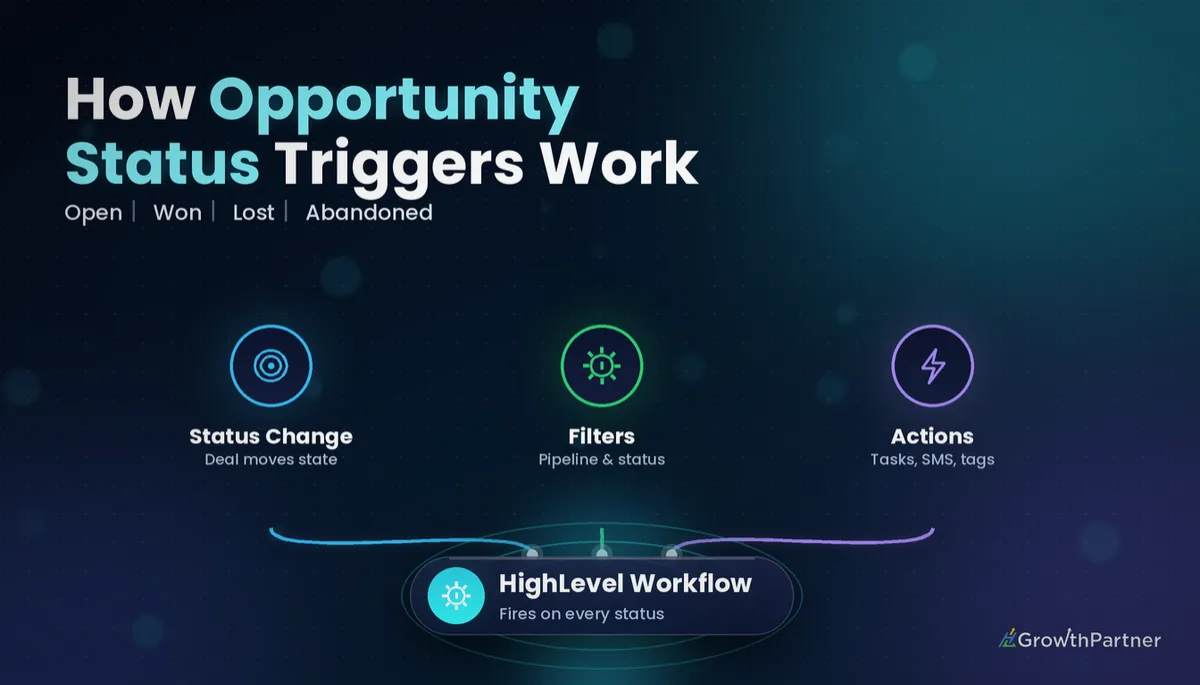
GoHighLevel Opportunity Status Changed Trigger (2026)
By Dr Priya Jaganathan, GoHighLevel Certified Admin · HL Growth Partner, Australia · Updated 19 October 2026 · 9 min read
The GoHighLevel Opportunity Status Changed trigger is the cleanest way to act on the moment a deal is won, lost, abandoned or brought back to life. Instead of watching your pipeline board and remembering to send the onboarding email, the workflow does it the second the status flips.
In this guide I walk through how the HighLevel opportunity status trigger works, which filters to set, how it differs from Pipeline Stage Changed, and five recipes we build for clients. I finish with the safeguards that stop a workflow firing twice and a testing routine you can run before anything goes live.
Quick Facts
| Item | Detail |
|---|---|
| Trigger name | Opportunity Status Changed (Workflows → Add New Trigger) |
| Fires when | An opportunity's status changes, e.g. Open to Won or Lost |
| Opportunity statuses | Open, Won, Lost, Abandoned |
| Common filters | In Pipeline, Pipeline Stage, Moved From Status, Moved To Status |
| Not covered | Stage moves with no status change (use Pipeline Stage Changed) |
| Source | HighLevel help article "Workflow Trigger - Opportunity status changed", updated February 2026 |
What the Opportunity Status Changed trigger actually listens for
Every opportunity in HighLevel carries two separate pieces of information: the stage it sits in on the pipeline board, and its status. Stages are yours to name. Status is fixed by the platform and is one of Open, Won, Lost or Abandoned.
This trigger only cares about the status field. Per HighLevel's help article on the Opportunity Status Changed trigger (last updated February 2026), it starts a workflow when the status moves, for example from Open to Won or Lost, so you can alert your team, update records or kick off follow-up.
That makes it the right tool for outcome-based automation. A deal being won is an outcome. A deal moving from "Proposal Sent" to "Negotiation" is progress, and that belongs to a different trigger.
Where status changes come from
Status can change in several ways, and the trigger responds to all of them:
- A team member opening the opportunity and changing the status dropdown
- Dragging a card onto the Won, Lost or Abandoned drop zone on the pipeline board
- A workflow action that updates the opportunity's status
- An integration or API call writing to the opportunity
The third point matters: if another workflow changes status, this trigger hears it, which is how loops are born.
How to set up the HighLevel opportunity status trigger, step by step
- Go to Automation → Workflows in the sub-account and create a new workflow from scratch.
- Click Add New Trigger and search for "Opportunity Status Changed".
- Rename the trigger to describe its job, such as "Sales pipeline: moved to Won".
- Add filters: at minimum the pipeline, and the status you are moving to.
- Save the trigger, build your actions, then test with a dummy contact before publishing.
Always name the trigger after the outcome it catches. Six months from now, "Opportunity Status Changed" tells you nothing; "Coaching pipeline: Lost" tells you everything.
The filters that matter
HighLevel's own examples use an In Pipeline filter, a Pipeline Stage filter, and the Moved From Status / Moved To Status pair. Depending on your account version you may also see options to filter on tags, lead value, assigned user or other opportunity details.
If you have not used trigger filters much, my guide to GoHighLevel workflow trigger filters explains how multiple filters combine and why an unfiltered trigger is a liability.
| Filter | What it does | When to use it |
|---|---|---|
| In Pipeline | Limits the trigger to one pipeline | Always, unless the workflow is genuinely account-wide |
| Pipeline Stage | Limits to opportunities sitting in a particular stage | When a status change only matters at one point in the journey |
| Moved To Status | Fires only when the new status matches | Every recipe in this guide |
| Moved From Status | Fires only when the old status matches | Catching re-opened deals (Lost or Abandoned back to Open) |
| Tag / other opportunity details | Narrows by contact tag or deal attributes, where available | Separating service lines or high-value deals |
Opportunity Status Changed vs Pipeline Stage Changed: pick the right one
This is the most common confusion I see in client accounts. Both triggers sit in the opportunity group, both use pipeline filters, and both can look like they do the same job.
The difference is simple: stage is where the deal is; status is how the deal ended (or whether it is still open). A card can move through five stages and stay Open the entire time. My full walkthrough of the Pipeline Stage Changed trigger covers the stage side in depth.
| Question | Opportunity Status Changed | Pipeline Stage Changed |
|---|---|---|
| Listens to | Status: Open, Won, Lost, Abandoned | The stage column the card sits in |
| Best for | Outcomes: onboarding, nurture, win-back | Progress: reminders, task creation, stage-specific messages |
| Fires on a card drag between stages? | No, unless status also changes | Yes |
| Fires when a deal is marked Won without moving stage? | Yes | No |
Five Opportunity Status Changed recipes that earn their keep
These are the builds we deploy most often in client sub-accounts and snapshots.
1. Won → onboarding kick-off
Filter: In Pipeline = your sales pipeline, Moved To Status = Won. Actions: send a welcome email and SMS, add an "onboarding" tag, create a task for the delivery lead, and create a new opportunity in your onboarding or delivery pipeline.
That keeps sales reporting clean while giving delivery its own board.
2. Won → invoice and review request
For businesses that bill after the deal closes, the Won status is the natural moment to send an invoice or payment link. Then, rather than asking for a review immediately, wait until payment lands.
I prefer to split this into two workflows: the status trigger sends the invoice, and a separate Payment Received trigger workflow sends the review request once money is in. Asking for a review before payment is the fastest way to collect an awkward one.
3. Lost → nurture sequence plus lost reason capture
Filter: Moved To Status = Lost. Actions: remove the contact from any active sales follow-up, add a "lost-nurture" tag, and enrol them in a slow, value-led email sequence.
Pair this with a lost reason on every closed deal. When reps must record why a deal was lost, you can branch the nurture: price objections get case studies, timing objections get a check-in in three months. My guide to setting up opportunity lost reasons shows how to make that field reliable.
4. Abandoned → re-engagement
Abandoned is the status for deals that simply went cold: no "no", just silence. Treat it differently from Lost, because the person never actually said no.
Filter: Moved To Status = Abandoned. Actions: a short, low-pressure re-engagement sequence ("Is this still on your radar?"), with an If/Else check on reply. If they respond, alert the owner; if they do not, tag them for a quarterly newsletter only.
5. Re-opened → alert the owner
This is the recipe most accounts are missing. Filter: Moved From Status = Lost (build a second trigger for Abandoned), Moved To Status = Open.
Actions: send an internal notification to the assigned user, create a high-priority task, and remove the contact from any nurture or win-back workflow so they stop receiving "we miss you" emails while a rep is actively talking to them. If ownership is patchy in your account, fix that first with clear Assign To User and contact owner rules.
Stop duplicate firing and workflow loops before they start
Because this trigger hears status changes from any source, including other workflows, it is easy to build something that fires twice or chases its own tail. These are the safeguards I add to every build.
- Leave re-entry off by default. In workflow settings, keep "Allow Re-entry" disabled unless you have a reason a contact should go through the same outcome workflow again.
- Never change status inside a status workflow. If a Won workflow also updates the opportunity's status, you risk re-triggering itself or a sibling workflow.
- Use a guard tag. Add a tag like "won-onboarding-sent" as the first action, and start the workflow with an If/Else that exits if the tag already exists.
- Remove from competing workflows. When a deal is Won, remove the contact from Lost and Abandoned workflows, and vice versa.
- Filter by pipeline every time. An unfiltered status trigger catches every pipeline in the sub-account, including ones added later by someone else.
One contact can have several opportunities. If a client buys twice, the guard tag approach needs care: consider a tag per service line rather than one generic "won" tag.
How to test the trigger without spamming real clients
Here is the testing routine we follow.
- Create a test contact using your own email and mobile number.
- Create an opportunity for that contact in the pipeline your trigger filters on.
- Publish the workflow, then change the opportunity's status to the one you are testing.
- Open the workflow's Execution Logs or enrollment history and confirm the contact entered and each action ran.
- Change the status a second time to confirm your guard tag or re-entry setting blocks a duplicate run.
- Test the re-open path by moving the opportunity from Lost back to Open.
Test every status path you built, not just the happy one. Most broken builds we inherit worked perfectly for Won and were never tested for Lost.
Common mistakes to avoid
- Using Opportunity Status Changed when you actually needed a stage-based trigger, then wondering why nothing fires on a card drag.
- Leaving out the In Pipeline filter, so a Won deal in your recruitment pipeline sends a client onboarding pack.
- Treating Abandoned and Lost as the same thing and sending "sorry we missed you" copy to someone who never said no.
- Updating the opportunity status inside the same workflow that listens for status changes.
- Forgetting the re-opened path, so revived deals keep receiving nurture emails.
- Publishing without testing every status path on a dummy contact first.
If you want your pipeline outcomes, onboarding and win-back workflows built and tested properly in your sub-account or snapshot, book a strategy call with the HL Growth Partner team.
Frequently asked questions
What does the GoHighLevel Opportunity Status Changed trigger do?
It starts a workflow when an opportunity's status changes, for example from Open to Won or Lost. You can then send messages, create tasks, add tags or update records automatically. It only listens to status, not to stage moves on the pipeline board.
What statuses can an opportunity have in HighLevel?
An opportunity can be Open, Won, Lost or Abandoned. Open means the deal is still active, Won and Lost record the outcome, and Abandoned marks deals that went cold without a clear decision.
What is the difference between Opportunity Status Changed and Pipeline Stage Changed?
Pipeline Stage Changed fires when an opportunity moves to a different stage column. Opportunity Status Changed fires when the status changes between Open, Won, Lost and Abandoned. Use stage triggers for progress during the sale and status triggers for outcomes.
How do I trigger a workflow only when a deal is won?
Add the Opportunity Status Changed trigger, set the In Pipeline filter to your sales pipeline, and set the status you are moving to as Won. The workflow will then ignore Lost, Abandoned and other pipelines.
Can I detect when a lost deal is re-opened?
Yes. Use the Moved From Status filter set to Lost and the Moved To Status filter set to Open. Build a second trigger for Abandoned to Open if you want to catch revived cold deals as well.
Why is my opportunity status workflow firing twice?
The usual causes are re-entry being allowed, another workflow changing the status again, or two overlapping triggers without pipeline filters. Add a guard tag with an If/Else check at the start and keep Allow Re-entry off unless you need it.
Does the trigger fire when a workflow changes the status?
Yes, status changes made by workflow actions or integrations can fire the trigger, not just manual changes. That is why you should never update status inside a workflow that listens for status changes.
How should I test an Opportunity Status Changed workflow?
Create a test contact with your own details, add an opportunity in the filtered pipeline, publish the workflow and change the status. Check the execution logs, then change the status again to confirm duplicates are blocked.
Related Articles on HL Growth Partner
Opportunities and pipelines
- Create/Update Opportunity Action in Workflows
- Pipeline Setup That Forecasts Revenue
- Opportunity Forecasting in GoHighLevel
Building better workflows
- Workflow If/Else Branching Explained
- Workflow Chaining With Add To Workflow
- The Complete Workflow Triggers Reference
