GoHighLevel Contact Changed Trigger: Setup Guide (2026)
By Dr Priya Jaganathan, GoHighLevel Certified Admin · HL Growth Partner, Australia · Updated 18 October 2026 · 10 min read
The GoHighLevel Contact Changed trigger starts a workflow when an existing contact record is edited. It doesn't fire on a new lead or a new deal. It's the trigger to use when you care about something changing on a contact you already have: a new owner, a DND switch, a custom field moving to a new stage, or a new suburb on file.
This guide is part of our workflow-trigger series, alongside Contact Created, Form Submitted, Pipeline Stage Changed, Payment Received and Order Submitted. Below I cover the filter options HighLevel documents, five use cases we build for clients, how to stop the loops this trigger is known for, and how to test it before it touches live contacts.
Quick Facts
| Item | Detail |
|---|---|
| Where it lives | Automation → Workflows → Add New Trigger → Contact Changed |
| Fires when | An existing contact's details are updated (not when the contact is created) |
| Documented filter types | Custom Field, Tags, DND, Assigned User, plus address fields |
| Address filters | Street Address, City, Country, Postal Code, per HighLevel's changelog |
| Change operators | "Has changed" or "Has changed to" a specific value |
| Removed values | HighLevel's help article says it detects new updates, not cleared values |
What the HighLevel contact changed workflow trigger actually watches
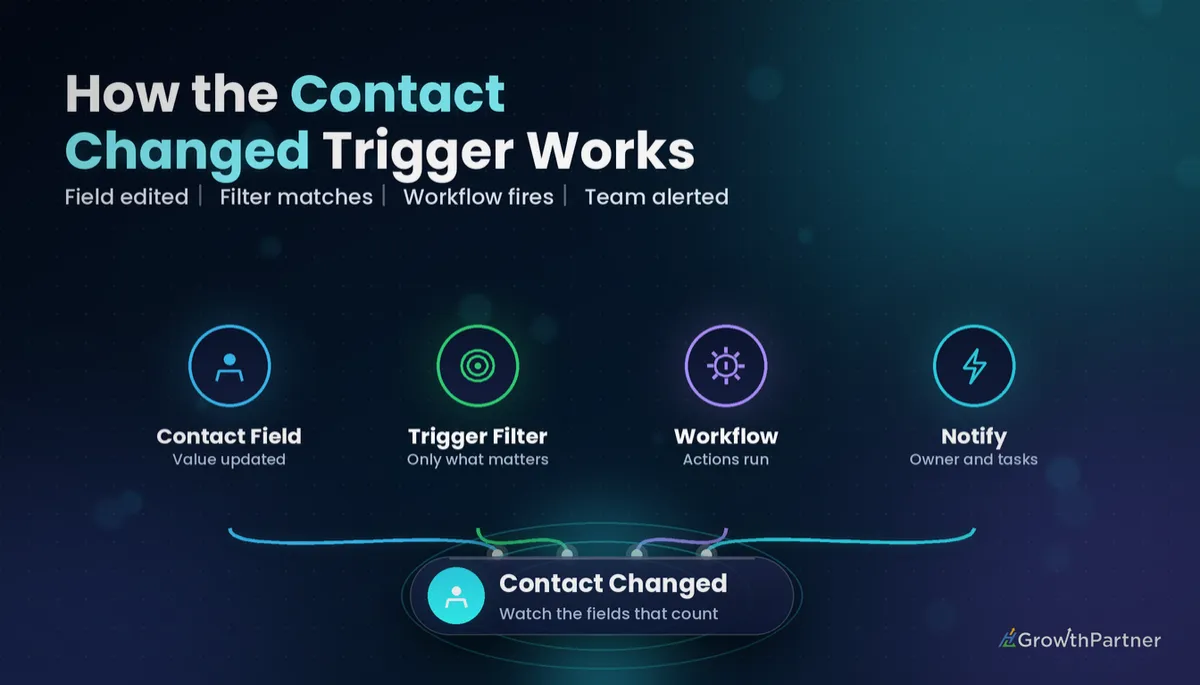
Think of Contact Changed as a watcher on the contact record. Whenever a field it's been told to watch is updated, the contact enters the workflow. That update can come from a team member editing the record, a form, an import, an integration, or another workflow.
That last source catches people out. The trigger can't tell who made the change. An edit made by a workflow looks the same as one made by a person, and that's where loops start (more on that below).
According to HighLevel's Contact Changed help article, you can stack several filters on one trigger to watch different kinds of change at once. The same article says the trigger detects new updates but doesn't track removed values. If a field is cleared, don't count on this trigger to notice.
Why you should never leave it unfiltered
Without a filter, any edit to any watched field can enrol the contact. In a busy sub-account with imports, integrations and staff editing records all day, that means a lot of unwanted enrolments. Always narrow it to the exact field and, where you can, the exact value you care about.
Contact Changed filter options: what you can watch
HighLevel's documentation and changelog describe the following filter types. The dropdown has grown over time, so check what your own sub-account shows before you design around a field.
| Filter | What it detects | Typical use |
|---|---|---|
| Custom Field | A specific custom field changes, or changes to a set value | Lifecycle stage, onboarding status, renewal date |
| Tags | Tags applied to the contact | Combining a tag condition with other change filters |
| DND | Do Not Disturb settings change | Pausing nurture, alerting the owner, syncing opt-outs |
| Assigned User | The contact owner changes | Reassignment alerts and handover tasks |
| Address fields | Street Address, City, Country or Postal Code changes | Territory routing, service-area checks |
Address fields were added in a later update, per HighLevel's changelog entry on address filters for Contact Changed. Email and phone have long been requested on HighLevel's ideas board. Some accounts now show them in the field list, so confirm they appear in your dropdown before you build an email- or phone-sync workflow on them.
For a deeper look at combining conditions, our guide to GoHighLevel workflow trigger filters covers AND/OR logic and the filter traps we see most often.
Five real use cases where Contact Changed earns its place
These are patterns we build regularly for Australian agencies and service businesses. Each one watches one narrow change, not "anything that moves".
1. Owner reassignment alerts
Filter on Assigned User "Has changed". The workflow sends the new owner an internal notification with the contact's last activity, creates a follow-up task due within one business day, and posts a note to the record. If you're still setting up how ownership works, start with our walkthrough on assigning a contact owner with the Assign to User action.
2. Lifecycle or stage changes held in a custom field
Many accounts track lifecycle stage in a dropdown custom field (Lead, Qualified, Client, Churned) as well as, or instead of, a pipeline. Filter on that custom field "Has changed to" Client and you can start onboarding: welcome email, portal invite and a kickoff task. One workflow per destination value keeps the logic readable.
3. DND changes
When a contact turns on DND for SMS or all channels, you may want to remove them from active nurture workflows, alert the owner, and tag them so reporting stays accurate. HighLevel also has a separate Contact DND trigger. Use that if DND is the only thing you're watching, and Contact Changed if it's one of several conditions.
4. Email or phone updates syncing elsewhere
If your account exposes email or phone as Contact Changed filters, a change can fire an outbound webhook to your accounting tool, LMS or membership platform so the records stay in sync. If those filters aren't available, a common workaround is a "last verified email" custom field your forms write to, and you watch that field instead.
5. Address change for territory routing
Filter on Postal Code or City "Has changed". Then use If/Else branches to check the new value against your territory lists and reassign the contact to the right rep. We cover the full routing build in our guide to territory routing and lead assignment in GoHighLevel.
How to stop Contact Changed loops before they start
Here's the classic loop. A workflow triggers on custom field "Status has changed", then uses Update Contact Field to set Status to something else. That update is itself a change, so the contact re-enters. With re-entry allowed, it keeps cycling and fills the execution log.
Here are the guardrails we put on every Contact Changed build:
- Use "Has changed to" a specific value, not a bare "Has changed", wherever possible. A workflow that only reacts to "Client" won't re-fire when it writes "Onboarding".
- Never write back to the field you're watching. If you need to record that something happened, write to a different field, such as "Onboarding Started Date".
- Turn off re-entry unless you truly need it. Our guide to workflow re-entry settings explains when each option makes sense.
- Add a guard tag. Apply a tag such as "cc-processing" as the first action, and add a trigger filter that excludes contacts who already have it. Remove it at the end, after a wait if needed.
- Watch for cross-workflow loops. Workflow A changes field X and triggers Workflow B, which changes field Y and triggers Workflow A. Map which workflows write to which fields before you publish.
HighLevel has added configuration safeguards to the Contact Tag trigger for similar loop risks. Contact Changed relies more on your own design, so the checklist above is worth taping to your monitor.
Setting up the Contact Changed trigger step by step
- Go to Automation → Workflows and create a new workflow (or open an existing one in Draft).
- Click Add New Trigger and choose Contact Changed.
- Give the trigger a descriptive name, such as "Owner reassigned – alert new owner".
- Add your filter: pick the field (Assigned User, a custom field, DND, Postal Code and so on), then the operator and value.
- Add any extra filters to narrow enrolment, such as excluding a guard tag or limiting to a contact type.
- Save the trigger, build your actions, then check the workflow Settings tab for re-entry before publishing.
Keep each workflow to one purpose. A single Contact Changed workflow that tries to handle owner changes, DND changes and address changes through a dozen branches is hard to debug. Three small workflows beat one clever one.
Contact Changed vs Contact Created, Tag Added and Pipeline Stage Changed
Picking the wrong trigger is the most common reason a workflow "doesn't work". Here's how Contact Changed compares with its nearest neighbours.
| Trigger | Fires on | Best for | Watch out for |
|---|---|---|---|
| Contact Created | A brand-new contact record | Speed-to-lead, welcome sequences, initial assignment | Won't fire for existing contacts who resubmit a form |
| Contact Changed | Edits to an existing contact's watched fields | Owner changes, field-based stages, DND, address updates | Loops when the workflow edits the watched field |
| Contact Tag (Tag Added) | A tag being added or removed | Manual or integration-driven flags, simple segmentation | Tag sprawl, plus loops if actions re-add the trigger tag |
| Pipeline Stage Changed | An opportunity moving between stages | Sales-stage automations, deal handovers | Watches opportunities, not contact fields |
A useful rule: if the event is about a new person, use the Contact Created trigger. If it's about a deal, use Pipeline Stage Changed. If it's about a fact on the person changing over time, use Contact Changed.
Testing Contact Changed without touching real clients
Create a test contact with your own email and mobile, ideally with a "TEST" tag. Add a trigger filter requiring that tag while you test, so real contacts can't enrol, and remove the filter when you go live.
- Publish the workflow, then make the exact edit it watches on your test contact, such as changing the assigned user.
- Open the workflow's Execution Logs and confirm the contact enrolled once, not twice.
- Make an edit to a field it shouldn't watch and confirm nothing fires.
- If the workflow writes to any field, check that it didn't re-enrol the contact.
- Test a bulk import or integration update on a copy of the data, because those sources can enrol many contacts at once.
Common mistakes to avoid
- Leaving the trigger unfiltered, so every edit enrols the contact in the workflow.
- Using "Has changed" when you mean "Has changed to" a specific value, which multiplies enrolments.
- Writing back to the watched field with Update Contact Field and creating an instant loop.
- Expecting the trigger to fire when a field is cleared, which HighLevel says it doesn't track.
- Assuming email or phone filters exist in every account without checking the dropdown first.
- Running a large CSV import into a sub-account with live Contact Changed workflows and no test first.
If you want your Contact Changed workflows audited for loops, misfires and missed handovers, book a strategy call with the HL Growth Partner team.
Frequently asked questions
What does the GoHighLevel Contact Changed trigger do?
It starts a workflow when an existing contact's details are updated. You use filters to say which change matters, such as a custom field, the assigned user, DND or an address field. It doesn't fire when a contact is first created.
Does Contact Changed fire when a field is cleared?
HighLevel's help article says the trigger detects new updates but doesn't track removed values. If you need to react to a field being emptied, use a different approach, such as a scheduled check on that field. Test it on a sample contact before relying on it.
Can I watch email or phone changes with Contact Changed?
Email and phone were requested on HighLevel's ideas board for a long time, and some accounts now show them in the filter list. Check the field dropdown in your own sub-account. If they're missing, watch a custom field that your forms update instead.
Why is my Contact Changed workflow running in a loop?
The workflow is usually updating the same field it watches, so each update triggers it again. Switch to "Has changed to" a specific value, write to a different field, turn off re-entry, or add a guard tag that excludes contacts already being processed.
Should I use Contact Changed or Pipeline Stage Changed?
Use Pipeline Stage Changed when the event is about an opportunity moving through a sales pipeline. Use Contact Changed when the event is about a fact on the contact record, such as owner, lifecycle custom field or address. Many accounts use both for different jobs.
Can one Contact Changed trigger have several filters?
Yes. HighLevel's documentation says you can add several filters to one trigger to watch different kinds of change. For maintainability, we still recommend one workflow per business purpose instead of one large workflow with many branches.
Will imports and integrations fire Contact Changed?
Updates from imports, integrations and other workflows can change watched fields just like a manual edit. That can enrol many contacts at once. Test imports on a copy of the data, or pause the workflow during large data loads.
Related Articles on HL Growth Partner
More workflow triggers
- Pipeline Stage Changed trigger setup guide
- Form Submitted trigger setup guide
- Contact Tag trigger safeguards explained
Building safer workflows
- Using the Update Contact Field action
- If/Else branches in GoHighLevel workflows
- Workflow goals and exit conditions
