GoHighLevel Note Changed Trigger: Setup Guide (2026)
 By Dr Priya Jaganathan, GoHighLevel Certified Admin · HL Growth Partner, Australia · Updated 22 November 2026 · 9 min read
A practical guide to setting up the Note Changed trigger in HighLevel, with agency recipes, loop guards and a testing routine you can copy into any sub-account.
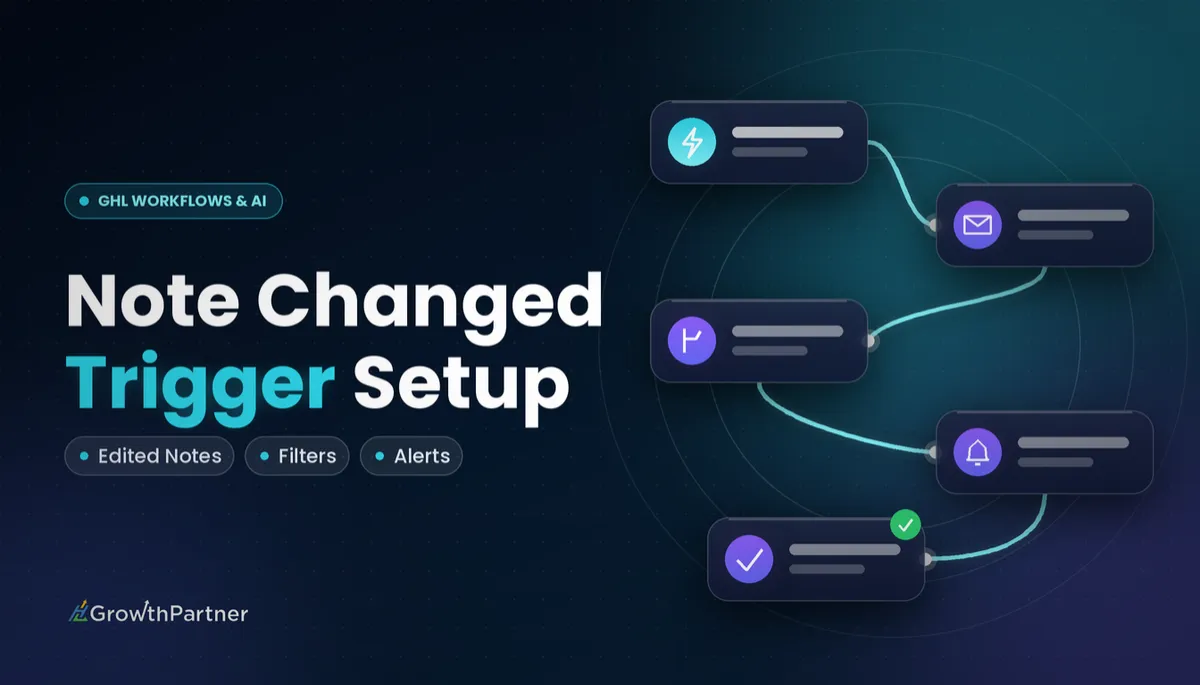
The GoHighLevel Note Changed trigger starts a workflow whenever someone edits an existing note on a contact. It sounds small, but for agencies that run sales teams, account managers and support staff out of one CRM, edited notes are often where the real story changes.
A rep rewrites a call note after a second conversation. A coordinator corrects a handover note before a client goes live. If nobody else finds out, the edit sits quietly on the contact record. This guide shows you how to turn those edits into alerts, tags, tasks and field updates without creating a workflow that loops on itself.
| Trigger name | Note Changed |
| Trigger list section | Contact |
| Fires on | An existing note on a contact being edited |
| Does not fire on | A note being deleted |
| Companion trigger | Note Added (for brand-new notes) |
| Builder location | Automation > Workflows > Add New Workflow Trigger |
What the HighLevel Note Changed workflow trigger actually does
According to the HighLevel help docs (2026), Note Changed is a contact workflow trigger listed in the Contact section of the trigger list. It fires when an existing note on a contact is edited and saved.
Two behaviours matter before you build anything. First, deleting a note does not fire Note Changed, so you cannot use it to catch removed notes. Second, third-party guides disagree on whether a brand-new note also fires it. The dedicated trigger for new notes is Note Added, so treat that as the source of truth and test the edge case in your own account.
Why edited notes deserve their own automation
Most agencies automate around new information. Edits are different: an edit usually means something was wrong, incomplete or has moved on, which makes it a strong signal for QA and accountability.
Note Added vs Note Changed: which trigger fits the job
These two triggers are easy to mix up, and choosing the wrong one is the most common reason a notes workflow either fires too often or never fires at all. If you have not built the other half yet, start with our Note Added trigger setup guide and come back here.
| Question | Note Added | Note Changed |
|---|---|---|
| What starts it? | A new note is created on a contact | An existing note on a contact is edited |
| Fires on delete? | No | No |
| Fires on a brand-new note? | Yes, that is its job | Sources disagree; test in your own account |
| Typical use | Logging calls, kicking off follow-up, first-touch alerts | QA on corrections, change alerts, audit trails |
| Main risk | Noisy alerts if every note triggers a notification | Loops if an action in the workflow edits a note |
| Best paired with | Note Changed, if edits matter too | Note Added, if you need both events covered |
Where you genuinely need both events, build two small workflows rather than one clever one. Each stays easy to read, and you can switch one off without breaking the other.
How to set up the GoHighLevel Note Changed trigger step by step
Create the workflow and add the trigger
- Go to Automation > Workflows and create a new workflow from scratch.
- Click Add New Workflow Trigger.
- Search for "Note Changed". You will find it in the Contact section of the trigger list.
- Select it, add any filters you need, then save the trigger so it sits at the top of the workflow.
Add filters to narrow who it fires for
Without filters, every edit on every contact will run the workflow. Filter on a client or VIP tag, and exclude a guard tag your workflow adds itself (covered below).
Tag-based filters are commonly available, such as Has Tag and Doesn't Have Tag. The exact filter list can vary by account, so check the filter options in your own builder before you design around a specific one.
Build the actions, then publish
Add your actions underneath the trigger, then switch the workflow from Draft to Published. A workflow left in Draft will not fire on live edits, no matter how good the logic is.
Six practical Note Changed recipes for agencies
Every recipe below uses standard HighLevel actions: Internal Notification, Add Tag, Update Contact Field, Create Task, Wait and If/Else.
1. Alert the account manager when a rep edits a call note
Filter on a client tag, then add an Internal Notification to the assigned account manager saying a call note on this contact has been updated.
If you have not set up internal alerts before, our guide to internal team notifications by email, SMS and Slack covers the delivery options.
2. Stamp a "last note edited" field when a note is corrected
Create a custom field such as Last Note Edited, then use Update Contact Field to set it to the current date when the trigger fires.
It is especially useful when notes come from meeting tools. If you push call summaries into notes, as in our Fathom transcript and summary automation, the field shows at a glance which summaries a human has since corrected.
3. Add an "updated" tag for QA review
Use Add Tag to apply something like note-updated-qa. Your QA lead then works from a smart list filtered on that tag, reviews the change, and removes the tag when done.
This is a low-noise alternative to notifications: nobody gets pinged, but nothing slips through.
4. Notify the delivery team about edited handover notes
Handover notes change more often than anyone admits. Filter on a handover or onboarding tag, then send an Internal Notification to the delivery lead so they know the brief has moved since they last read it.
Pair this with the Task Added trigger if your onboarding also runs on tasks, so the team sees both note and task changes from one alerts channel.
5. Create a review task on high-value contacts
Filter on a high-value tag, then use Create Task to assign a short review task to the account owner. Add a Wait before the task if you want to give the editor time to finish a run of edits, so the owner gets one task instead of several.
6. Build a simple audit trail with If/Else
Use an If/Else branch to check whether the contact already has your audit tag. If not, add the tag and stamp the Last Note Edited field. If it does, only update the field.
Combined with the contact's own activity history, this gives managers a quick way to spot accounts where notes keep being rewritten. For field-level changes beyond notes, the Contact Changed trigger covers the rest of the record.
A new note tells you what happened. An edited note tells you what someone thought was wrong with the first version, and that is often the more useful signal.
Loop prevention: stop Note Changed from re-firing itself
Here is the trap. If any action in your workflow edits a note on the same contact, whether directly or through another connected workflow or integration, that edit can fire Note Changed again. The workflow then runs, edits the note, and fires again.
Use a guard tag
The simplest defence is a guard tag:
- Add a Doesn't Have Tag filter on the trigger for a tag such as note-wf-running.
- Make Add Tag (note-wf-running) the first action in the workflow.
- Do your work, then remove the guard tag at the end, after a short Wait if other automations touch the record.
Treat re-entry settings with care
Workflows have a re-entry option that controls whether a contact can enter the same workflow again. Allowing re-entry is what makes a loop possible, but blocking it means later genuine edits will also be ignored.
For alert and QA recipes, re-entry usually needs to stay on so every real edit is captured, which is exactly why the guard tag matters. Check the exact setting name and behaviour in your own workflow settings before relying on it.
Keep note-writing actions out of Note Changed workflows
The cleanest rule is not to write notes from a Note Changed workflow at all. Record outcomes in a custom field, a tag or a task instead. If you must write a note, put that step in a separate workflow with its own guard.
Testing your Note Changed workflow before it goes live
Testing is where you settle the open question about new notes for your own account.
- Create a test contact with the tags your filters expect.
- Add a brand-new note and check the workflow's run history (where it sits varies, so check in your own account) to see whether Note Changed fired.
- Edit that note and confirm the workflow ran once, not repeatedly.
- Delete a note and confirm nothing fired, as expected.
- Remove the filter tag, edit again, and confirm the filter blocked the run.
If nothing fires at all, check the basics first. The workflow must be Published, not Draft, and the trigger must be saved at the top of the workflow. Those two cover most "it doesn't work" tickets we see.
For the official trigger reference, see the HighLevel help article on the Note Changed workflow trigger.
Limitations to plan around
Note Changed is a narrow trigger, and that is mostly a good thing. Still, a few gaps are worth designing around:
- It does not fire on deleted notes, so it cannot replace a proper deletion policy or permissions review.
- Behaviour on brand-new notes is not consistent across sources, so pair it with Note Added rather than relying on it alone.
- Available filters can vary by account, so a recipe built in one sub-account may need adjusting in another.
- Which note details you can use inside actions should be checked in your own account before you design messages around them.
Common mistakes to avoid
- Using Note Changed when you actually want to catch new notes; that is the job of Note Added.
- Leaving the workflow in Draft and assuming the trigger is broken.
- Running the trigger on every contact with no tag filter, then drowning the team in alerts.
- Writing a note inside a Note Changed workflow with no guard tag, creating a loop.
- Disabling re-entry to stop a loop and then silently missing every later edit.
- Skipping the test contact and debugging live on a client's account.
Frequently asked questions
What does the GoHighLevel Note Changed trigger do?
Note Changed is a contact workflow trigger in HighLevel that fires when an existing note on a contact is edited. You find it in the Contact section of the trigger list by searching "Note Changed" after clicking Add New Workflow Trigger.
Does Note Changed fire when a note is deleted?
No. Deleting a note does not fire the Note Changed trigger. If you need to control note deletions, handle it through user permissions and team process rather than a workflow.
Does Note Changed fire when a new note is added?
Third-party guides disagree on this point. The dedicated trigger for new notes is Note Added, so test the behaviour in your own account and pair the two triggers where you need both events covered.
Why is my Note Changed workflow not firing?
Check that the workflow is Published rather than Draft, and that the trigger has been saved at the top of the workflow. Then confirm your test contact matches any tag filters on the trigger.
How do I stop a Note Changed workflow from looping?
Add a guard tag as the first action and a Doesn't Have Tag filter for that tag on the trigger, then remove the tag at the end of the workflow. Avoid writing notes from inside a Note Changed workflow, and treat the re-entry setting carefully.
What filters can I use on the Note Changed trigger?
Tag-based filters such as Has Tag and Doesn't Have Tag are commonly available. The exact filter list can vary by account, so check the options in your own workflow builder.
Should I use Note Added or Note Changed?
Use Note Added to react to new notes and Note Changed to react to edits of existing notes. Where both matter, build two small workflows so each stays easy to test and switch off.
Related Articles on HL Growth Partner
More task and contact triggers
 GoHighLevel Task Reminder Trigger: Setup Guide (2026)
 GoHighLevel Task Completed Trigger: Setup Guide (2026)
 GoHighLevel Contact DND Trigger: Setup Guide (2026)