
GoHighLevel Note Added Trigger: Setup Guide (2026)
By Dr Priya Jaganathan, GoHighLevel Certified Admin · HL Growth Partner, Australia · Updated 25 October 2026 · 9 min read
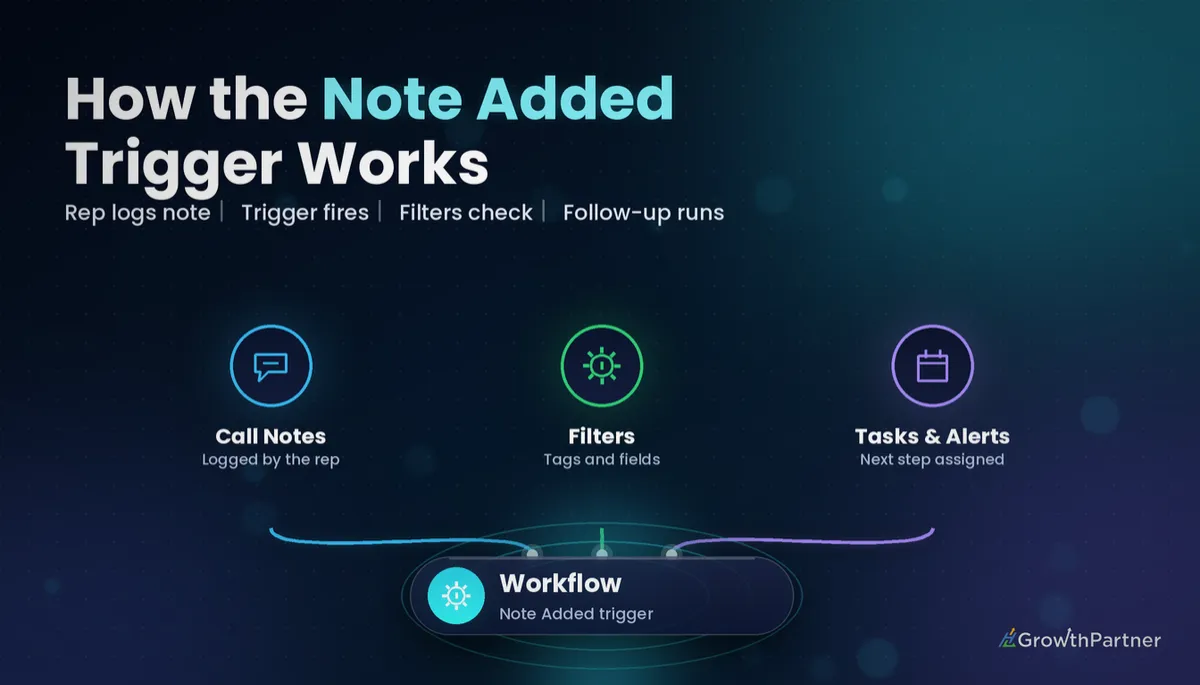
The GoHighLevel Note Added trigger turns the notes your reps and VAs already type on a contact into automatic follow-up. A call note, a consult summary or a site-visit write-up can now tell your system what to do next, instead of sitting quietly in the contact record.
In this guide I'll walk through how the HighLevel note added workflow trigger works, how to set it up step by step, five recipes we use with clients, and the safeguards that stop it firing twice. It's part of our workflow-trigger series, so you'll see how it fits alongside the other contact triggers too.
Quick Facts
| Trigger category | Contact (alongside Note Changed), per HighLevel workflow-trigger help documentation, 2026 |
| Fires when | A note is added to a contact |
| Available filters | Tags and custom fields |
| Sister trigger | Note Changed, which fires when a note on a contact is edited |
| Filter by note text? | Not something we rely on; use tags or a custom field set alongside the note |
What the GoHighLevel Note Added trigger actually does
According to HighLevel's workflow-trigger help documentation (2026), Note Added is a contact-category trigger that fires whenever a note is added to a contact. Note Changed sits next to it and fires when an existing note is edited.
Think about the moments in your business where someone writes a note:
- A setter finishes a discovery call and logs what the lead wants.
- A practitioner wraps up a consult and records the recommended next step.
- A tradie or estimator writes up a site visit before quoting.
- A VA logs a support conversation that needs a manager's eyes.
Each of those is a signal. Without automation, the follow-up depends on someone remembering. With the Note Added trigger, the act of writing the note becomes the start of the process.
What it can and can't filter on
HighLevel's documentation lists tag and custom field filters for this trigger. I don't recommend relying on the trigger to read the note's text or match keywords inside it.
If you need keyword-style logic, have the rep apply a tag or set a custom field at the same time they write the note. Then filter on that, or use an If/Else branch on the fields available. Filter options do change over time, so check what your own account shows in the trigger's filter options before you design around them.
How to set up the HighLevel note added workflow trigger, step by step
Here's the build process we follow in client sub-accounts. Menu labels can shift between releases, so treat these as the general flow rather than exact click paths.
- Decide the signal first. Agree with your team which tag or custom field marks the note type, for example a "consult-note" tag or a "Next Step" dropdown field. Write it into your SOP.
- Create a new workflow in Automation, starting from scratch, and give it a clear name such as "Note Added | Consult | Manager Alert".
- Add the trigger. Search the trigger list for Note Added under the contact triggers and select it.
- Add filters. In the trigger's filter options, filter on the tag or custom field you agreed on in step one. Without a filter, every note on every contact will enter the workflow.
- Build the actions. Add your internal notification, task, opportunity update, tag or nurture enrolment (recipes below).
- Add a guard tag. As one of the first actions, add a tag like "note-flow-ran" so you can exclude repeat runs if needed.
- Review the workflow settings, particularly whether contacts can re-enter, then save and publish.
- Test on a dummy contact before you tell the team it's live.
The single most important step is the first one. If your team doesn't consistently apply the tag or field, the trigger has nothing reliable to filter on. Our guide to naming tags so your automations stay readable covers how to set those conventions up.
Note Added trigger recipes that save hours each week
These are the five patterns we deploy most often. Each assumes the rep sets a tag or custom field alongside the note, because that's what the trigger filters on.
| Note situation | Filter | Actions |
|---|---|---|
| Discovery call note on a hot lead | Tag: "call-hot" | Internal notification to sales manager, create task "Send proposal within 24 hours", move opportunity to Proposal stage |
| Consult note recommending a treatment plan | Custom field "Next Step" = Treatment Plan | Create task for front desk to book, add tag "plan-recommended", start a plan nurture sequence |
| Site-visit note ready for quoting | Tag: "site-visit-done" | Create task for estimator, update opportunity to Quoting, notify the office manager |
| Support or complaint note from a VA | Tag: "escalate" | Internal SMS or email to manager, create high-priority task, add tag "under-review" |
| Call note where the lead isn't ready | Custom field "Lead Status" = Nurture | Remove from active sales tasks, add tag "long-nurture", enrol in a monthly value email sequence |
For the opportunity steps, use the Create/Update Opportunity action in your workflow so the pipeline reflects what the rep just recorded. Managers then see the stage change on the board without asking anyone.
Note Added vs Note Changed, Task Completed and Contact Changed
Choosing the wrong trigger is the most common reason these workflows misbehave. Here's how the related contact triggers compare.
| Trigger | Fires when | Best used for | Watch out for |
|---|---|---|---|
| Note Added | A note is added to a contact | Turning fresh call, consult or visit notes into follow-up | Fires on every note unless filtered |
| Note Changed | A note on a contact is edited | Reacting to corrections or updated outcomes | Third-party docs differ on whether it also fires for new notes, so test first |
| Task Completed | A task is marked complete | Chaining the next step once a to-do is done | Only useful if your team actually ticks tasks off |
| Contact Changed | Contact details or fields are updated | Reacting to field updates, including fields set during a call | Can fire often; needs tight filters |
If you want to react only to edits, Note Changed is the logical choice. Because help docs outside HighLevel disagree on whether it also catches brand-new notes, run a test before you rely on it to exclude new notes.
If your team works from tasks rather than notes, the Task Completed trigger setup guide is a better fit. And if reps update a custom field at the end of a call, the Contact Changed trigger may react to that field directly, without needing the note at all.
Testing the Note Added trigger before you go live
Never test on a real client contact. Create a test contact with your own email and mobile so any nurture messages land with you.
- Test the positive case: add the tag or field, then add a note, and confirm the contact enters the workflow.
- Test the negative case: add a note without the tag or field and confirm nothing happens.
- Test the order of operations: try adding the note before the tag, then after. If the tag lands late, the filter may not be met when the trigger fires.
- Test an edit: edit the note and confirm whether anything else fires, especially if you also run Note Changed workflows.
- Check the execution log in the workflow to see exactly which actions ran and when.
Loop and duplicate-fire safeguards for note-based workflows
Reps often add several notes to one contact in a day, so without safeguards a manager can get four alerts for the same lead.
Re-entry settings
Look at the workflow's settings for whether a contact is allowed to re-enter. For a one-off manager alert, you usually want re-entry off. For something like "log every escalation", you may want it on but with tighter filters.
Guard tags
Add a guard tag as an early action, such as "consult-flow-ran". Then add a filter or If/Else check that stops the workflow if the guard tag is already present. Remove the guard tag at the end of a cycle if you want the workflow available again later.
We cover this pattern in detail in our article on safeguards for contact tag triggers, and the same logic applies here.
Avoiding loops
Be careful if any action in your workflow adds a note itself. A workflow that adds a note can re-trigger a Note Added workflow if the filters still match. Either avoid note-writing actions in these workflows or make sure the guard tag blocks the second run.
Agency and snapshot tips for the Note Added trigger
If you run an agency, note-based automations are a strong addition to a niche snapshot. Every service business writes notes, so the pattern travels well across sub-accounts.
- Ship the tags and fields with the snapshot so the filters work the moment a client loads it.
- Leave notification recipients generic, such as the assigned user, rather than hard-coding a staff member who won't exist in the client's account.
- Publish workflows in draft inside the snapshot and switch them on during onboarding once the client's team is trained.
- Include a one-page SOP that tells reps which tag or field to set with each note type.
- Use consistent naming like "Note Added | Purpose" so clients can find and audit these workflows.
Training is the real deliverable. For the official reference on triggers and filters, the HighLevel Help Centre is the place to confirm current behaviour.
Common mistakes to avoid
- Leaving the trigger unfiltered, so every note on every contact enters the workflow.
- Assuming the trigger can read keywords inside the note instead of using a tag or custom field.
- Relying on Note Changed to exclude new notes without testing it in your account first.
- Allowing re-entry on a one-off alert workflow and flooding managers with duplicate notifications.
- Adding a note inside the workflow and creating a loop with no guard tag.
- Rolling the workflow out to a client's team without training them on which tag or field to set.
If you want your team's call, consult and site-visit notes wired into automatic follow-up across your pipelines, book a strategy call with the HL Growth Partner team.
Frequently asked questions
What is the GoHighLevel Note Added trigger?
Note Added is a contact-category workflow trigger in HighLevel. It fires whenever a note is added to a contact, and you can filter it using tags and custom fields. It's useful for turning call, consult and site-visit notes into automatic follow-up.
Can the Note Added trigger filter by the words inside a note?
Don't rely on it. The documented filters are tags and custom fields, so have reps apply a tag or set a custom field alongside the note. You can then filter on that or use an If/Else branch, and you should check the filter options in your own account.
What is the difference between Note Added and Note Changed?
Note Added fires when a note is added to a contact, while Note Changed fires when a note on a contact is edited. Third-party help docs differ on whether Note Changed also fires for new notes. Test it before relying on it to exclude new notes.
How do I stop a Note Added workflow firing multiple times for the same contact?
Review the workflow's re-entry setting and turn it off for one-off actions like manager alerts. Add a guard tag early in the workflow and stop the run if that tag already exists. This prevents duplicate alerts when reps add several notes in a day.
Can a Note Added workflow create a loop?
Yes, if an action inside the workflow adds a note and the filters still match, it can re-trigger itself. Avoid note-writing actions in these workflows or use a guard tag to block the second run. Always check the execution log while testing.
Should I use Note Added or Contact Changed for call outcomes?
If reps set a custom field for the call outcome, Contact Changed can react to that field directly. If the note itself is the hand-off, use Note Added with a tag or field filter. Many teams use both, with the note driving alerts and the field driving reporting.
Can I include Note Added workflows in an agency snapshot?
Yes, and they suit niche snapshots well because every service business writes notes. Ship the matching tags and custom fields with the snapshot and keep notification recipients generic. Train the client's team on which tag or field to set with each note.
Related Articles on HL Growth Partner
More workflow triggers
- Pipeline Stage Changed trigger: setup and recipes
- Opportunity Status Changed trigger explained
- Automating follow-up with the Call Status trigger