GoHighLevel Contact DND Trigger: Setup Guide (2026)
 By Dr Priya Jaganathan, GoHighLevel Certified Admin · HL Growth Partner, Australia · Updated 19 November 2026 · 9 min read
How to set up the GoHighLevel Contact DND trigger so every opt-out and re-subscribe is logged, routed and cleaned up automatically, without loops or missed unsubscribes.
Some links below are affiliate links — if you sign up through them, HL Growth Partner may earn a commission at no extra cost to you. It never changes what we recommend.
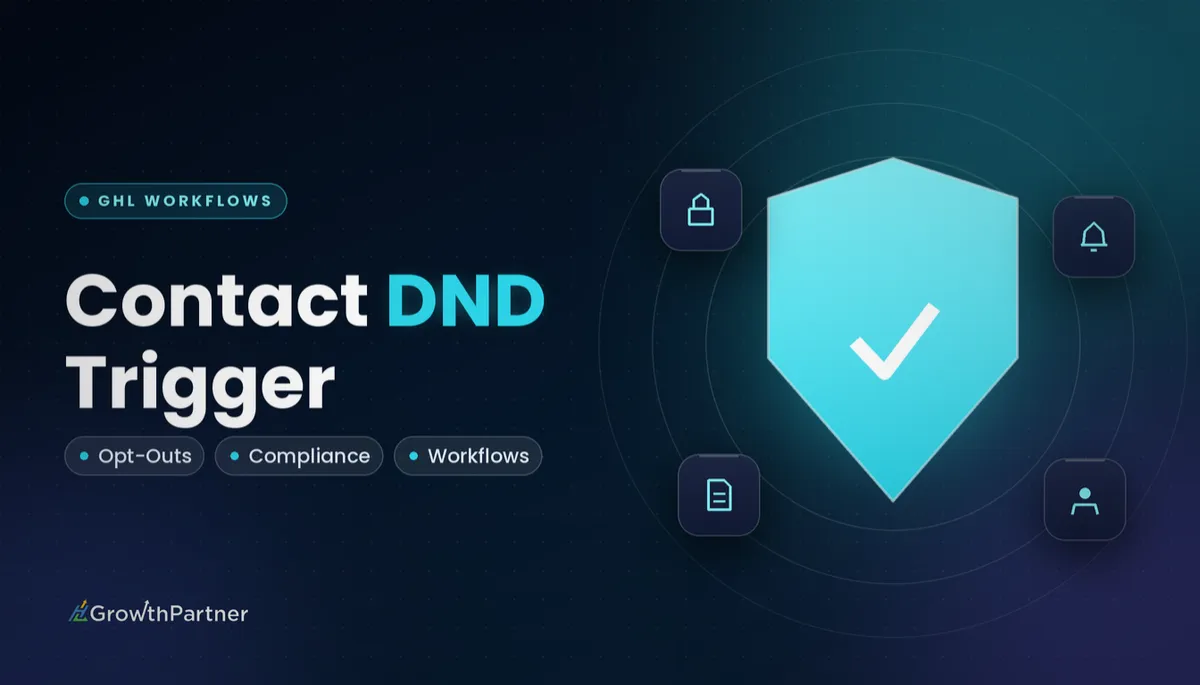
The GoHighLevel Contact DND trigger starts a workflow the moment a contact's Do Not Disturb status changes, so you can react to an opt-out or a re-subscribe instead of discovering it weeks later. This guide is part of our workflow-trigger setup series and walks through where the trigger lives, how its filters work and a build recipe you can copy.
If you want the settings side, meaning how DND is switched on per channel and how STOP replies are handled, read our GoHighLevel DND settings guide for unsubscribes and opt-outs first. Here we focus purely on the HighLevel DND workflow trigger: what happens after the status changes.
| Where it lives | Workflows > Add New Trigger > search “Contact DND” |
| What fires it | Any change to a contact's DND status, whatever caused it |
| Common causes | A user toggle, a STOP-style reply, a workflow action or an import |
| Main filters | DND direction (enabled or disabled) and channel |
| All-channel changes | Enabling or disabling DND for all channels also fires it |
| Channels | SMS, Email, Calls & Voicemails, WhatsApp and more; check the channel list in your account |
What the GoHighLevel Contact DND trigger actually catches
DND in HighLevel is a per-contact switch that blocks outbound communication on one or more channels. The Contact DND trigger watches that switch and fires whenever it flips, in either direction.
The important part is that it does not care who or what changed the status. A team member ticking the box, a contact replying STOP to a text, a workflow running a Set Contact DND action and a CSV import that updates DND fields all count.
That makes it the single most reliable place to hang your opt-out housekeeping. Rather than building separate automations for every way someone can unsubscribe, you build one workflow that listens for the outcome.
What it does not do for you
HighLevel already skips communication steps that conflict with a contact's DND settings. So you do not need this trigger to stop a blocked SMS or email from going out; the platform handles that.
What the platform does not do is tell your team, update your pipeline or pull the contact out of long nurture sequences. Those contacts can sit in a workflow for months, quietly skipping steps and cluttering your reporting. That gap is what the trigger fills.
Where to find the HighLevel DND workflow trigger
Setting the trigger up takes a couple of minutes. The thinking about filters takes longer, so do that before you click anything.
- Go to Automation, then Workflows, and create a new workflow from scratch.
- Click Add New Trigger and type “Contact DND” into the search box.
- Select the Contact DND trigger and give it a clear name, for example “DND enabled: SMS”.
- Add filters for DND direction and channel (covered below), then save the trigger.
- Build your actions, test with a dummy contact and publish.
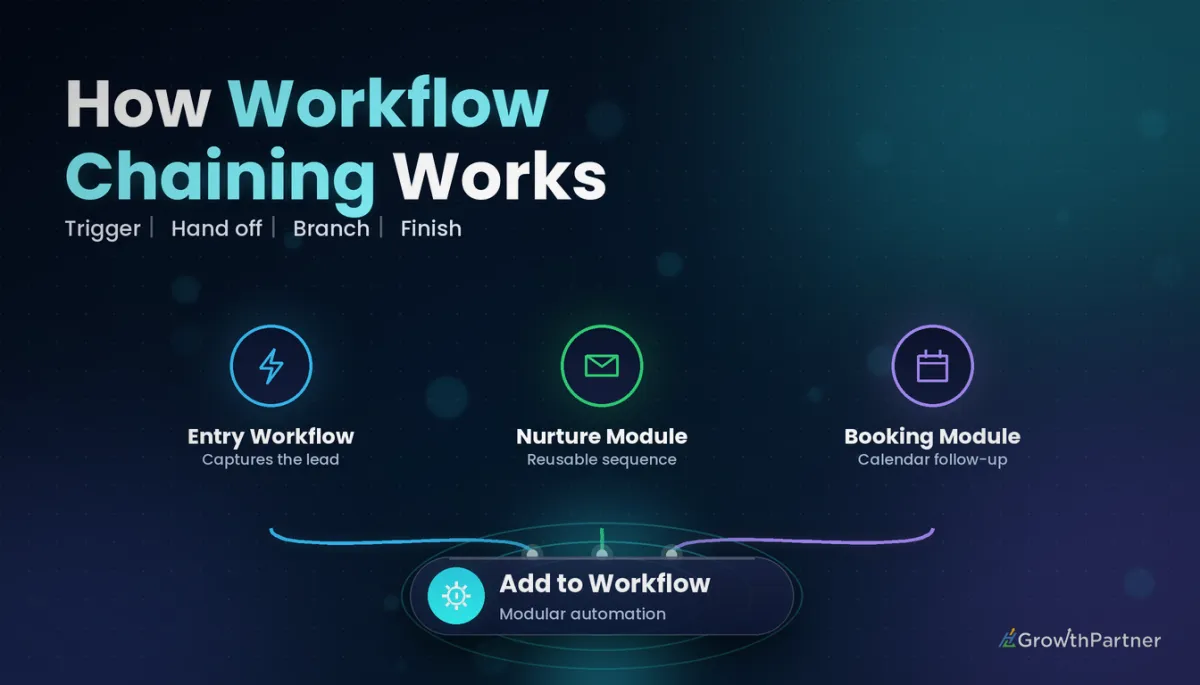
If triggers and actions are new to you, our overview of GoHighLevel workflow triggers and actions explains how the builder fits together before you start layering filters.
Contact DND trigger filters: direction and channel
Without filters, the trigger fires on every DND change for every channel. That is rarely what you want, because an opt-out from email and a re-subscribe to SMS need completely different responses.
Two filters do most of the work. DND direction separates opt-outs (enabled) from opt-ins (disabled), and channel narrows the change to SMS, Email, Calls & Voicemails, WhatsApp, Google Business Messages or Facebook and Instagram messages. The exact options vary, so check the channel list in your account.
Remember that switching DND on or off for all channels at once also fires the trigger. If your workflow is filtered to a single channel, test an all-channel change too and confirm it behaves the way you expect.
| Filter / condition | What it catches | Example action |
|---|---|---|
| DND enabled + SMS | A contact replies STOP or a user blocks texts | Add tag “unsubscribed-sms”, notify the assigned user |
| DND enabled + Email | An email unsubscribe or a manual email block | Remove from email nurture workflows |
| DND enabled + all channels | A full opt-out from every channel | Remove from All Workflows, update the opportunity, internal alert |
| DND enabled + Calls & Voicemails | A contact asks not to be phoned | Create a task to update the call list and dialler |
| DND disabled (any channel) | A re-subscribe or a corrected mistake | Send a re-subscribe confirmation on the reopened channel |
| DND enabled + If/Else on a tag | Opt-outs from a specific campaign or list | Webhook to sync the contact to an external suppression list |
When you need more nuance than the trigger filters allow, add an If/Else branch straight after the trigger. Our GoHighLevel workflow If/Else conditions guide shows how to branch on tags, pipeline stage or contact source.
Practical use cases for the Contact DND trigger
Most agencies we work with start with three or four of these and add more once the first workflow has run cleanly for a few weeks.
- Notify the owner or assigned user so a salesperson does not keep calling someone who just opted out.
- Tag the contact, for example “unsubscribed-sms”, so you can report on opt-outs by channel and campaign.
- Remove from nurture workflows using Remove from Workflow, or Remove from All Workflows for a full opt-out.
- Update the opportunity by moving it to a lost or paused stage so your pipeline reflects reality.
- Sync to an external list with a webhook, so your other tools honour the same suppression.
- Win-back on a channel that is still allowed, but only where the contact has genuinely consented to that channel.
- Send a re-subscribe confirmation when DND is disabled, so the contact knows they are back in.
HighLevel already blocks the message. The Contact DND trigger is how you make sure the rest of your business knows the contact said no.
Not on HighLevel yet? Start with a free 30-day trial here — long enough to build everything in this guide before you pay a cent.
Build recipe: an SMS opt-out workflow with the DND trigger
Here is the workflow we set up first in most sub-accounts. It handles SMS opt-outs end to end and takes about fifteen minutes to build.
- Trigger: Contact DND, filtered to DND enabled and the SMS channel.
- Add Contact Tag: “unsubscribed-sms”.
- Remove from Workflow: select every SMS-heavy nurture, reminder and reactivation workflow.
- If/Else: check whether the contact has an open opportunity.
- Yes branch: update the opportunity stage or status and add a note explaining the opt-out.
- Internal Notification: email or in-app notify the assigned user with the contact's name and channel.
- Webhook (optional): post the contact to your external suppression list or data warehouse.
- End: leave Allow re-entry off unless you have a clear reason to change it.
Build a mirror workflow filtered to DND disabled for re-subscribes. Keep it short: remove the “unsubscribed-sms” tag, send a single confirmation on the reopened channel and notify the assigned user.
A contact who opts out often does it by replying to a message, which can also fire other automations. If you use the GoHighLevel Customer Replied trigger, add a filter or condition so a STOP reply does not set off a sales follow-up at the same time as the opt-out workflow.
Avoiding loops and re-entry problems
The classic mistake is a workflow that the Contact DND trigger starts and that then runs a Set Contact DND (or DND Contact) action. That changes DND again, which fires the trigger again, and you end up with a loop.
Keep the trigger and the DND action in separate workflows, or filter tightly enough that the second change cannot match. Turn on Allow re-entry only when a contact genuinely needs to pass through more than once, such as someone who opts out, re-subscribes and opts out again months later.
Why the DND trigger matters for Australian compliance
According to the ACMA, the Spam Act 2003 requires unsubscribe requests to be honoured within five business days. HighLevel's DND handling blocks messages on that channel, but your wider business still needs to catch up.
The trigger closes that gap. Sales staff are told straight away, external lists are updated by webhook and long-running campaigns stop counting the contact. For the full picture on consent, sender identification and opt-out wording, see our guide to GoHighLevel SMS compliance in Australia under ACMA rules.
HighLevel's activity and conversation logs record who changed DND. That gives you an audit trail if a contact ever asks when and how their opt-out was processed.
Test checklist before you publish the DND workflow
Always test with a dummy contact that uses your own phone number and email address. Never test on a real lead.
- Enable DND on SMS manually and confirm the workflow starts and the tag is added.
- Reply STOP from your test phone and confirm the same result.
- Enable DND for all channels and check which workflows fire.
- Disable DND and confirm only the re-subscribe workflow runs.
- Check the contact has been removed from the nurture workflows you selected.
- Confirm the assigned user received the notification and the opportunity updated.
- Review the workflow's execution history for any repeated runs that suggest a loop.
Common mistakes to avoid
- Leaving the trigger unfiltered, so opt-outs and re-subscribes run the same actions.
- Using Set Contact DND inside a workflow started by the Contact DND trigger and creating a loop.
- Switching on Allow re-entry by default without thinking through repeat opt-outs.
- Sending a win-back message on another channel without real consent for that channel.
- Forgetting that all-channel DND changes also fire channel-filtered workflows, then never testing them.
- Assuming DND removes contacts from workflows; it only skips conflicting communication steps.
Or if you just need the software first: grab the 30-day HighLevel trial and book us when you're ready to scale it.
Frequently asked questions
What does the GoHighLevel Contact DND trigger do?
The Contact DND trigger starts a workflow whenever a contact's Do Not Disturb status changes. It fires regardless of the cause, whether a user toggled DND, the contact replied STOP, a workflow action set it or an import updated it. You can then notify your team, tag the contact or tidy up other workflows automatically.
Where do I find the Contact DND trigger in HighLevel?
Open Automation, go to Workflows, create or edit a workflow and click Add New Trigger. Search for "Contact DND" and select it. Add filters before saving so the workflow only runs for the DND changes you care about.
Can I trigger a workflow only when DND is turned on?
Yes. Add a filter for the DND direction and choose enabled, so the workflow ignores contacts who are re-subscribing. Build a second workflow filtered to disabled if you want a separate re-subscribe path.
Does the trigger fire for a single channel or for all channels?
It can do both. You can filter by channel, such as SMS or Email, and enabling or disabling DND for all channels at once also fires the trigger. Check the channel list in your account, because the available channels depend on what you have connected.
Will HighLevel still send messages to a contact on DND?
No. HighLevel automatically skips communication steps that conflict with a contact's DND settings, so a DND contact will not receive an SMS or email on a blocked channel. The Contact DND trigger is for the extra housekeeping, such as removing them from nurture workflows and alerting the assigned user.
How fast do I need to process an unsubscribe in Australia?
The ACMA states that under the Spam Act 2003 unsubscribe requests must be honoured within five business days. A Contact DND workflow helps you act on the request immediately rather than relying on someone to remember.
How do I stop a Contact DND workflow from looping?
Never use the Set Contact DND action inside a workflow that is started by the Contact DND trigger, unless a filter or condition makes a second run impossible. Leave Allow re-entry off unless you genuinely need a contact to run the workflow more than once, and test with a dummy contact first.
Related Articles on HL Growth Partner
More workflow trigger guides
 GoHighLevel Contact Created Trigger
 GoHighLevel Email Events Trigger
 GoHighLevel Contact Tag Trigger safeguards