GoHighLevel Email Events Trigger: Setup Guide (2026)
By Dr Priya Jaganathan, GoHighLevel Certified Admin · HL Growth Partner, Australia · Updated 22 October 2026 · 9 min read
The GoHighLevel Email Events trigger is the workflow trigger that fires when something happens to an email you have already sent: a contact opens it, clicks a link, bounces, marks it as spam or unsubscribes. It turns passive email reporting into live automation inside your sub-account.
In this guide I walk through what the trigger does, every event filter, a clean setup process, five recipes I build for clients, and the limitations you need to respect before you let open data drive your sales team. If you have been searching for the right HighLevel email event workflow trigger setup, this is the one I use.
Quick Facts
| Trigger name | Email Events (Workflows > Add New Trigger) |
| Event filter options | Opened, Clicked, Bounced, Complained (marked as spam), Unsubscribed |
| Scope filter | "In Workflow" limits the trigger to emails sent from a specific workflow |
| Unsubscribed event | Relates to the contact's DND status |
| Bounce reporting | Help documentation notes bounce events rely on the Mailgun-based sending service (LC Email / Mailgun) |
| HighLevel plans | Starter US$97/month, Unlimited US$297/month, Agency Pro US$497/month |
| Publishing rule | A workflow needs a trigger and at least one action before it can be published |
What the GoHighLevel Email Events trigger actually does
Most HighLevel triggers react to something the contact does in your CRM: a form submission, a tag being added, a pipeline stage change. The Email Events trigger is different. It listens to the delivery and engagement signals that come back from your email sending service after an email leaves your account.
Where it sits in the workflow-trigger family
Think of it alongside triggers like Customer Replied and Contact Changed. Customer Replied fires when a contact actually writes back, which is a far stronger intent signal. If you are deciding between the two, my guide to the Customer Replied workflow trigger covers the reply-based side of engagement.
The HighLevel email event filter options explained
When you add the trigger, the key filter is Event. According to HighLevel's help documentation, it offers five options. Each one deserves a different response, so I never build a single "any email event" workflow.
| Event | What it means | Typical response |
|---|---|---|
| Opened | The email registered an open (via a tracking pixel) | Soft engagement tag, light lead scoring |
| Clicked | The contact clicked a tracked link in the email | Stronger engagement tag, sales notification, scoring |
| Bounced | The email could not be delivered | Flag the address, stop email sends, clean the record |
| Complained | The contact marked the email as spam | Remove from all nurture immediately |
| Unsubscribed | The contact opted out; relates to their DND status | Exit all nurture workflows, log the reason |
Why Unsubscribed and DND belong together
HighLevel's help documentation ties the Unsubscribed event to the contact's DND status. In practice that means the opt-out is already respected at the channel level, but your other workflows may still be holding the contact in wait steps.
The Email Events trigger lets you clean that up deliberately. If DND is new territory for you, read my walkthrough on managing DND settings and unsubscribes in HighLevel before you build the exit recipe below.
A note on bounce events
HighLevel's help documentation notes bounce events rely on the Mailgun-based sending service, described there as Mailgun-only. If your sub-account sends through a different SMTP provider, do not assume the Bounced event will fire. Test it first.
Getting your sending domain right also makes every other event more trustworthy. My email deliverability and Mailgun setup guide covers the domain and DNS side.
How to set up the Email Events trigger, step by step
- Go to Automation > Workflows and create a new workflow from scratch.
- Click Add New Trigger and search for Email Events.
- Give the trigger a clear name, such as "Email Event: Clicked - Nurture A".
- Add the Event filter and choose one event (Opened, Clicked, Bounced, Complained or Unsubscribed).
- Optionally add the In Workflow filter and pick the workflow whose emails you want to listen to.
- Save the trigger, then add at least one action. HighLevel will not let you publish a workflow with a trigger and no action.
- Test with an internal contact, check the execution log, then publish.
Using the In Workflow filter
The In Workflow filter is the most underused setting on this trigger. Without it, the trigger responds to matching events from any workflow email in the account, which gets messy fast when you run several nurture sequences.
With it, you can say "only when someone clicks an email from my webinar follow-up workflow". That lets you tag and route contacts by the exact sequence they engaged with, rather than lumping all engagement together.
I use In Workflow for opens and clicks. I leave it off for Bounced, Complained and Unsubscribed, which need an account-wide response.
Five Email Events trigger recipes for routing email engagement
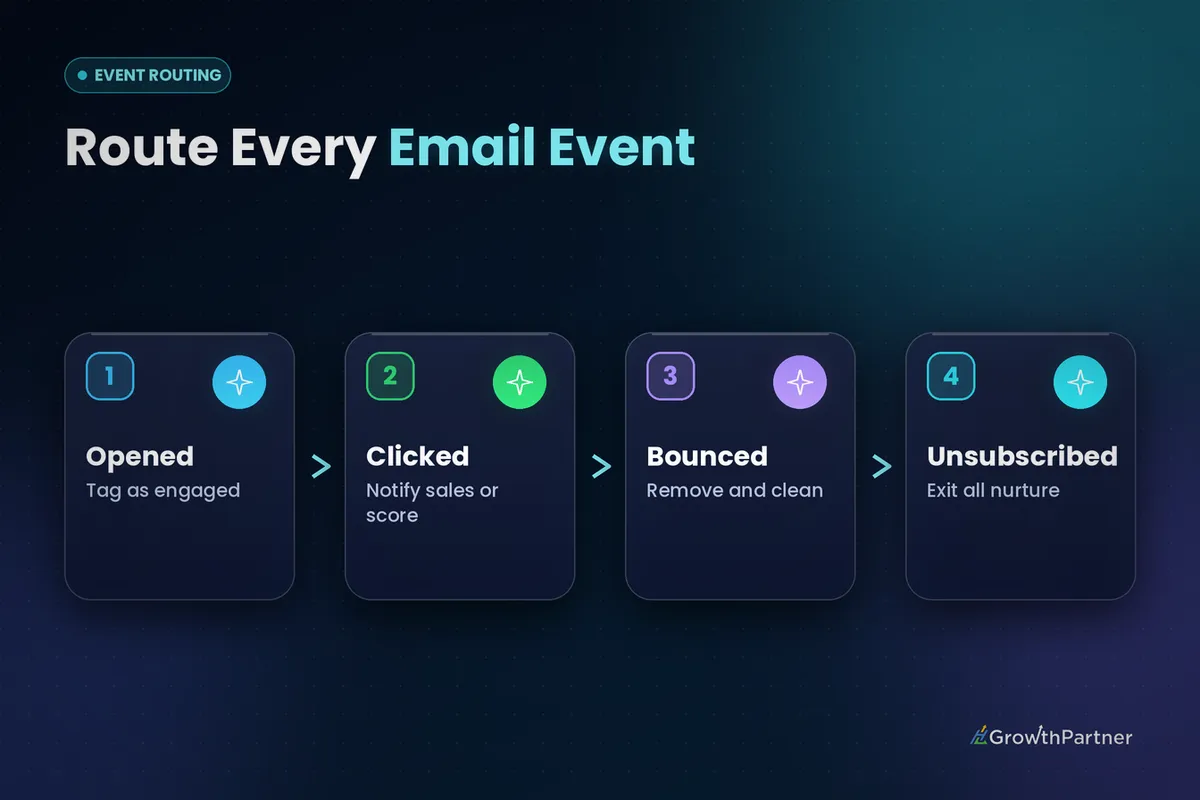
Each recipe is a separate workflow with a single event selected, which keeps execution logs easy to audit.
Recipe 1: Engaged-lead tagging on open
- Trigger: Email Events, Event = Opened, In Workflow = your main nurture.
- Actions: Add tag "engagement-email-opened", update a "Last Email Engagement" custom field with the current date.
- Use it for: soft segmentation and reporting, not sales alerts.
Keep your tag names consistent so they stay searchable months later. My tag naming strategy for automation explains the prefix system I use across sub-accounts.
Recipe 2: Click-to-sales alert for hot leads
- Trigger: Email Events, Event = Clicked, In Workflow = your offer or pricing email sequence.
- Actions: Add tag "engagement-email-clicked", add to lead score, send an internal notification to the assigned user, create a task to call within the business day.
- Use it for: surfacing the people who took a real action on your offer.
A click is a deliberate action, so it is a far better sales signal than an open.
Recipe 3: Bounce clean-up
- Trigger: Email Events, Event = Bounced, no In Workflow filter.
- Actions: Add tag "email-bounced", remove the contact from active email nurture workflows, create a task for the team to find a valid email address.
- Use it for: protecting your sender reputation and keeping your list clean.
Recipe 4: Unsubscribe and complaint exit from all nurture
- Trigger: two triggers in one workflow, Email Events with Event = Unsubscribed, and Email Events with Event = Complained.
- Actions: Remove from all active nurture workflows, add tag "email-optout", update a custom field noting the date and event type, notify the account owner if the contact is an open opportunity.
- Use it for: making sure nobody who opted out or complained stays queued in a long sequence.
This is the recipe I consider non-negotiable. A spam complaint is the clearest message a contact can send, and your automation should respond to it instantly and completely.
Recipe 5: Re-engagement for quiet contacts
- Trigger: Email Events, Event = Clicked or Opened, In Workflow = your re-engagement campaign.
- Actions: Remove the "dormant" tag, add "re-engaged", move the contact back into your standard nurture or pipeline stage.
- Use it for: winning back older leads without manually reviewing campaign reports.
Pairing the email event workflow trigger with If/Else
The trigger tells you what happened. An If/Else branch tells the workflow what to do about it based on who the contact is. That combination is where this trigger becomes genuinely useful for sales teams.
Common branch conditions I use after an Email Events trigger:
- Has tag "customer": send clicks to the account manager rather than new-business sales.
- Pipeline stage: only alert sales if the contact is not already in an active opportunity.
- Custom field value: route by service interest, region or lead source.
- Assigned user is empty: assign via round robin before sending the alert.
If you have not built branches before, my guide to If/Else branching in HighLevel workflows covers condition groups and the "None" branch so nothing falls through the cracks.
Limitations of the GoHighLevel Email Events trigger
This trigger reports what the email infrastructure sees, not what a human did.
Opens are an unreliable signal
Open tracking relies on a tiny image loading in the email. Apple Mail Privacy Protection preloads email content, and many inbox providers fetch images through their own proxies. Both can register an "open" when nobody actually read the email, and some genuine reads may not register at all.
That is why I treat Opened as a soft, directional signal only. Use it for tagging and broad segmentation. Never use an open on its own to alert sales, change a pipeline stage or decide a contact is hot.
Other limitations to plan around
| Limitation | What to do about it |
|---|---|
| Opens can be inflated or missed by privacy features and image proxies | Use clicks, replies and form submissions for sales decisions |
| Bounce events rely on the Mailgun-based sending service | Confirm your sending setup and test a bounce before relying on it |
| Clicks can come from link-scanning security tools | Pair click alerts with If/Else checks and human judgement |
| Without In Workflow, events fire for many emails at once | Scope engagement workflows to the sequence they belong to |
| Repeat events can re-trigger the workflow | Check workflow re-entry settings and use tags to prevent duplicate alerts |
For the authoritative detail on current filter behaviour, check the HighLevel help centre, since HighLevel updates trigger options regularly.
Common mistakes to avoid
- Sending sales alerts on opens. Privacy features make opens unreliable, so your team ends up chasing contacts who never read the email.
- Building one catch-all workflow for every event. Opens, bounces and complaints need completely different responses. Split them.
- Forgetting the In Workflow filter on engagement recipes. Without it, a click on a newsletter looks the same as a click on your pricing email.
- Leaving unsubscribed contacts sitting in wait steps. DND handles the channel, but your workflows should still remove them from nurture.
- Assuming bounces fire on any sending provider. Help documentation notes bounce events rely on the Mailgun-based sending service, so test your setup.
- Publishing without testing. Run an internal contact through each event and check the execution log before going live.
If you want a clean email engagement and list-hygiene automation built in your account, book a strategy call with the HL Growth Partner team.
Frequently asked questions
What is the GoHighLevel Email Events trigger?
It is a workflow trigger that fires when an email you sent records an event. HighLevel's help documentation lists the event options as Opened, Clicked, Bounced, Complained (marked as spam) and Unsubscribed. You choose one event per trigger and then add the actions you want to run.
Can I limit the trigger to emails from one workflow?
Yes. The In Workflow filter limits the trigger to emails sent from a specific workflow. This is ideal for engagement recipes where you want to know exactly which sequence a contact responded to.
Should I use email opens to alert my sales team?
No. Apple Mail Privacy Protection and image proxies can register opens that never happened and miss ones that did. Use opens for soft tagging only, and base sales alerts on clicks, replies or form submissions.
Why is my Bounced event not firing?
HighLevel's help documentation notes bounce events rely on the Mailgun-based sending service. If your sub-account sends through another provider, bounce events may not be reported to the workflow. Check your email sending settings and test with a known invalid address.
How does the Unsubscribed event relate to DND?
HighLevel's help documentation ties the Unsubscribed event to the contact's DND status. The opt-out is respected at the channel level, but you should still use the trigger to remove the contact from nurture workflows and log the change.
Why can't I publish my Email Events workflow?
A HighLevel workflow needs both a trigger and at least one action before it can be published. Add an action such as a tag, notification or field update, save, and the publish toggle will become available.
Can one workflow handle both unsubscribes and spam complaints?
Yes. Add two Email Events triggers to the same workflow, one set to Unsubscribed and one set to Complained. Both should lead to the same exit actions, because both mean the contact no longer wants your emails.
Related Articles on HL Growth Partner
More HighLevel workflow triggers
- Contact Created trigger setup guide
- Contact Changed trigger setup guide
- Survey Submitted trigger setup guide
