GoHighLevel Task Reminder Trigger: Setup Guide (2026)
 By Dr Priya Jaganathan, GoHighLevel Certified Admin · HL Growth Partner, Australia · Updated 21 November 2026 · 10 min read
How the Task Reminder trigger times itself off a task's due date, how the before and after filters work, and five reminder recipes that stop client work slipping.
Some links below are affiliate links — if you sign up through them, HL Growth Partner may earn a commission at no extra cost to you. It never changes what we recommend.
The GoHighLevel Task Reminder trigger starts a workflow a set number of days before or after a task's due date, which makes it the safety net every task system needs. Without it, a due date is just a number on a screen that nobody looks at until the client rings asking where their work is.
In this guide I'll explain what fires the trigger, how the before and after timing filters behave, and the reminder recipes I build for agencies and Australian small businesses. You'll also get a testing routine and the limitations worth knowing before you trust it with client deadlines.
| Trigger name | Task Reminder |
| Where to find it | Automation > Workflows > Add New Trigger |
| Fires when | A reminder falls due relative to a task's due date |
| Timing filters | Before no. of days, After no. of days (usable together) |
| Requirement | The task must have a due date |
| Due date edited | The reminder recalculates from the new date |
| Source | HighLevel help centre, 2026 |
What fires the GoHighLevel Task Reminder trigger?
According to HighLevel's help centre (2026), the Task Reminder trigger activates a workflow when a reminder is scheduled in relation to a task's due date. You decide whether that reminder lands before the due date, after it, or both.
That makes it different from the other task triggers. Task Added and Task Completed react to something a person does, while Task Reminder reacts to the calendar. Nobody has to touch the task for the workflow to start.
It runs with the task's contact in context, so your actions can personalise messages, check tags or update fields on that person.
The due date is the whole engine
HighLevel is clear that a due date is required for reminder timing. A task without a due date gives the trigger nothing to count from, so it simply won't fire.
The help centre also confirms that if you edit a task's due date, the reminder recalculates based on the updated date. That's handy when a client pushes a deadline, because you don't need to rebuild anything.
How it fits with the other task triggers
I think of the task triggers as a timeline. Task Added marks the start, Task Reminder covers the run-up and the overdue window, and the GoHighLevel Task Completed trigger marks the finish line.
If you need reminders tied to a date stored on the contact rather than on a task, such as a renewal or a birthday, that's a different tool. My GoHighLevel Custom Date Reminder trigger guide covers that build.
How the before and after timing filters work
The help centre describes two timing filters on the HighLevel Task Reminder workflow trigger. You enter a number of days, then save the trigger.
- Before no. of days: fires the workflow that many days before the task's due date. Use it for heads-up nudges.
- After no. of days: fires the workflow that many days after the due date. Use it for overdue follow-ups and escalation.
- Both together: HighLevel says each one triggers separately based on the timing you enter, so one workflow can catch both moments.
When I use both filters in one workflow, I add an If/Else branch early on so the "before" run and the "after" run take different paths. Otherwise your assignee gets the same message twice and starts ignoring both.
What about filtering by assigned user?
The official article focuses on the timing filters. I couldn't confirm a dedicated Assigned User filter on this trigger in HighLevel's documentation, so check the filter list in your own account before you design around it.
If it isn't there, you can still route reminders per person. Add an If/Else step after the trigger, or keep separate workflows for teams whose tasks follow different rules.
It doesn't notify anyone on its own
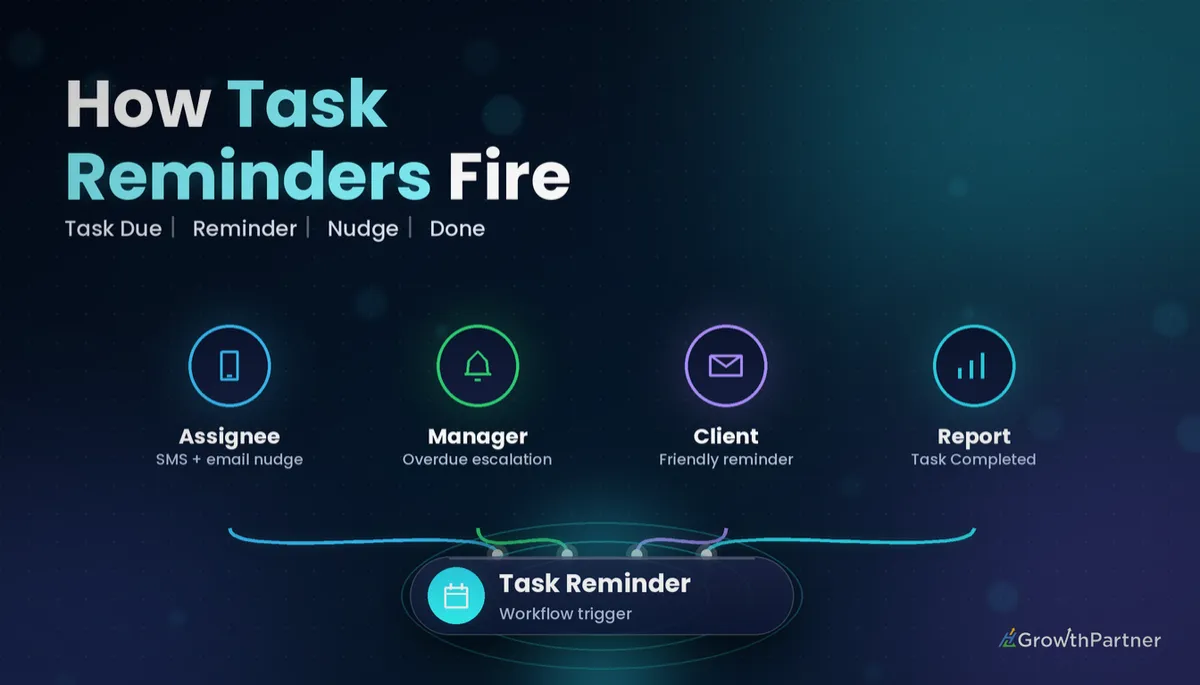
HighLevel's FAQ notes that the trigger doesn't automatically notify the assigned user. It only starts the workflow, and the notifications come from the actions you add.
Setting up the Task Reminder trigger step by step
Here's the sequence I follow in client accounts.
- Go to Automation > Workflows and create a new workflow from scratch.
- Click Add New Trigger and search for Task Reminder.
- Add a Before no. of days or After no. of days filter, or both, and enter the number of days.
- Rename the trigger so it describes the job, such as "Task Reminder – 1 day before due".
- Add your actions, save, and switch the workflow from Draft to Publish.
Five Task Reminder trigger recipes that keep work on time
These are the reminder builds I come back to most, using only standard workflow actions.
| Recipe | Timing filter | Key actions | Best for |
|---|---|---|---|
| Assignee nudge | Before no. of days | Internal Notification, Send SMS or Send Email | Busy teams juggling many tasks |
| Overdue escalation | After no. of days | Wait + If/Else + manager alert | Agencies with client deadlines |
| Client-facing reminder | Before no. of days | Send SMS or Send Email to the contact | Tasks that need the client to act |
| Before and after in one | Both filters | If/Else to split the two runs | Keeping workflow count low |
| Pair with Task Completed | After no. of days | Add Tag, Remove Tag, If/Else | Stopping false overdue alerts |
1. Nudge the assignee before the due date
Set the trigger to one or two days before the due date and send the assignee a short reminder. I use the Internal Notification action where possible, because it can reach the assigned user without hard-coding a phone number.
Keep it practical: the contact's name, the task, and a link to the record.
2. Overdue escalation with Wait and If/Else
Set the trigger to one day after the due date. Then add an If/Else branch that checks whether the work has moved on, using a tag or pipeline stage your Task Completed workflow sets.
If the job is still open, alert the team lead. If you want a second chance before escalating, add a Wait step and check again. My guide to GoHighLevel wait steps and goal events explains how to stop the workflow early once the work is done.
A due date nobody is reminded about is just a guess. The Task Reminder trigger turns it into a deadline your team actually meets.
3. Client-facing reminders for tasks they own
Some tasks depend on the client, such as sending logins, signing a form or supplying photos. Create the task with a due date, then let a Task Reminder workflow message the contact a couple of days beforehand.
Because the workflow runs in the contact's context, the SMS or email goes to the right person automatically. Write it in a friendly, plain tone, and check the contact's DND status so you respect their communication preferences.
4. One workflow for before and after
To keep your workflow list short, add both timing filters to one trigger. HighLevel fires each separately, so the contact enters twice: before and after the due date.
To tell the runs apart, tag the contact during the first pass and branch on that tag in an If/Else. The first run sends the nudge, the second run escalates.
5. Pair with Task Completed to avoid false alarms
This is the recipe that matters most. HighLevel's FAQ says the trigger will still run for completed tasks if they match the criteria, so a finished job can still produce an "overdue" alert.
Fix it by having a Task Completed workflow add a tag such as "task-done", then check for that tag in your reminder workflow before sending anything. If you want the bigger picture on spreading tasks fairly, read my post on GoHighLevel tasks for team workload management.
One caution: tags live on the contact, not the task, so use a specific tag per task type when contacts have several open tasks.
Not on HighLevel yet? Start with a free 30-day trial here — long enough to build everything in this guide before you pay a cent.
How to test your Task Reminder workflow properly
Time-based triggers are harder to test because you can't just click a button and watch. Here's how I test without waiting days.
- Create a test contact using your own mobile and email address.
- Add a task with a due date close enough that your "before" timing falls today or tomorrow.
- For "after" timing, set a due date in the past by the right number of days and see whether it fires on the next run.
- Open the workflow's Execution Logs and confirm the contact entered and each action ran.
- Mark the test task complete and confirm your If/Else check stops the overdue message.
Also test a task with no due date, so you see for yourself that nothing fires. If the logs show something odd, my GoHighLevel workflow troubleshooting guide walks through reading them step by step.
See the official HighLevel help centre article on the Task Reminder trigger for the current filter and FAQ details.
Limitations to know before you rely on it
The trigger is useful, but it has edges. Design around them now and you won't be explaining a missed deadline later.
- No due date means no reminder, so the trigger depends on your team's data habits.
- Completed tasks can still fire it, so you need your own check before sending overdue alerts.
- If a task is deleted before the reminder time, HighLevel says the trigger won't fire.
- Timing is set in days in the documented filters, so hour-level precision may need a different approach.
- Reminders don't notify anyone without actions, so an empty workflow does nothing useful.
Common mistakes to avoid
- Creating tasks without due dates, then wondering why reminders never fire.
- Sending overdue alerts without checking whether the task was already completed.
- Using both timing filters without an If/Else, so people get the same message twice.
- Assuming the trigger notifies the assignee by itself and leaving out the notification action.
- Messaging clients from a reminder workflow without considering their DND settings.
- Publishing without testing, then discovering the timing is a day off on a real client job.
Or if you just need the software first: grab the 30-day HighLevel trial and book us when you're ready to scale it.
Frequently asked questions
What does the GoHighLevel Task Reminder trigger do?
The Task Reminder trigger starts a workflow when a reminder falls due in relation to a task's due date. You can set it to fire a chosen number of days before the due date, after it, or both.
Does the Task Reminder trigger need a due date?
Yes. HighLevel's help centre says a due date is required for reminder timing. A task without a due date gives the trigger nothing to count from, so the workflow will not fire.
Can I set reminders both before and after the due date?
Yes. You can add both the Before no. of days and After no. of days filters, and HighLevel says each one triggers separately based on the timing entered. Use an If/Else branch to send different messages for each run.
What happens if I change a task's due date?
The reminder recalculates based on the updated due date, according to HighLevel's help centre. You don't need to edit or republish the workflow when a deadline moves.
Will the Task Reminder trigger fire for completed tasks?
It can. HighLevel's FAQ says the trigger will run for completed tasks if they match the criteria. To avoid false overdue alerts, tag contacts in a Task Completed workflow and check for that tag before sending reminders.
Does the Task Reminder trigger notify the assigned user automatically?
No. The trigger only starts the workflow. You need to add actions such as an internal notification, SMS or email to actually remind the assigned user.
What if a task is deleted before the reminder time?
HighLevel's help centre says the trigger will not fire if the task is deleted before the reminder time. Deleting a task is therefore a clean way to cancel its pending reminders.
Related Articles on HL Growth Partner
More task and workflow trigger guides
 GoHighLevel Task Added Trigger: Setup Guide (2026)
 GoHighLevel Note Added Trigger: Setup Guide (2026)
 GoHighLevel Contact DND Trigger: Setup Guide (2026)