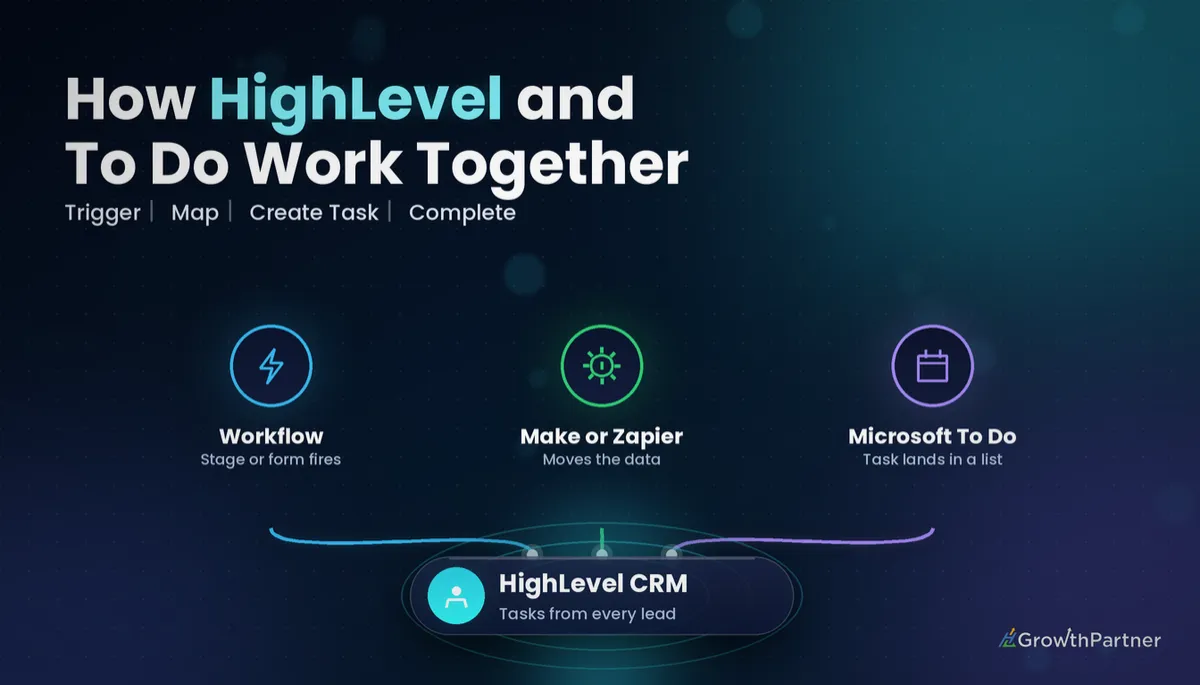
GoHighLevel Microsoft To Do Integration: Setup & Cost (2026)
 By Dr Priya Jaganathan, GoHighLevel Certified Admin · HL Growth Partner, Australia · Updated 14 November 2026 · 10 min read
How to get HighLevel leads, deals and follow-ups into Microsoft To Do without copying them by hand: the real connection options, what should sync in which direction, a step-by-step build, and what it actually costs to run in 2026.
Some links below are affiliate links — if you sign up through them, HL Growth Partner may earn a commission at no extra cost to you. It never changes what we recommend.
A GoHighLevel Microsoft To Do integration lets the follow-ups your CRM creates land in the task list you already check every morning. The catch is that HighLevel has no native Microsoft To Do connector, so you have to build the bridge yourself.
This guide walks through the three routes that work, the events worth syncing, the exact build we use for clients, the costs you will really pay, and the point where you should drop To Do and use native HighLevel Tasks instead.
| Native HighLevel connector for To Do | None; connect through Zapier, Make or a webhook to Microsoft Graph |
| Zapier To Do actions | Create Task, Create List, Complete Task, Find or Create Task, plus an API Request (beta) action (Zapier, 2026) |
| Zapier To Do triggers | New task and completed task (Zapier, 2026) |
| Make To Do modules | Watch, search, retrieve, create, edit and delete tasks and lists, plus a generic API call module (Make help docs, 2026) |
| Developer route | Microsoft Graph To Do tasks API |
| Microsoft To Do price | Free with a Microsoft account |
GoHighLevel Microsoft To Do integration: your three real connection options
Every working HighLevel Microsoft To Do setup we have seen uses one of three bridges. Pick one before you touch a Workflow.
1. Zapier (fastest to launch)
Zapier has a LeadConnector app for HighLevel and a Microsoft To Do app. Per Zapier's Microsoft To Do integration pages, the To Do side offers Create Task, Create List, Complete Task and Find or Create Task actions, an API Request (beta) action, and triggers for new tasks and completed tasks.
Zapier is the right choice when you need one or two simple Zaps live this week and nobody wants to learn a visual scenario builder. Our GoHighLevel Zapier integration guide covers the LeadConnector connection itself.
2. Make (more control for two-way logic)
Make's Microsoft To Do app has modules to watch, search, retrieve, create, edit and delete tasks and lists, according to Make's help docs. When you connect it, Make redirects you to Microsoft to grant access, so sign in with the account that owns the lists.
Make also offers a generic API call module with paths relative to https://graph.microsoft.com, which helps when a built-in module does not expose a field you need. We explain the HighLevel side in our GoHighLevel Make.com integration walkthrough.
3. HighLevel workflow webhooks to Microsoft Graph (developer route)
Microsoft To Do tasks are exposed through the Microsoft Graph API. A HighLevel Workflow can fire a Webhook or Custom Webhook action at a small script you host, and that script authenticates with Microsoft and creates the task.
This is the most flexible route and the most fragile one. You own the code, the token refresh, the hosting and the error handling, so only choose it if a developer is on hand. Our guide to HighLevel inbound and outbound webhooks covers the payload side.
What should sync between HighLevel and Microsoft To Do (and which way)
Do not try to mirror your whole CRM into a to-do app. To Do is good at one thing: a short list of actions a person needs to take, with a due date.
So the rule is simple. HighLevel decides when a task is needed; To Do tells HighLevel when it is done. Everything else stays in HighLevel.
| Event | Direction | What happens |
|---|---|---|
| Opportunity moves to a key stage (for example Proposal Sent) | HighLevel to To Do | Create a task such as Follow up proposal with the contact name, phone and a link back to the opportunity |
| Form submitted or lead ad received | HighLevel to To Do | Create a Call new lead task in a dedicated list, due the same business day |
| Appointment marked no-show | HighLevel to To Do | Create a Rebook task for the owner of the calendar |
| To Do task completed | To Do to HighLevel | Add a note to the contact, add a tag such as todo-done, or move the opportunity to the next stage |
| To Do task deleted | Not synced | Leave HighLevel untouched; deletions are too easy to trigger by accident |
How to set up the HighLevel Microsoft To Do integration step by step
This is the build we use for most solo operators and small teams, in either Make or Zapier.
Step 1: Prepare fields and lists
In HighLevel, create a contact or opportunity custom field called To Do Task ID. In Microsoft To Do, create a dedicated list such as HighLevel Follow-ups so CRM tasks never mix with your shopping list.
Storing the To Do task ID back in HighLevel is what makes the return trip possible, because it lets the completion step find the right contact without guessing.
Step 2: Connect in Make or Zapier
- Connect HighLevel through the LeadConnector app and authorise the correct sub-account.
- Connect Microsoft To Do and complete the Microsoft sign-in with the account that owns the list.
- Pull one sample contact and one sample task to confirm both connections work.
Step 3: Build HighLevel to To Do
Create a HighLevel Workflow triggered by Pipeline Stage Changed or Form Submitted, filtered to the stage or form you care about. Send the contact name, phone, opportunity ID and due date to your Make webhook or Zapier trigger.
In the scenario, create the task in your HighLevel Follow-ups list, put the contact details and a link to the HighLevel record in the task body, then write the new task ID back to the custom field.
Step 4: Build To Do to HighLevel completion
Create a second scenario or Zap that triggers on a completed To Do task in that list. Look up the contact by the stored task ID, then add a note, apply a tag, or move the opportunity stage.
Use a tag as the hand-off where you can, so any follow-up Workflow stays inside HighLevel where you can see it.
Step 5: Test, then switch on
Run five test records end to end, including one duplicate enquiry and one contact with no phone number. Turn on error notifications in Make or Zapier so a broken Microsoft connection never fails silently.
A sync you cannot trust is worse than no sync at all. Map the IDs first, and the rest of the build gets easy.
The true monthly cost of a HighLevel Microsoft To Do integration
Microsoft To Do itself costs nothing; it is free with a Microsoft account. The real cost sits in the bridge and in the time it takes to maintain it.
Your bill is driven by volume. Every task created and every completion checked counts as usage on Zapier or Make, and HighLevel's Custom Webhook action may add usage charges, so check your agency's workflow billing settings. Check current plan pricing on each vendor's site before you commit.
| Tool | What you pay for | Best for |
|---|---|---|
| Microsoft To Do | Nothing; free with a Microsoft account | Personal follow-up lists |
| Zapier | A plan sized by task volume; check current plan pricing | Quick one-way Zaps with little setup |
| Make | A plan sized by operations; check current plan pricing | Two-way logic, filters and lookups at higher volume |
| HighLevel webhooks to Microsoft Graph | Premium workflow executions plus developer and hosting time | Agencies with a developer who want full control |
| Native HighLevel Tasks | Included in your HighLevel subscription | Teams who want tasks next to the contact record |
The hidden line item is maintenance: someone has to fix the scenario when a Microsoft token expires or a field is renamed.
Not on HighLevel yet? Start with a free 30-day trial here — long enough to build everything in this guide before you pay a cent.
For the To Do side, see Zapier's Microsoft To Do integration page and Make's Microsoft To Do help docs for the current list of triggers, actions and modules.
When native HighLevel Tasks beat a Microsoft To Do sync
Microsoft To Do is built around personal tasks. It shines when one person wants their CRM follow-ups beside everything else in their day.
It is a poor fit for team workload. If you need to assign work, see who is overloaded, or report on overdue follow-ups, native HighLevel Tasks will serve you better. Our guide to managing team workload with HighLevel Tasks shows how we set that up.
If your business already runs on Microsoft 365 and needs shared boards, look at Microsoft Planner instead. We cover that build in our GoHighLevel Microsoft Planner integration guide.
- Use To Do when one person wants CRM follow-ups in their personal list.
- Use HighLevel Tasks when a team shares contacts and you need accountability.
- Use Planner when delivery work lives in Microsoft 365 and needs a shared board.
Common mistakes to avoid
- Creating duplicates. Use Find or Create Task, or search the list first, so a repeat form submission does not spawn a second task.
- Building a loop. If completing a task moves a stage, and that stage creates a task, you will get endless tasks. Filter the trigger so it ignores records the scenario just touched.
- No ID mapping. Without the To Do task ID stored in HighLevel, the completion step has to match on names, and names are never unique.
- Mixing personal and work accounts. Microsoft To Do can sit under a personal Microsoft account or a work Microsoft 365 account. Connect the one that actually holds the list, or tasks will vanish into the wrong app.
- Ignoring time zones. Due dates carry a time zone. Set AEST or AEDT explicitly so a task due Monday does not land on Sunday after the daylight-saving change.
- Syncing everything. Push only the events that need a human action, or the list becomes noise and people stop checking it.
Or if you just need the software first: grab the 30-day HighLevel trial and book us when you're ready to scale it.
Frequently asked questions
Does GoHighLevel have a native Microsoft To Do integration?
No. HighLevel does not have a native Microsoft To Do connector, so you connect the two through Zapier, Make, or a HighLevel workflow webhook that calls the Microsoft Graph API. Zapier and Make are the easiest routes for most businesses.
Is Microsoft To Do free to use with HighLevel?
Microsoft To Do itself is free with a Microsoft account. You will usually pay for the connector in between, such as a Zapier or Make plan, so check current plan pricing on those vendors' sites before you build.
Can I create a Microsoft To Do task when a HighLevel opportunity changes stage?
Yes. Trigger a HighLevel Workflow on the pipeline stage change, send the contact and opportunity details to Make or Zapier, and use the Create Task action to add the task to a dedicated To Do list. Store the returned task ID in a HighLevel custom field so you can match it later.
Can completing a To Do task update HighLevel?
Yes. Zapier offers a completed task trigger for Microsoft To Do, and Make can watch tasks for changes. Use it to find the contact by the stored task ID, then add a note, apply a tag, or move the opportunity to the next stage.
Should I use Zapier or Make for a HighLevel Microsoft To Do sync?
Use Zapier if you want one or two simple one-way automations live quickly. Use Make if you need two-way logic, filters and lookups, or expect higher volume. Both connect to HighLevel through the LeadConnector app.
How do I stop duplicate tasks in Microsoft To Do?
Search the list before creating a task, or use Zapier's Find or Create Task action, and store the To Do task ID on the HighLevel record. Also filter your completion trigger so it ignores records the automation has just updated, which prevents loops.
Should my team use Microsoft To Do or HighLevel Tasks?
Microsoft To Do suits one person who wants CRM follow-ups in their personal list. For shared workload, assignment and overdue reporting, native HighLevel Tasks or Microsoft Planner are a better fit.
Related Articles on HL Growth Partner
Other task and project tool integrations
 GoHighLevel Todoist Integration: Setup and Cost
 GoHighLevel Asana Integration: Setup and Cost
 GoHighLevel ClickUp Integration: Setup and Cost