GoHighLevel Task Added Trigger: Setup Guide (2026)
 By Dr Priya Jaganathan, GoHighLevel Certified Admin · HL Growth Partner, Australia · Updated 20 November 2026 · 9 min read
How the Task Added trigger works, how to filter it by assigned user, and five task-routing recipes you can build in an afternoon.
Some links below are affiliate links — if you sign up through them, HL Growth Partner may earn a commission at no extra cost to you. It never changes what we recommend.
The GoHighLevel Task Added trigger starts a workflow the moment a new task lands on a contact's record, which makes it the quiet backbone of every good task-routing system. Most accounts I audit never use it, and their tasks sit unseen until someone remembers to open the Tasks tab.
In this guide I'll walk you through what fires the trigger, how the Assigned User filter works, and the recipes I set up for agencies and Australian small businesses. You'll also get a testing checklist and the limitations worth knowing before you rely on it.
| Trigger name | Task Added |
| Where to find it | Automation > Workflows > Add New Trigger |
| Fires when | A new task is added to a contact's record |
| Main filter | Assigned User (one or multiple users) |
| Plan availability | All plans (workflows included) |
| Source | HighLevel help centre, 2026 |
What fires the GoHighLevel Task Added trigger?
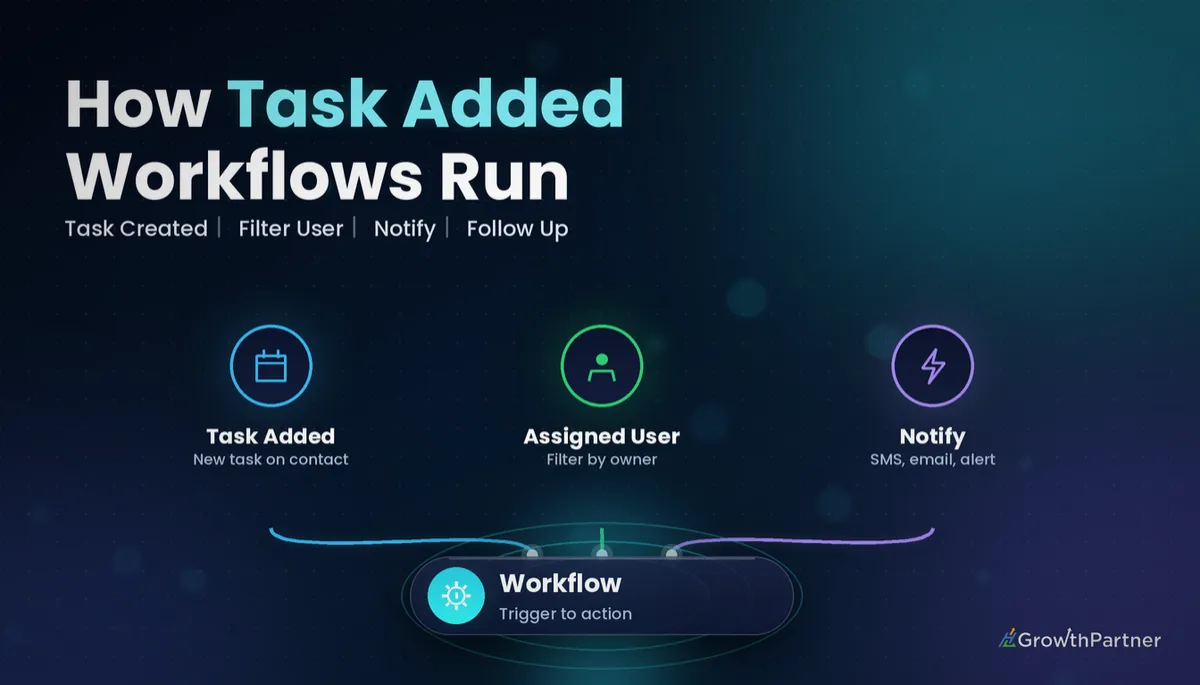
According to HighLevel's help centre, the trigger initiates a workflow whenever a new task is added to a contact's record. That's the whole rule, and its simplicity is exactly why it's useful.
It doesn't matter much how the task gets there. A team member might create it manually from the contact page, or another workflow might create it with a Create Task action. Either way, the new task becomes your starting signal.
Because the trigger is tied to a contact, the workflow runs with that contact in context. That means you can personalise messages, check tags, or update fields on the person the task is about.
Task Added versus Task Completed
Think of the two task triggers as bookends. Task Added fires at the start of the job, while the GoHighLevel Task Completed trigger fires when someone ticks it off.
Used together, they let you notify people at both ends and measure the time in between. I'll show you that pairing in recipe four.
How the Assigned User filter shapes your workflow
The main filter on the HighLevel Task Added workflow trigger is Assigned User. You can select one user or several, and the workflow only fires when the new task is assigned to someone on that list.
This is where good task routing starts. Instead of one noisy workflow for every task in the account, you build lean workflows for each role or person.
- One user selected: ideal for a personal alert workflow, such as notifying your bookkeeper by SMS.
- Several users selected: useful for a team, such as all sales reps sharing the same follow-up rules.
- No filter: fires on every new task, which suits account-wide logging but gets noisy fast.
Check the filter list in your own account before you build. HighLevel adds options over time, so you may see more than I describe here.
Plan availability
Workflows are included on every HighLevel plan, so you can use this trigger on Starter (US$97/month), Unlimited (US$297/month) or the Founder Plan (US$497/month, formerly Agency Pro). The trigger itself doesn't change between tiers.
Setting up the Task Added trigger step by step
The build takes about as long as making a cup of tea. Here's the sequence I follow in client accounts.
- Go to Automation > Workflows and create a new workflow from scratch.
- Click Add New Trigger and search for Task Added.
- Add the Assigned User filter and choose the relevant team members.
- Rename the trigger so it describes the purpose, such as "Task Added – Sales team".
- Add your actions, save, and switch the workflow from Draft to Publish.
Naming matters more than people think. When you have a dozen task workflows, a clear name saves you from guessing which one sent that 9pm SMS.
Five Task Added trigger recipes for agencies and Australian SMBs
These are the builds I come back to again and again. Each one starts with the Task Added trigger and uses only standard workflow actions.
| Recipe | Key actions | Best for |
|---|---|---|
| Notify the assignee | Send SMS, Send Email or Internal Notification | Small teams who live on their phones |
| Team channel alert | Webhook or internal notification to a group | Agencies with a shared ops channel |
| SLA follow-up | Wait + If/Else + reminder | Service businesses with response promises |
| Turnaround tracking | Update Custom Field, paired with Task Completed | Owners who want workload visibility |
| Form-to-task chain | Create Task, then Add to Workflow | Lead intake and onboarding |
1. Notify the assignee by SMS, email or internal notification
This is the simplest win. When a task is added for your tradie, receptionist or account manager, they get an instant nudge with the contact's name and a link to the record.
I usually use the Internal Notification action because it can reach the assigned user without you hard-coding a phone number. For field staff, an SMS tends to get read faster than an email.
2. Slack-style internal alert for the whole team
Some agencies prefer a shared feed over individual pings. You can post a short message to a team channel through an outbound webhook, or send an internal notification to a group of users.
Keep the message tight: who the task is for, which contact, and the due date. Anything longer gets skimmed and ignored.
3. SLA follow-up with Wait and If/Else
This one is my favourite for service businesses that promise a callback within a set time. After the trigger fires, add a Wait step, then an If/Else branch that checks whether the job has moved on, such as a tag or a pipeline stage update.
If it hasn't, escalate to a manager. If it has, end the workflow quietly. My guide to GoHighLevel wait steps and goal events covers how to stop the workflow early once the work is done.
A task nobody sees is just a note with a due date. The Task Added trigger is what turns it into a promise your team actually keeps.
4. Pair with Task Completed to measure turnaround
In the Task Added workflow, stamp a contact custom field with the date the task was created. In a separate Task Completed workflow, stamp a second field with the completion date.
Now you can compare the two and spot which tasks drag. It's a lightweight way to see turnaround without buying extra software. If you want the bigger picture on balancing load across staff, read my post on GoHighLevel tasks for team workload management.
One caution: custom fields live on the contact, not the task. If a contact has several tasks open at once, the fields will reflect the most recent one, so keep this recipe for workflows where one task per contact is the norm.
5. Auto-assign tasks from forms and chain workflows
Here a Form Submitted workflow uses Create Task to assign a follow-up to the right person, perhaps based on the service selected. Once you have confirmed in testing that the new task fires your Task Added workflow, that workflow can handle all the notifications.
Splitting intake and alerts this way keeps each workflow small and easy to fix. If you'd rather hand off directly, my guide to GoHighLevel workflow chaining with Add to Workflow explains when each approach makes sense.
Not on HighLevel yet? Start with a free 30-day trial here — long enough to build everything in this guide before you pay a cent.
How to test your Task Added workflow properly
Never publish a task workflow and hope. I test every one with a dummy contact before it touches a real client.
- Create a test contact using your own mobile and email address.
- Add a task to that contact and assign it to a user included in your filter.
- Open the workflow's Execution Logs and confirm the contact entered and each action ran.
- Add a second task assigned to someone outside the filter and confirm nothing fires.
That last check catches the most common filter mistake. If something misbehaves, my GoHighLevel workflow troubleshooting guide walks through reading the logs step by step.
See the official HighLevel help centre article on the Task Added trigger for the current trigger and filter details.
Limitations to know before you rely on it
The trigger is dependable, but it has edges. Plan around them now and you won't be rebuilding later.
- It fires on new tasks only, so editing or reassigning an existing task isn't the same signal.
- The workflow runs in the context of the contact, so task-level details may be limited in your actions.
- Filtering is focused on Assigned User, so finer routing usually needs If/Else branches after the trigger.
- Workflows creating tasks that fire other workflows can loop if you aren't careful with filters.
None of these are deal-breakers. They simply mean you should keep each workflow focused on one job.
Common mistakes to avoid
- Leaving the Assigned User filter empty and flooding the whole team with alerts.
- Forgetting to publish the workflow, so it sits in Draft while tasks pile up.
- Hard-coding one person's phone number instead of notifying the assigned user.
- Building an SLA escalation without an If/Else check, so managers get pinged even when the job is done.
- Creating tasks inside a Task Added workflow without filters, which can trigger itself in a loop.
- Skipping a test with a dummy contact before going live with real clients.
Or if you just need the software first: grab the 30-day HighLevel trial and book us when you're ready to scale it.
Frequently asked questions
What does the GoHighLevel Task Added trigger do?
The Task Added trigger starts a workflow whenever a new task is added to a contact's record in HighLevel. You can then send notifications, update fields, or run follow-up logic for that contact automatically.
Can I limit the Task Added trigger to certain team members?
Yes. The main filter is Assigned User, and you can select one or multiple users. The workflow then only fires when the new task is assigned to someone you selected.
Which HighLevel plans include the Task Added trigger?
Workflows are included on all HighLevel plans, so the Task Added trigger is available on Starter at US$97 per month, Unlimited at US$297 per month and every higher tier. The trigger works the same way on each plan.
Does the Task Added trigger fire when a workflow creates the task?
HighLevel's help centre says the trigger fires whenever a new task is added to a contact's record, and it does not separate manual tasks from automated ones. Before you rely on it for workflow-created tasks, test with a dummy contact and check the execution logs.
How do I measure how long tasks take to complete?
Stamp a custom field with the creation date in a Task Added workflow, then stamp a second field with the completion date in a Task Completed workflow. Comparing the two gives you a simple turnaround measure for each contact.
Why isn't my Task Added workflow firing?
The most common causes are a workflow left in Draft, an Assigned User filter that excludes the person the task was assigned to, or editing an existing task instead of adding a new one. Check the workflow's execution logs to see whether the contact entered at all.
Can I send a team channel alert when a task is added?
Yes. After the Task Added trigger, you can use an outbound webhook to post to a team chat tool or send an internal notification to a group of users. Keep the message short with the contact name, task and due date.
Related Articles on HL Growth Partner
More workflow trigger guides
 GoHighLevel Note Added Trigger: Setup Guide (2026)
 GoHighLevel Contact DND Trigger: Setup Guide (2026)
 GoHighLevel Custom Date Reminder Trigger: Setup Guide (2026)