GoHighLevel Customer Booked Appointment Trigger (2026)
By Dr Priya Jaganathan, GoHighLevel Certified Admin · HL Growth Partner, Australia · Updated 24 October 2026 · 9 min read
Some links below are affiliate links — if you sign up through them, HL Growth Partner may earn a commission at no extra cost to you. It never changes what we recommend.
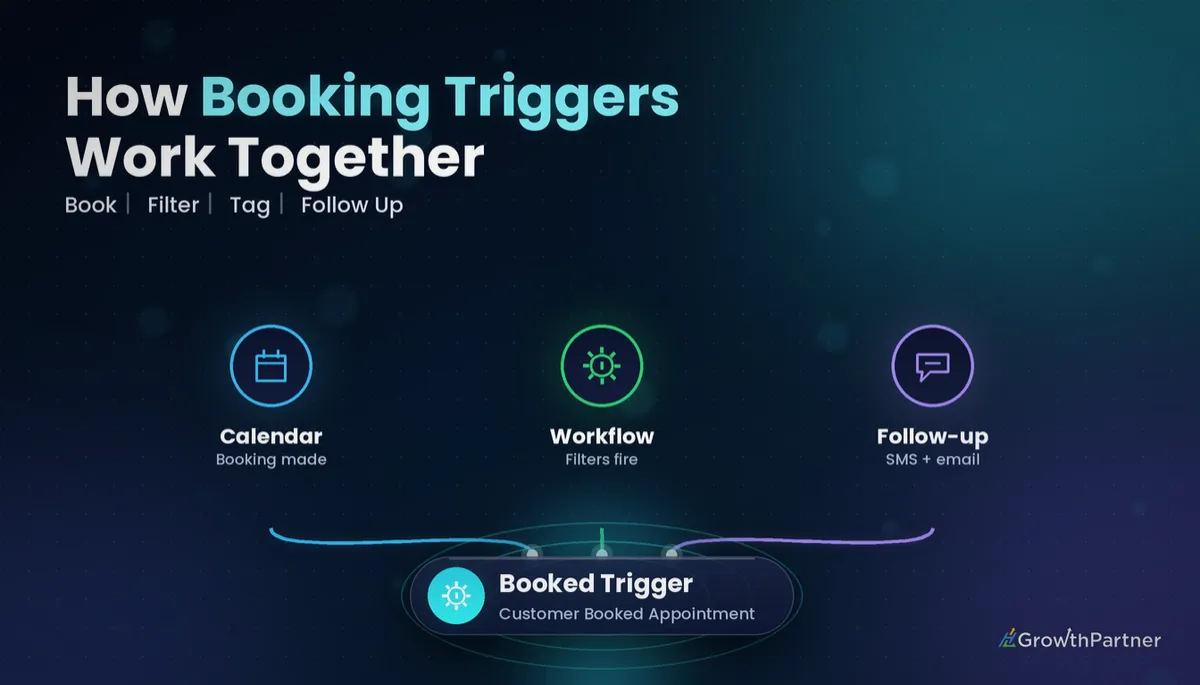
The GoHighLevel Customer Booked Appointment trigger starts a workflow the moment a contact books themselves into one of your calendars. Nobody on your team touches it. The prospect picks a slot on your booking widget, and HighLevel takes it from there.
This guide is part of our workflow-trigger series. It covers what fires the trigger, which filters you get, how it differs from the Appointment Status trigger, four recipes I build for clients, and how to test it before it goes live. Treat it as the companion to our Appointment Status guide.
Quick Facts
| Where it lives | Automation → Workflows → Add New Trigger → Customer Booked Appointment |
| What fires it | A contact booking themselves through a booking link or calendar widget |
| What doesn't fire it | Appointments booked manually by a user inside the CRM |
| Filters | Calendar, calendar group and contact tag |
| Guest handling | Enrol the primary contact only (default), contact plus guests, or guests only |
| Recurring appointments | Not supported — use Appointment Status with the Event Type filter |
What fires the Customer Booked Appointment trigger
The trigger fires on one event only: a customer independently booking an appointment. That means the booking came through a calendar link, an embedded widget on a funnel or website page, or a booking step inside a form flow.
According to HighLevel's help article on the Customer Booked Appointment trigger, manually booked appointments will not trigger the workflow. If your receptionist books someone in from the calendar view, this workflow stays silent.
That is a feature, not a bug. It lets you treat self-booked leads differently from the clients your team schedules on the phone.
Who gets enrolled
Calendars that allow guests give you three enrolment choices on the trigger:
- Primary contact only — the default, and the right choice for most sales calls.
- Contact and guests — useful for couples consults or business partners joining a strategy call.
- Guests only — rare, but handy when guests need a separate prep sequence.
Guests added to the appointment after the booking is made are not enrolled by that original booking event. If you add someone later, you'll need to enrol them by hand or with a separate workflow.
A note on the trigger's future
HighLevel's recurring-appointments documentation says the company is deprecating the Customer Booked Appointment trigger. Its replacement is the Appointment Status trigger with the Modified By filter set to Customer, which behaves the same way for widget bookings.
As of October 2026 the trigger still appears in many sub-accounts, and existing workflows built on it keep running. Still, if you're building something new for a client, check your workflow builder first and decide which trigger you want to own long-term.
Filters: narrow the HighLevel appointment booked trigger
An unfiltered HighLevel appointment booked trigger fires for every calendar in the sub-account. In a business with a sales calendar, an onboarding calendar and a support calendar, that is almost never what you want.
You get three filters to tighten it up:
- In Calendar — pick one or more specific calendars.
- In Calendar Group — fire for every calendar in a group, which suits team round-robin setups.
- Has Tag — only fire if the contact already carries a particular tag, such as an existing-client tag.
My rule: one workflow per calendar purpose. A discovery call and a paid onboarding session need different confirmation copy, different owners and different pipeline moves. If your calendars aren't organised that way yet, sort that out first with our GoHighLevel calendar and booking setup guide.
Customer Booked Appointment vs Appointment Status
These two triggers get confused constantly. The short version: Customer Booked Appointment answers "did a customer just book?" while Appointment Status answers "did this appointment's status just change, and who changed it?"
We've written a full breakdown of the second one in our GoHighLevel Appointment Status trigger guide. Use the two together: this trigger for the booking moment, Appointment Status for everything that happens afterwards.
| Feature | Customer Booked Appointment | Appointment Status |
|---|---|---|
| Fires on | A customer self-booking via link or widget | A status change on an appointment (for example confirmed, cancelled, showed or no-show) |
| Staff-booked appointments | Ignored | Included when Modified By is set to User or left open |
| Calendar filters | In Calendar, In Calendar Group | In Calendar, In Calendar Group |
| Who-changed-it filter | Not needed — always the customer | Modified By: Customer, User or API |
| Recurring appointments | Not supported | Supported via the Event Type filter (Normal, Recurring, Any) |
| Best for | Confirmations, prep sequences, new-lead routing | No-show follow-up, cancellations, post-meeting nurture |
| Long-term status | Being deprecated per HighLevel docs | The actively developed trigger |
One practical difference trips people up. Both triggers give you access to the Appointment conditions inside If/Else branches, so you can check start date or whether the appointment was rescheduled. Other triggers don't, which is why booking logic should hang off one of these two.
Four Customer Booked Appointment recipes that pay for themselves
These are the builds I set up most often for coaches, clinics and service businesses. Each one starts with the trigger filtered to a single calendar.
Recipe 1: Confirmation plus a prep sequence
HighLevel's calendar notifications already send a basic confirmation. The workflow's job is to make the prospect show up ready.
- Send an SMS straight away: "You're booked in for {{appointment.start_time}}. Reply here if anything changes."
- Send an email with a short prep checklist and a two-minute video.
- Add a Wait step until 24 hours before the appointment, then send a reminder with the joining link.
- Add another Wait until two hours before, then a final nudge by SMS.
Keep the copy short. If you want a deeper reminder cadence, borrow the timings from our appointment reminder workflows rather than reinventing them.
Recipe 2: Create the opportunity and move the pipeline stage
A self-booked discovery call is a buying signal, so the opportunity should exist before the call starts. Add the Create/Update Opportunity action, choose your sales pipeline, and set the stage to "Call Booked".
If the contact already has an open opportunity from a form or ad, the update option moves it rather than creating a duplicate. Our guide to the Create/Update Opportunity action covers the duplicate-matching settings in detail.
Recipe 3: Owner and team notification
Use the Internal Notification action to tell the right person a call has landed. For round-robin calendars, send it to the assigned user so the person taking the call gets the heads-up, not the whole team.
Include the contact's name, phone, the answers from any booking-form questions and a direct link to the contact record. A 30-second skim before the call beats walking in cold.
For VIP or high-value calendars, add a second notification by SMS to the business owner. That's the alert people actually read.
Recipe 4: Tag by calendar or service
Add a tag the moment someone books, such as booked-discovery or booked-consult-skin. Tags make every later filter, smart list and report far easier.
Keep the naming consistent across sub-accounts so snapshots stay clean. Our tag naming strategy guide has the conventions we use across every client build.
Bonus: Zoom link handoff
If your calendar uses Zoom as its meeting location, the joining link is generated with the appointment. Drop the meeting location custom value into the reminder messages from Recipe 1 so the link sits right where the prospect is looking.
Connect Zoom at the calendar level first, otherwise the custom value comes through empty. Our Zoom integration setup guide walks through the connection step by step.
Not on HighLevel yet? Start with a free 30-day trial here — long enough to build everything in this guide before you pay a cent.
Setting up the trigger step by step
- Go to Automation → Workflows and create a new workflow from scratch.
- Click Add New Trigger and choose Customer Booked Appointment.
- Add the In Calendar filter and select the calendar this workflow is for.
- Choose your enrolment option if the calendar allows guests.
- Rename the trigger with a clear label, for example "Booked – Discovery Call".
- Build your actions, then save and publish.
Name the workflow itself with the calendar name too. Six months from now, "Booked – Discovery Call – Confirm + Opp" will save you ten minutes of clicking.
How to test the trigger before going live
The single most common testing mistake is booking from inside the calendar view. That is a manual booking, so the trigger will never fire, and people assume the workflow is broken.
Test it like a customer would:
- Open the calendar's public booking link in an incognito window.
- Book with a test contact that uses your own email and mobile number.
- Check the workflow's Enrollment History to confirm the contact entered.
- Check the execution logs to see each action fire and any errors.
- Confirm the opportunity, tags and notifications landed where you expected.
Once it works, delete the test appointment and contact so they don't pollute your reporting.
Common mistakes to avoid
- Leaving the calendar filter empty — the workflow fires for every calendar, so support calls get sales copy.
- Testing with a manual booking — the trigger ignores staff-booked appointments by design.
- Expecting it to catch recurring appointments — it doesn't; use Appointment Status with the Event Type filter instead.
- Running this and Appointment Status on the same calendar without a plan — a new booking can enrol the contact in both and send double confirmations.
- Duplicating calendar notifications — if the calendar already sends a confirmation email, don't send a second one from the workflow.
- Forgetting guests — guests added after booking are never enrolled automatically.
If you want your booking automations, pipelines and reminders built properly the first time, book a strategy call with the HL Growth Partner team.
Or if you just need the software first: grab the 30-day HighLevel trial and book us when you're ready to scale it.
Frequently asked questions
What triggers the Customer Booked Appointment workflow in GoHighLevel?
It fires when a contact books themselves through a calendar booking link or embedded booking widget. Appointments created manually by a user inside the CRM do not fire it. That makes it ideal for automations aimed specifically at self-booked leads.
Why isn't my Customer Booked Appointment workflow firing?
The most common cause is testing with an appointment booked from inside the calendar, which counts as a manual booking. The next most common is a calendar filter pointing at the wrong calendar. Test through the public booking link in an incognito window and check the workflow's Enrollment History.
Is the Customer Booked Appointment trigger being deprecated?
HighLevel's recurring-appointments documentation says the trigger is being deprecated. The recommended replacement is the Appointment Status trigger with the Modified By filter set to Customer. Existing workflows continue to run, but new builds are safer on Appointment Status.
What is the difference between Customer Booked Appointment and Appointment Status?
Customer Booked Appointment fires only when a customer self-books. Appointment Status fires when an appointment's status changes and lets you filter by who made the change: Customer, User or API. Use the first for the booking moment and the second for confirmations, cancellations, shows and no-shows.
Can I filter the trigger to a single calendar?
Yes. Add the In Calendar filter and select one or more calendars, or use In Calendar Group for team setups. Without a filter the workflow fires for every calendar in the sub-account.
Does the trigger work with recurring appointments?
No. The Customer Booked Appointment trigger only handles normal, one-off appointments. For recurring bookings, use the Appointment Status trigger and set its Event Type filter to Recurring or Any.
Are appointment guests enrolled in the workflow?
Only if you choose to enrol them. The trigger lets you enrol the primary contact only, the contact plus guests, or guests only. Guests added after the booking is made are not enrolled by that booking event.
Related Articles on HL Growth Partner
More workflow triggers
- Pipeline Stage Changed Trigger: Setup Guide
- Form Submitted Trigger: Setup Guide
- Contact Created Trigger: Setup Guide
Appointments and show rates
- Appointment Reminder Workflows That Cut No-Shows
- No-Show and Reschedule Automation
- Conversation AI Bot for Appointment Booking
