GoHighLevel Category Started Trigger: Setup Guide (2026)
 By Dr Priya Jaganathan, GoHighLevel Certified Admin · HL Growth Partner, Australia · Updated 11 November 2026 · 9 min read
A practical, step-by-step guide to setting up the Category Started trigger in HighLevel so every module of your course can welcome, tag, alert and nudge learners automatically.
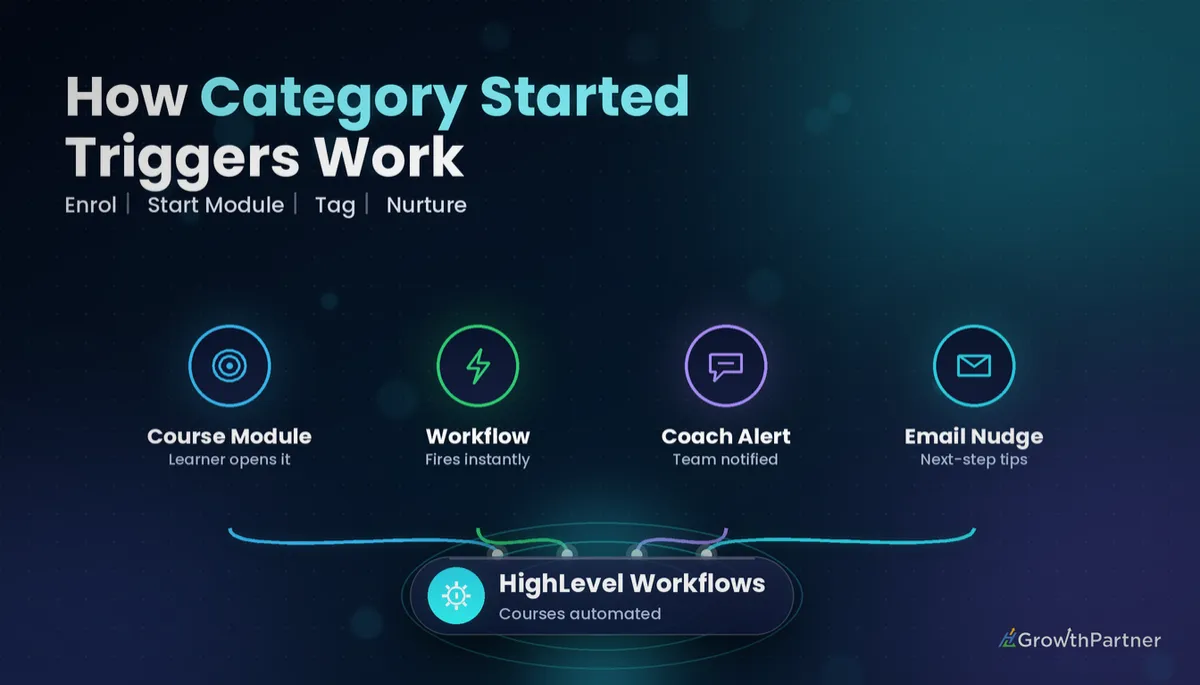
The GoHighLevel Category Started trigger fires the moment a learner opens a new category, or module, inside one of your course products. It is one of the most underused automations in the Memberships and Courses toolkit, and it is where a course stops feeling like a folder of videos and starts feeling like a guided programme.
In this guide I walk through how the HighLevel Category Started workflow trigger works, how to configure its filters, and the builds I set up most often for coaches, educators and agencies here in Australia. You will also find the mistakes I see in client accounts, a comparison of the sibling course triggers, and answers to the questions people ask me on strategy calls.
| Trigger group | Memberships / Courses |
| Fires when | A learner starts a category (module) inside a course product |
| Filters | Product and category |
| Multiple triggers per workflow | Yes, one per category if you want separate entry points |
| Without filters | Runs whenever any category in any product is started |
| Sibling triggers | Category Completed, Lesson Started, Lesson Completed, Product Started, Product Completed, Product/Offer Access Granted or Removed, User Login |
What the GoHighLevel Category Started trigger actually does
Inside a HighLevel course, content is organised into products, categories and lessons. A category is the module layer: think "Week 1: Foundations" or "Module 4: Advanced Funnels".
When a learner who has access to the product opens the first lesson in a category, HighLevel records that the category has been started. The Category Started trigger listens for that event and enrols the contact into your workflow.
That gives you a precise, behaviour-based signal rather than a guess based on time since purchase. You are reacting to what the learner did, not what you hoped they would do.
Where it sits among the course triggers
The trigger lives in the Memberships or Courses group of the workflow trigger list. It pairs naturally with the GoHighLevel Category Completed trigger, which fires when the same learner finishes every lesson in that module.
If you need finer detail than module level, the Lesson Started trigger in HighLevel works one layer down. For whole-course milestones, look at Product Started and Product Completed instead.
Category Started vs the other HighLevel course triggers
Choosing the right trigger is mostly about the level of detail you need. Here is how I explain the family to clients.
| Trigger | Fires when | Best used for |
|---|---|---|
| Product Started | A learner starts a course product | Course-level onboarding and kickoff sequences |
| Category Started | A learner starts a module inside a product | Module welcomes, module tags, coach alerts, advanced-module upsells |
| Lesson Started | A learner opens a specific lesson | Lesson resources, worksheet delivery, granular tracking |
| Lesson Completed | A learner finishes a specific lesson | Unlock-style follow-ups and quiz reminders |
| Category Completed | A learner finishes every lesson in a module | Module congratulations, progress checks, next-module prompts |
| Product Completed | A learner finishes the whole product | Certificates, testimonials, ascension offers |
| Product / Offer Access Granted or Removed | Access is given or taken away | Login details, access-revoked notices, churn workflows |
| User Login | A member logs into the portal | Engagement tracking and re-activation |
The module layer is the sweet spot for most programmes. It is detailed enough to feel personal, yet you are not building and maintaining one workflow per lesson.
How to set up the HighLevel Category Started workflow trigger
Before you build, make sure the course already exists with its categories published. The filter dropdowns only show products and categories that are live in the account.
Step 1: Create the workflow
Go to Automation, then Workflows, and create a new workflow from scratch. Give it a clear name such as "Course A | Module 3 Started | Welcome" so your future self can find it.
Step 2: Add the trigger
Click Add New Trigger and search the list for Category Started. Confirm the exact trigger name in your own account's dropdown, because HighLevel occasionally relabels or regroups triggers and your view may differ slightly from screenshots online.
Step 3: Apply the filters
Add a filter for the product, then a filter for the category you care about. With both set, the workflow only runs for that module of that course.
If you leave the filters off, the trigger runs whenever any category in any product is started. That can be useful for a global engagement log, but it is rarely what you want for messaging.
Step 4: Add more triggers if needed
One workflow can hold several Category Started triggers, each filtered to a different category. This is handy when the actions are almost identical and you want to branch on which module was started.
Step 5: Build the actions and test
Add your actions, save, and publish the workflow. Then enrol a test contact in the course, log in as that contact and open the first lesson of the module to confirm the workflow fires.
- Use a dedicated test contact with an email address you can check.
- Check the workflow's Enrollment History to see the contact enter.
- Review each action's execution log to confirm emails, tags and notifications ran.
Seven Category Started automations worth building
These are the builds I return to again and again in client accounts. Start with one or two and add more once you see how learners respond.
1. Module-specific welcome emails
Send a short email when a learner starts each module, outlining what they will achieve, how long it typically takes and where to ask questions. It sets expectations and reduces the "what am I meant to do here?" support emails.
2. Tagging learners by module
Add a tag such as "course-a-module-3-started" so you can segment, report and personalise later. Tags make smart lists and broadcast filters far more useful.
Tags are the cheapest analytics you will ever set up, and they keep working long after you have forgotten you added them.
3. Coach and team alerts
For coaching programmes, notify the assigned coach by internal email, SMS or Slack when a client reaches a key module. My guide to GoHighLevel internal notifications for Slack, email and SMS covers the setup in detail.
4. Upsell at an advanced module
When a learner starts an advanced module, they have shown real commitment. That is a sensible moment to introduce a done-with-you package, a mastermind or a one-to-one intensive.
The best time to offer the next step is when the learner has just proven they are taking this one seriously. Category Started tells you exactly when that is.
5. Drip nudges with Wait and an if/else check
Add a Wait step of a few days after the trigger, then an if/else branch that checks whether the learner has completed the category. Completed learners exit quietly, while those still in progress receive a friendly nudge.
A common way to do the check is to have a separate Category Completed workflow add a "module-complete" tag, then test for that tag in your if/else. It keeps the logic readable.
6. Cohort tracking with custom fields
Update a custom field such as "Current Module" each time a new category starts. You can then see at a glance where every member of a cohort sits, without exporting progress reports.
7. Pipeline stage moves for high-ticket programmes
For premium programmes, move the opportunity to a stage like "Module 3 In Progress" so your delivery team can manage clients on a pipeline board. It turns course progress into something your whole team can see.
Workflow design tips from real client builds
Keep each workflow focused on one job. A welcome workflow, a coach alert workflow and a nudge workflow are easier to troubleshoot than one giant automation doing everything.
Decide early how you will handle re-entry. If a learner can start a module more than once, check the workflow's re-entry setting so they do not receive the same welcome twice.
Write your messages for the learner who is busy and slightly behind, because that is who most of your students are. Short, warm and specific beats long and motivational.
If you are still building the course itself, start with my GoHighLevel Memberships and Courses setup guide. And if you want a course-wide kickoff before module-level automations, the Product Started trigger in GoHighLevel is the place to begin.
For the official field definitions and any recent changes, check the HighLevel Help Centre.
Common mistakes to avoid
- Leaving the product and category filters empty, so a single welcome email fires for every module of every course.
- Building the workflow before the category is published, then wondering why it does not appear in the filter dropdown.
- Forgetting to publish the workflow after saving it, which leaves it in draft and silently does nothing.
- Testing with your own admin login instead of a real test contact enrolled in the course.
- Ignoring the re-entry setting, so learners who revisit a module receive duplicate messages.
- Sending an upsell on the very first module, before the learner has had any chance to see results.
Frequently asked questions
What does the Category Started trigger do in GoHighLevel?
The Category Started trigger enrols a contact into a workflow when they start a category, or module, inside a HighLevel course product. It sits in the Memberships or Courses trigger group. You can use it to send module welcomes, add tags, alert coaches or update custom fields.
Can I limit the Category Started trigger to one module?
Yes. Add a filter for the product and a filter for the category, and the workflow will only run when that specific module is started. Without filters, the trigger runs whenever any category in any product is started.
Can one workflow have more than one Category Started trigger?
Yes. A single workflow can contain several Category Started triggers, each filtered to a different category. This is useful when the actions are similar and you want to branch based on which module the learner started.
What is the difference between Category Started and Category Completed?
Category Started fires when a learner begins a module, while Category Completed fires when they finish every lesson in that module. Started is ideal for welcomes and alerts. Completed is ideal for congratulations, progress checks and prompting the next module.
How do I test the Category Started trigger?
Enrol a test contact in the course, log in to the portal as that contact and open the first lesson of the filtered category. Then check the workflow's enrollment history and execution logs to confirm each action ran. Always confirm the trigger name in your own account's trigger dropdown first.
How can I nudge learners who start a module but do not finish it?
Add a Wait step after the Category Started trigger, then an if/else branch that checks whether the learner has completed the category, for example by looking for a tag added by a Category Completed workflow. Learners who have finished exit, and the rest receive a friendly reminder.
Why is my category missing from the trigger filter?
The filter usually only lists products and categories that already exist and are published in the account. Publish the category in the course builder, then refresh the workflow and reopen the trigger filter.
Related Articles on HL Growth Partner
More course progress triggers
 GoHighLevel Lesson Completed Trigger: Setup Guide (2026)
 GoHighLevel Product Completed Trigger: Setup Guide (2026)
Access and login triggers
 GoHighLevel Product Access Granted Trigger: Setup Guide (2026)
 GoHighLevel Offer Access Granted Trigger: Setup Guide (2026)
 GoHighLevel User Login Trigger: Setup Guide (2026)