GoHighLevel User Login Trigger: Setup Guide (2026)
 By Dr Priya Jaganathan, GoHighLevel Certified Admin · HL Growth Partner, Australia · Updated 8 November 2026 · 9 min read
How to set up the GoHighLevel User Login trigger so every portal login does useful work, from first-login welcomes to engagement scoring and coach alerts, without spamming your members.
Some links below are affiliate links — if you sign up through them, HL Growth Partner may earn a commission at no extra cost to you. It never changes what we recommend.
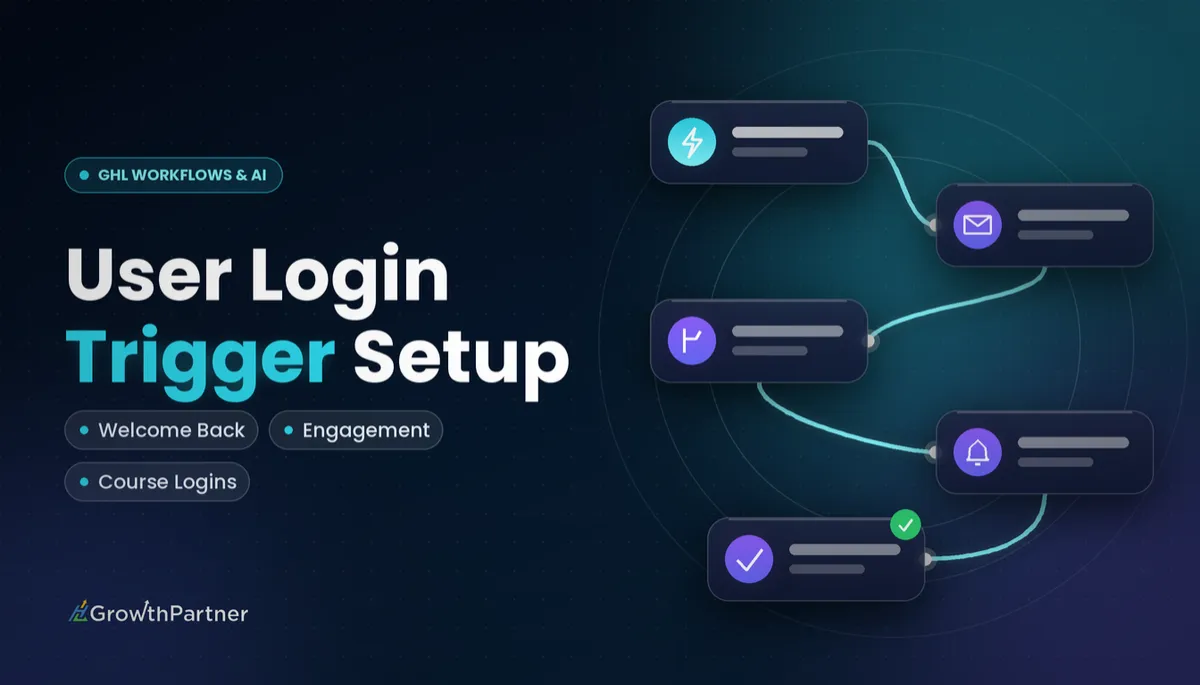
The GoHighLevel User Login trigger starts a workflow the moment a learner logs in to your membership or learning portal. It is the simplest engagement signal HighLevel gives you, and most accounts I audit either ignore it or wire it up so it emails members every single time they sign in.
This guide walks through where the trigger lives, how the first-login option works, how it differs from the legacy portal trigger, and seven practical automations you can build on it. It extends our series on course and membership triggers, so you can combine it with the others you already run.
| Trigger name | User Login (Memberships / Courses category) |
| Fires when | A learner logs in to the membership / learning portal (Client Portal) |
| Default behaviour | Runs on each login; can be limited to first login only |
| Legacy option | Courses – User Login (Legacy Portal), filterable by legacy course |
| Must be Published? | Yes, saved drafts do not run |
| Plan availability | Memberships and courses included on all plans (Starter, Unlimited, Founder Plan) |
What the HighLevel membership login trigger actually does
When a member signs in to your Client Portal, HighLevel records the event against their contact record. The User Login trigger listens for that event and enrols the contact in whichever workflow you attach it to.
That makes it different from progress triggers. Lesson Completed, Product Completed and Category Completed tell you someone finished something; User Login only tells you someone showed up. Showing up is still valuable, because a member who logs in but never progresses is a very different conversation from a member who never logs in at all.
If you are still mapping out which trigger does what, our complete guide to GoHighLevel workflow triggers covers the full list by category.
Each login versus first login
By default, the trigger runs on each login. That suits silent actions such as updating a custom field or adding a tag, where repeating the action does no harm.
You can also set it to fire only on a member's first login. That is the right choice for welcome emails, onboarding sequences and "you're in" SMS messages that should never repeat.
The legacy portal trigger
A separate, older trigger called Courses – User Login (Legacy Portal) still exists for accounts running the legacy portal. It can be filtered to a specific legacy course, which the newer trigger handles differently.
If your members log in to the newer Client Portal, use User Login. Pick the wrong one and the workflow simply never fires, which is one of the more frustrating silent failures in HighLevel.
How to set up the GoHighLevel User Login trigger step by step
The setup takes a few minutes once your membership offer and portal are live. If you have not built those yet, start with our GoHighLevel memberships and courses setup guide and come back.
- Go to Automation > Workflows in the sub-account and create a new workflow from scratch.
- Click Add New Trigger and open the Memberships / Courses category.
- Choose User Login (or the Legacy Portal version if that is what your members use).
- Decide whether the trigger should run on each login or only on first login, and add any filters your builder offers.
- Rename the trigger and the workflow so the purpose is obvious, for example "Portal login – first login welcome".
- Add your actions, Wait steps and If/Else branches.
- Check the workflow settings, including whether contacts are allowed to re-enter.
- Save, then switch the workflow to Published.
That last step matters more than any other. Workflows must be saved and Published before they run, and a draft workflow gives you no error, it just sits there.
HighLevel has renamed triggers and filter options over time, so confirm the exact labels in your own Workflow builder rather than relying on screenshots from older tutorials.
Testing it properly
Create a test contact with your own email, grant it access to the offer, then log in to the portal in a private browser window. Check the workflow's execution history to confirm the contact entered and every action ran.
Seven User Login trigger automations worth building
The trigger on its own does very little. These are the builds I set up most often for coaches and course creators.
| Use case | Trigger setting / filter | Key action | Timing |
|---|---|---|---|
| First-login welcome and onboarding | First login only | Send LC Email welcome, add "portal-active" tag | Immediate |
| Login-based engagement scoring | Each login | Update "last login date" custom field, add tag | Immediate, silent |
| Logged in but no lesson completed | Each login | Wait, then If/Else on Lesson Completed tag, send nudge | After a Wait of X days |
| Inactivity re-engagement | Separate workflow reading last login date | Email or SMS check-in | When the field goes stale |
| Notify a coach or team member | First login, or filtered offer | Internal notification or task | Immediate |
| Pipeline move for high-intent members | Each login plus tag check | Move opportunity to a new stage | When a threshold tag is present |
| Spam protection | Re-entry settings | If/Else guard on a "sent" tag | Every run |
1. First-login welcome and onboarding
Set the trigger to first login only, send a short LC Email that tells the member exactly where to start, and add a tag such as "portal-active". The tag gives you a reliable way to segment active members later.
2. Login-based engagement scoring
On each login, update a date custom field called something like "Last portal login" and add or refresh an engagement tag. This single silent action is the foundation for almost every other build in this list.
3. Logged in but no lesson completed
This is where User Login pairs with the Lesson Completed trigger. Have your Lesson Completed workflow add a tag, then in your login workflow add a Wait step of a few days followed by an If/Else that checks for that tag.
If the member has logged in but still has no lesson tag, send a friendly nudge pointing them to the first lesson.
A login tells you someone showed up. What you do in the days after that login decides whether they stay.
4. Inactivity re-engagement
The User Login trigger cannot fire on the absence of a login. Instead, use the last login date field from build two and run a separate re-engagement workflow that checks whether the date has gone stale.
When it has, send a short check-in by email or SMS, and remove the "portal-active" tag so your reporting stays honest.
5. Notify a coach or team member
For high-touch programs, an internal notification on first login lets a coach send a personal hello within the hour. You can also create a task so the follow-up does not depend on someone watching their inbox.
6. Pipeline stage moves for high-intent members
If you sell an upgrade or a done-for-you service from your membership, frequent logins are a buying signal. Combine the login with a tag or custom field threshold, and when the condition is met, move the member's opportunity to a "High intent" stage in your pipeline.
7. Avoid spamming members
Any workflow that runs on each login and sends a message will eventually annoy someone. Decide deliberately whether contacts can re-enter, guard messages with an If/Else on a "sent" tag, and use Wait steps to space communication out.
Our explainer on GoHighLevel workflow trigger filters covers how to narrow who enters a workflow before any action runs.
Using the User Login trigger in agencies and client portals
Memberships and courses are included on all HighLevel plans, so the User Login trigger is available whether you are on Starter at US$97 per month, Unlimited at US$297 per month or the Founder Plan at US$497 per month. The Founder Plan is the new name for Agency Pro, announced at LevelUp on 27 October 2026.
For agencies, the real leverage is building these login workflows once and saving them into a snapshot. Every new client sub-account with a membership then starts with welcome, scoring and re-engagement already in place, and you only adjust the copy.
Not on HighLevel yet? Start with a free 30-day trial here — long enough to build everything in this guide before you pay a cent.
See the official HighLevel Help Center for current trigger names, filter options and portal documentation.
Common mistakes to avoid
- Leaving the workflow in draft. It must be saved and Published before any login enrols a contact.
- Using the Legacy Portal trigger when members log in to the newer Client Portal, or the reverse.
- Sending a welcome email on each login instead of first login only.
- Expecting User Login to catch inactivity on its own, rather than tracking a last login date field.
- Allowing unlimited re-entry on a workflow that sends messages, with no tag or If/Else guard.
- Building login workflows separately in every sub-account instead of saving them into a snapshot.
For more traps like these, see our rundown of common GoHighLevel automation mistakes that cost agencies clients.
Or if you just need the software first: grab the 30-day HighLevel trial and book us when you're ready to scale it.
Frequently asked questions
What does the GoHighLevel User Login trigger do?
The User Login trigger starts a workflow when a learner logs in to your HighLevel membership or learning portal (the Client Portal). It sits in the Memberships / Courses category of the Workflow builder. You can use it to send welcome messages, update tags and custom fields, notify your team or move opportunities in a pipeline.
Does the User Login trigger fire every time a member logs in?
Yes, by default it runs on each login. You can set it to fire only on a member's first login, which is the cleanest option for a one-off welcome or onboarding email. Confirm the exact setting name in your own Workflow builder, because HighLevel has renamed trigger options over time.
What is the difference between User Login and Courses - User Login (Legacy Portal)?
User Login is the trigger for the current membership and learning portal. Courses - User Login (Legacy Portal) is an older trigger for accounts still running the legacy portal, and it can be filtered to a specific legacy course. Use the one that matches the portal your members actually log in to.
Why is my User Login workflow not running?
The most common cause is that the workflow was saved but not Published, and HighLevel workflows only run once they are Published. Other causes are using the legacy trigger for a new portal (or the reverse), a first-login setting that excludes returning members, or a filter that no contact matches. Test with your own learner account and check the workflow's execution history.
Can I detect members who have stopped logging in?
Not with the User Login trigger alone, because it only fires when a login happens. The practical approach is to stamp a last login date custom field on every login, then run a separate workflow with Wait steps and If/Else checks that re-engages members whose field has not updated for your chosen number of days.
How do I stop the User Login trigger from spamming members?
Decide whether contacts may re-enter the workflow and set the re-entry option to match, then guard any messages with tags or If/Else conditions so they only send once. Keep frequent-login actions to silent updates such as tags and custom fields, and reserve emails and SMS for first login or meaningful milestones.
Is the User Login trigger included on every HighLevel plan?
Memberships and courses are included on all HighLevel plans, so the workflow triggers that support them are available whether you are on Starter, Unlimited or the Founder Plan. Starter is US$97 per month, Unlimited is US$297 per month and the Founder Plan is US$497 per month.
Related Articles on HL Growth Partner
More membership and course triggers
 GoHighLevel Product Completed Trigger: Setup Guide (2026)
 GoHighLevel Product Access Granted Trigger: Setup Guide (2026)
 GoHighLevel Offer Access Granted Trigger: Setup Guide (2026)