GoHighLevel Offer Access Granted Trigger: Setup Guide (2026)
 By Dr Priya Jaganathan, GoHighLevel Certified Admin · HL Growth Partner, Australia · Updated 1 November 2026 · 9 min read
How to set up the Offer Access Granted trigger so every new course or membership offer starts the right onboarding, tags, pipeline moves and team alerts, without sending duplicate login emails.
Some links below are affiliate links — if you sign up through them, HL Growth Partner may earn a commission at no extra cost to you. It never changes what we recommend.
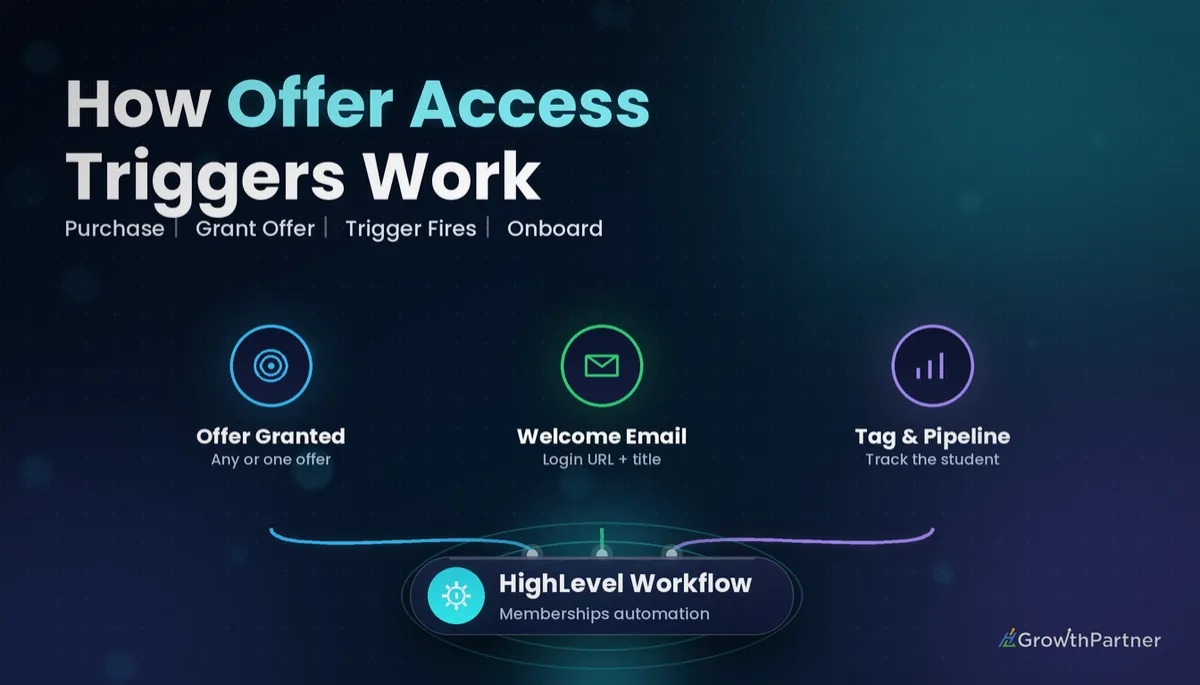
The GoHighLevel Offer Access Granted trigger starts a workflow the moment a contact is given access to a course offer, so you can welcome them, tag them and route them without touching the contact record yourself. It is the trigger I reach for when a client sells a second, third or upsell offer to people who already have a login.
It is also one of the most misunderstood Courses triggers. Most of the confusion comes down to one question: when does HighLevel send login credentials, and when does it stay silent? This guide answers that, then covers the build, four recipes, testing and fixes.
| Trigger group | Courses (Memberships in older accounts and docs) |
| Fires when | A contact is granted access to an offer, for example by hand or by a Course Grant Offer action |
| Filter | Offer. No filter means it fires for every offer in the sub-account |
| Custom values | Email, Login URL (magic link), Offer title |
| Sends login credentials? | No. Credentials go out with the New Signup trigger on a contact's first offer |
| Sibling triggers | Offer Access Removed, Product Access Granted, Product Access Removed |
What the Offer Access Granted trigger actually does
In HighLevel, a course sits inside a product, and an offer is the package that gives a contact access to one or more products. When access to an offer is granted, this trigger fires and puts the contact into your workflow.
That grant can come from a team member adding the offer on the contact record, or from another workflow using the Course Grant Offer action. HighLevel's help centre describes that action as the way to enrol contacts automatically, with or without a payment gateway.
Where to find it in 2026
HighLevel has been folding memberships into the newer Client Portal, where learners see a combined area with Courses, Communities, billing and files. In the workflow builder, Offer Access Granted now sits in the Courses trigger group, alongside Product Access Granted and the category triggers. Older tutorials still call this group "Memberships".
If you are still deciding how to structure products and offers, our guide to setting up GoHighLevel memberships and courses covers that before you automate anything.
HighLevel offer access workflow vs New Signup: the credentials question
This is the part that trips most people up. HighLevel's membership documentation says login credentials are sent only the first time an offer is granted, and that this happens through the New Signup trigger in Workflows.
Offer Access Granted does not send credentials. That is a feature, not a bug: an existing student who buys your advanced program already has a login, and a second "here's your password" email just confuses them.
| Question | New Signup | Offer Access Granted |
|---|---|---|
| When it matters most | A contact's first offer and first login | Second and later offers, upsells, manual grants |
| Sends login credentials | Yes, on the first offer grant | No |
| Offer filter | Yes, product or offer | Yes, offer |
| Best use | Branded welcome and login email | Upsell onboarding, tagging, pipeline moves, alerts |
The practical rule: use New Signup for the first welcome email that carries the login, and Offer Access Granted for everything that happens because a specific offer was added.
The offer filter and custom values you can use
Always add the offer filter
The trigger has one filter that matters: Offer. Leave it empty and the workflow fires for every offer granted in the sub-account, including free lead magnets and internal training offers.
I treat an unfiltered Offer Access Granted trigger the way I treat an unfiltered tag trigger, as a loop waiting to happen. The same logic is covered in our post on contact tag trigger safeguards.
The three custom values
When you add an email or SMS action after this trigger, click the custom values icon and go to Course, then Offer Access Granted. You will find three values:
- Email: the address the access was granted to.
- Login URL: a magic link that takes the contact straight into the course area.
- Offer title: the name of the offer, handy when one email template serves several offers.
Because there is no password value here, write your copy around the magic link. "Open your new course here" beats "use your existing password" every time.
Product Access Granted vs Offer Access Granted
Picking the wrong one of these two near-identical triggers is a common cause of workflows that fire twice or not at all.
| Trigger | Fires on | Filter | Use it when |
|---|---|---|---|
| Offer Access Granted | Access to an offer (the package) | Offer | You care about what was sold or granted |
| Product Access Granted | Access to a product (the course itself) | Product | You care about which course they can now open, however they got it |
If one offer bundles three products, a single grant can mean one offer event and three product events. Pick the level that matches the outcome you want, and avoid stacking both triggers on the same workflow unless re-entry is controlled.
Trigger on the offer when the message is about the purchase. Trigger on the product when the message is about the course.
How to build an Offer Access Granted workflow, step by step
1. Create the workflow. In the sub-account, go to Automation, then Workflows, and start from scratch. Name it after the offer, for example "OAG | Advanced Program | Onboarding", so it is easy to find later.
2. Add the trigger. Click Add New Trigger, search for "Offer Access Granted" or scroll to the Courses group, and select it.
3. Filter by offer. Add a filter, choose Offer and pick the exact offer. Save the trigger.
4. Add your first action. Usually a Send Email using the Login URL and Offer title custom values, or an Add Tag action that records the purchase.
5. Set re-entry rules. In workflow settings, decide whether a contact can enter more than once. For one-off onboarding, leave re-entry off.
6. Publish. Draft workflows don't fire. Switch it to Published and save.
For a wider view of how triggers, filters and actions fit together, see our GoHighLevel workflows, triggers and actions guide.
Not on HighLevel yet? Start with a free 30-day trial here — long enough to build everything in this guide before you pay a cent.
Four Offer Access Granted recipes we use with clients
1. Welcome sequence for an upsell offer
Filter to the upsell offer. Send an email straight away with the Offer title and Login URL, then wait two days and send a "start here" lesson link, then wait five days and check progress with a Category Started or Category Completed condition before nudging.
Because these students already have a login, there is no credentials email to compete with, so this sequence lands cleanly.
2. Tag and pipeline move
Add a tag such as "offer-advanced-program", then use Create or Update Opportunity to move the contact into a "Student: Active" stage in your delivery pipeline. Your team then sees every enrolled student on one board.
3. Internal Slack or email alert
Add an Internal Notification action, or a Slack message if your account is connected, that names the contact and uses the Offer title custom value. Our post on internal team notifications in GoHighLevel shows how to route these without flooding inboxes.
4. Cohort onboarding
For cohort programs, create one offer per intake and one Offer Access Granted workflow per offer. Each workflow adds a cohort tag, assigns the contact to the cohort coach, and drips messages timed to the cohort start date.
If the cohort is sold on a recurring plan, pair this with the GoHighLevel subscription trigger so failed payments and cancellations are handled in a separate workflow, ideally one that uses Course Revoke Offer.
Testing your HighLevel offer access workflow
Never test on a real student. Create a test contact with an email address you control, then grant the offer from the contact record.
- Open the workflow's Enrollment History and confirm the test contact entered.
- Check the email arrived and the magic link opens the right course.
- Confirm the tag, opportunity and internal notification all fired.
- Remove the offer and grant it again to see how your re-entry setting behaves.
HighLevel's Course Grant Offer documentation notes that granting access to someone who already has it does not create a duplicate enrolment or reset progress. Test how your own workflow responds in that situation before you rely on it.
Troubleshooting the Offer Access Granted trigger
| Symptom | Likely cause | Fix |
|---|---|---|
| Workflow never fires | Still in Draft, or wrong offer in the filter | Publish it and match the filter to the offer actually granted |
| Fires for every course | No offer filter | Add the Offer filter |
| Student gets no login | Expecting this trigger to send credentials | Use New Signup for first-time logins, or send the Login URL yourself |
| Two welcome emails | New Signup and Offer Access Granted both email on the first offer | Split by offer, or let only one workflow send the welcome |
| Runs twice per purchase | Offer and Product Access Granted triggers stacked | Keep one trigger level, or turn off re-entry |
Common mistakes to avoid
- Leaving the offer filter empty, so free offers and staff training start your paid onboarding.
- Assuming Offer Access Granted sends a password, then wondering why new students can't log in.
- Writing copy around passwords instead of the magic Login URL.
- Stacking Offer and Product Access Granted on the same workflow without controlling re-entry.
- Testing on a live student instead of a test contact.
- Building access workflows with no matching Offer Access Removed or revoke workflow for refunds and cancellations.
Or if you just need the software first: grab the 30-day HighLevel trial and book us when you're ready to scale it.
Frequently asked questions
What does the GoHighLevel Offer Access Granted trigger do?
It starts a workflow whenever a contact is granted access to a course offer, for example manually from the contact record or through a Course Grant Offer workflow action. You can filter it to one offer and then add any actions you like, such as emails, tags or pipeline moves.
Does Offer Access Granted send login credentials?
No. HighLevel sends login credentials only the first time an offer is granted, through the New Signup trigger. Offer Access Granted is designed for grants where the contact already has a login or you will send the magic Login URL yourself.
What happens if I don't add an offer filter?
Without a filter, the trigger fires for every offer granted in the sub-account. That usually means free offers and internal training also start your workflow, so always add the Offer filter for the specific offer you want.
Which custom values can I use with Offer Access Granted?
Three custom values are available under Course, then Offer Access Granted: Email, Login URL and Offer title. The Login URL is a magic link that takes the contact straight into the course area, so no password is needed.
What is the difference between Product Access Granted and Offer Access Granted?
Offer Access Granted fires when access to an offer, the package that was sold or granted, is given. Product Access Granted fires when access to a specific product, the course itself, is given. Use the offer trigger for purchase-related messages and the product trigger for course-related messages.
Where is the Offer Access Granted trigger in the new Client Portal?
In the workflow builder it sits in the Courses trigger group, alongside Product Access Granted and the category triggers. Older tutorials call this group Memberships, but the trigger works the same way in the Client Portal.
How do I test an Offer Access Granted workflow safely?
Create a test contact with an email address you control, publish the workflow and grant the offer from the contact record. Then check the workflow's enrolment history, the email and magic link, and any tags, opportunities or internal notifications it should have created.
Related Articles on HL Growth Partner
More single-trigger setup guides
 GoHighLevel Payment Received Trigger: Setup Guide (2026)
 GoHighLevel Order Submitted Trigger: Setup Guide (2026)
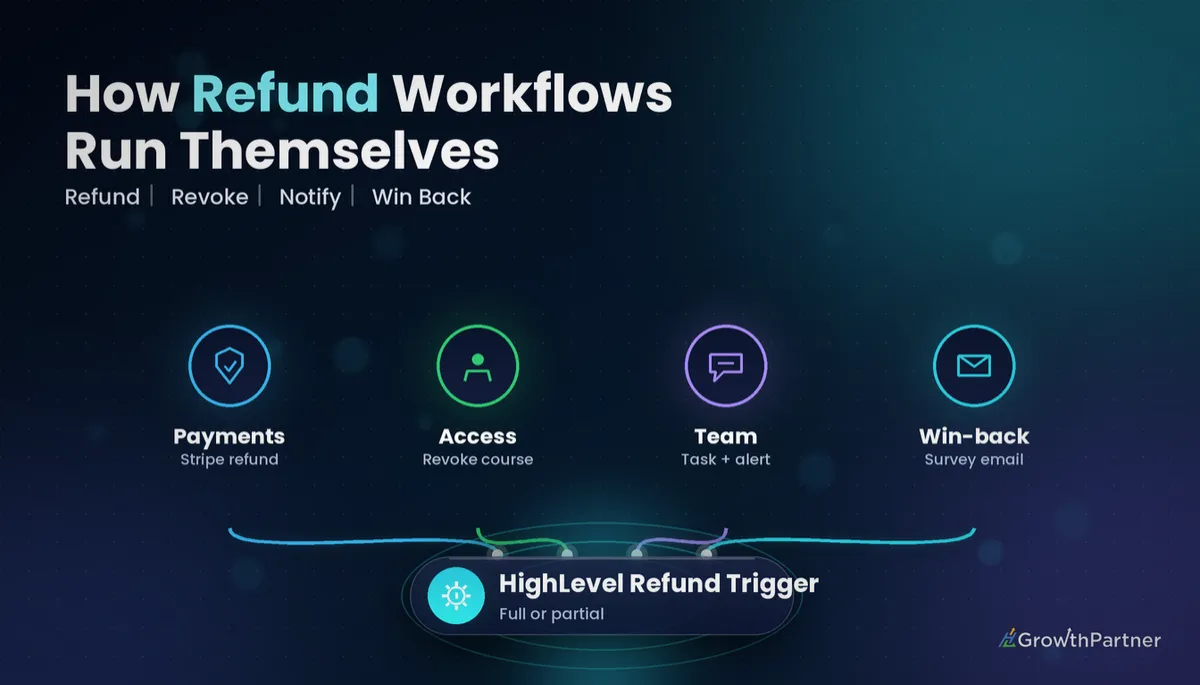 GoHighLevel Refund Trigger: Setup Guide (2026)
Courses, communities and the Client Portal
 GoHighLevel Memberships and Courses: Building a Client Portal That Sells (2026)
 GoHighLevel Communities: Build & Monetise Your Group (2026)