GoHighLevel Refund Trigger: Setup Guide (2026)
 By Dr Priya Jaganathan, GoHighLevel Certified Admin · HL Growth Partner, Australia · Updated 30 October 2026 · 9 min read
How to set up the GoHighLevel refund trigger, which filters matter, and five ready-to-build recipes that clean up access, pipelines and finance the moment money goes back to a customer.
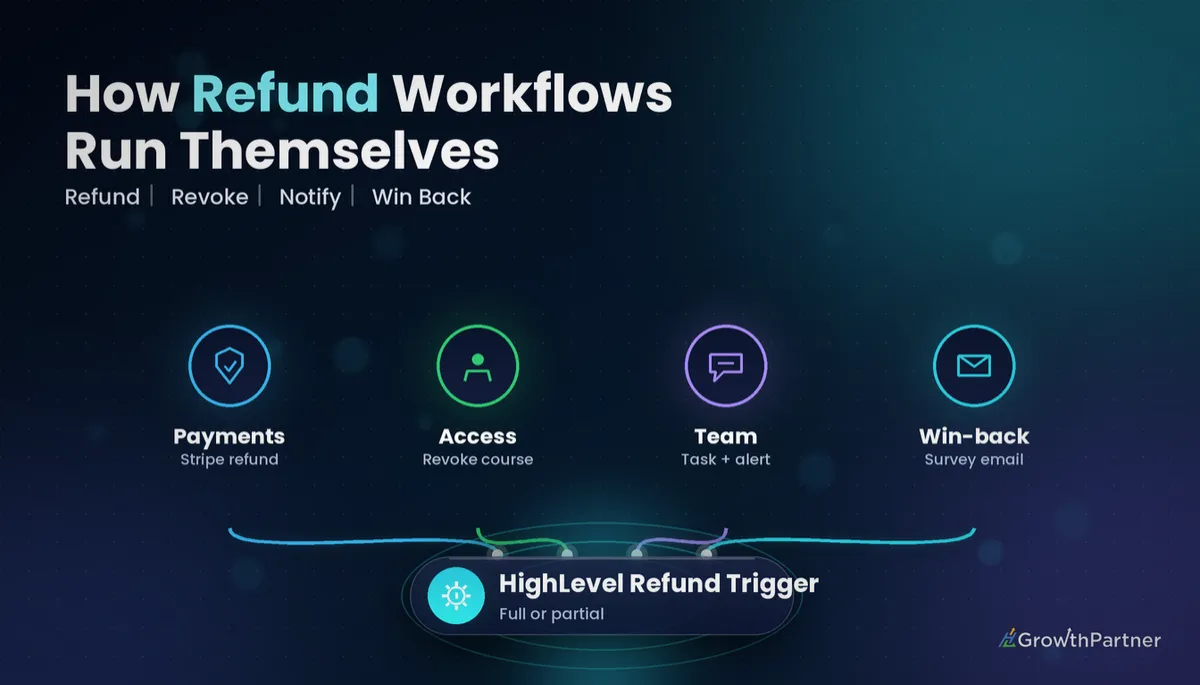
The GoHighLevel refund trigger starts a workflow the moment a refund is processed in your account, so access, pipelines, tags and finance alerts update without anyone remembering to do it. If you already run the payment and invoice triggers, this is the missing piece that handles money going the other way.
In this guide I walk through what the trigger does, the filters worth using, a step-by-step setup, five practical HighLevel refund workflow recipes, and how to test it safely. I also cover the one limitation that catches nearly every agency the first time: refunds issued directly inside Stripe.
| Trigger name | Refund (workflow trigger) |
| Fires when | A refund occurs and is processed through HighLevel |
| Filters | Refund status (successful or failed), amount, type (full or partial), source |
| Re-entry | Each refund event re-triggers the workflow by default, even for the same contact |
| Supported processors | Stripe, Authorize.net, NMI |
| Does not fire for | Refunds issued directly inside the Stripe dashboard |
| Source | HighLevel help article, checked 30 October 2026 |
What the GoHighLevel refund trigger actually does
When a refund is processed through HighLevel, the platform fires a refund event against the contact who paid. Any workflow using the Refund trigger, and whose filters match that event, enrols the contact and runs its actions.
It closes a real gap. Most accounts I audit have beautiful automations for when someone pays, and nothing at all for when they get their money back. The result is refunded customers who still have course access, still sit in a "Won" pipeline stage, and still receive onboarding emails.
According to HighLevel's help documentation (checked October 2026), the trigger supports Stripe, Authorize.net and NMI as payment processors. If your sub-accounts take payments through one of those and you issue refunds from inside HighLevel, the trigger is available to you.
The Stripe dashboard limitation
This is the part people miss. HighLevel states the trigger does not fire for refunds issued directly inside Stripe. The refund has to be processed through HighLevel itself, for example from the transaction, order or invoice inside the sub-account.
If your bookkeeper or a team member habitually logs into Stripe to refund customers, your refund workflow will silently do nothing. Fix the process before you build the automation, or the automation is worthless.
Refund workflow trigger filters worth using
Without filters, the trigger fires on every refund event in the sub-account. That is rarely what you want, because a failed refund attempt and a successful full refund need very different responses.
HighLevel lists four filter areas for the trigger:
- Refund status: successful or failed. Almost every customer-facing action should be gated on successful. Failed refunds belong in an internal alert workflow.
- Amount: useful for routing large refunds to a manager or finance lead while small ones are handled automatically.
- Type: full or partial. This is the filter that lets you treat "gave a goodwill credit" differently from "customer has left".
- Source: lets you separate refunds by where the original payment came from, so a funnel product and an invoiced service do not share one blunt workflow.
Because each refund event re-triggers the workflow by default, even for the same contact, a customer who receives two partial refunds will enrol twice. Design your actions so running twice is harmless, or add a tag check near the top of the workflow.
Step-by-step: setting up a HighLevel refund workflow
1. Confirm your payment set-up
Check that the sub-account takes payments through a supported processor and that refunds are being processed from inside HighLevel.
2. Create the workflow and add the trigger
Go to Automation, then Workflows, and create a new workflow from scratch. Click Add New Trigger, search for Refund, and select it. Give the trigger a clear name such as "Refund: successful, full".
3. Add your filters
Add the refund status filter set to successful, then add type, amount or source filters depending on the recipe. Keep each workflow narrow; two focused workflows are easier to debug than one full of branches.
4. Build the actions
Add the actions for your recipe (examples below). Start with an internal notification so you can see the workflow fire during testing, then add the customer-facing steps.
5. Save, test, then publish
Save as draft, run a real test refund (covered later), check the execution log, and only then switch the workflow to Published.
Refund vs Payment Received vs Invoice triggers
The refund trigger is one of several payment-related triggers, and agencies often wire the wrong one. Here is how the payment triggers in our trigger series compare.
| Trigger | Fires when | Best used for |
|---|---|---|
| Payment Received | A payment is successfully collected | Granting access, receipts, moving deals to won |
| Invoice | An invoice changes status (for example sent, paid or overdue) | Invoice reminders, overdue follow-up, paid confirmations |
| Order Submitted | A customer submits an order through a funnel or store checkout | Order confirmation, fulfilment, upsell sequences |
| Refund | A refund is processed through HighLevel | Revoking access, reversing pipeline status, finance alerts, win-back |
The easiest way to think about it: the Payment Received trigger opens doors, and the refund trigger closes them. If you invoice clients, the Invoice trigger setup guide covers the billing side, but it will not tell you when money has been returned.
Every automation that grants something on payment needs a twin that takes it back on refund. If you only build the first half, your system is quietly giving product away.
Five HighLevel refund workflow recipes
Recipe 1: Revoke membership or course access
Filters: status successful, type full, source matching your course or membership product.
Actions: use the membership or course access removal action for the relevant offer, remove the "customer" or product tag, and add a "refunded" tag. If you run several courses, our memberships and courses setup guide explains how to structure offers so revoking one does not remove the others.
For partial refunds, I usually leave access in place. A partial refund is often a goodwill gesture, and pulling access would undo the goodwill.
Recipe 2: Update the opportunity to lost or refunded
Filters: status successful, type full.
Actions: find the contact's opportunity in your sales pipeline, move it to a "Refunded" stage or set the status to lost, and add a lost reason note. This keeps your pipeline revenue honest, instead of reporting deals as won when the money has gone back.
Check that other workflows listening for opportunity changes will not fire an onboarding sequence when the status changes.
Recipe 3: Alert finance internally
Filters: none on type; use two workflows, one for status successful and one for status failed.
Actions: send an internal email or Slack message to your finance contact with the contact name and refund details, then create a task to reconcile it. Our HighLevel Slack integration guide shows how to post workflow alerts into a channel.
The failed-refund version matters more than people expect. A customer who was promised a refund that failed is about to become an angry customer, so assign that task to a person with a short due date.
Recipe 4: Reverse commission or flag accounting
Filters: status successful, with an amount filter if you only want larger refunds flagged.
Actions: tag the contact "commission-review", notify whoever manages your affiliate or sales commission payouts, and create a task to adjust the accounting record. If you sync to an accounting tool, the task should include a check that the refund has landed there correctly.
HighLevel's built-in tools may or may not adjust commissions automatically depending on how you set them up, so treat the workflow as a reliable prompt for a human check rather than assuming the reversal happened.
Recipe 5: Win-back or feedback email, split by refund type
Filters: status successful, then branch on type.
Actions: for a full refund, wait a few days, then send a short feedback survey asking what did not work. For a partial refund, send a thank-you note confirming the adjustment and pointing to support. Never send a hard sell straight after a refund.
Bonus: SaaS mode sub-account clients
If you resell HighLevel in SaaS mode, a refunded client is a churn signal. Add a refund workflow in your agency-side account that tags the client, alerts your account manager and starts a save conversation. Our post on reducing churn in SaaS mode covers what that conversation should look like.
How to test the GoHighLevel refund trigger
Do not publish a refund workflow until you have watched it fire on a real event. The trigger only reacts to refunds processed in HighLevel, so a test from the Stripe dashboard proves nothing.
- Create a low-priced test product or invoice and pay it with your own card on the live processor.
- Refund it from inside HighLevel. Try a partial refund first, then refund the remainder to test the full path.
- Open the workflow's execution logs and confirm the contact enrolled, the right filter branch ran and each action completed.
- Check the side effects: course access removed, opportunity moved, task created, internal alert received.
Remember that the two partial refunds will each trigger the workflow. That is expected behaviour, so use the test to confirm nothing awkward happens on the second run.
For the full list of supported processors and filter options, see HighLevel's official Refund Workflow Trigger help article.
Common mistakes to avoid
- Refunding customers from inside Stripe and expecting the HighLevel workflow to fire. It will not.
- Leaving the refund status filter off, so failed refunds revoke access as if the money had gone back.
- Treating partial and full refunds the same and pulling course access after a small goodwill credit.
- Forgetting that each refund event re-triggers the workflow, then sending the same customer two identical emails.
- Moving opportunities to lost without checking which other workflows listen for that status change.
- Publishing without a real test refund and reading the execution logs.
Frequently asked questions
What is the GoHighLevel refund trigger?
The refund trigger is a HighLevel workflow trigger that fires when a refund occurs on a payment processed through HighLevel. You can filter it by refund status, amount, type (full or partial) and source, then run actions such as removing access, updating opportunities or alerting your team.
Why is my HighLevel refund workflow not firing?
The most common reason is that the refund was issued directly inside Stripe. HighLevel states the refund trigger does not fire for refunds made in the Stripe dashboard, so the refund must be processed through HighLevel. Also check that your filters, such as refund status or type, match the refund you issued.
Which payment processors work with the refund trigger?
HighLevel's help documentation lists Stripe, Authorize.net and NMI as supported processors for the refund workflow trigger. In each case the refund needs to be processed from inside HighLevel for the workflow to fire.
Can I treat partial and full refunds differently?
Yes. The refund trigger includes a type filter for full or partial refunds. Many businesses revoke course or membership access only on full refunds, and send a simple confirmation or thank-you message for partial refunds.
Will the refund trigger fire more than once for the same contact?
Yes, by default each refund event re-triggers the workflow, even for the same contact. If a customer receives two partial refunds, they will enrol twice, so design actions that are safe to run twice or add a tag check.
What is the difference between the refund trigger and the Payment Received trigger?
Payment Received fires when money is collected and is used to grant access, send receipts and mark deals as won. The refund trigger fires when money is returned through HighLevel and is used to reverse those steps, alert finance and start feedback or win-back follow-up.
How do I test a GoHighLevel refund workflow?
Pay a low-priced test product or invoice with your own card, then refund it from inside HighLevel rather than Stripe. Check the workflow execution logs to confirm the contact enrolled and each action ran, and test both a partial and a full refund if your workflow branches on type.
Related Articles on HL Growth Partner
More workflow triggers
 GoHighLevel Order Submitted Trigger: Setup Guide
 GoHighLevel Opportunity Status Changed Trigger
 GoHighLevel Workflows: Triggers and Actions Explained
Payments and accounting
 GoHighLevel Payments: Stripe, Invoices and Subscriptions
 GoHighLevel Xero Integration: Setup and Cost
 GoHighLevel Coupons and Discount Codes Setup