GoHighLevel Invoice Trigger: Setup Guide (2026)
 By Dr Priya Jaganathan, GoHighLevel Certified Admin · HL Growth Partner, Australia · Updated 29 October 2026 · 8 min read
How to set up the GoHighLevel invoice trigger for every invoice status, which workflow to build for each one, and how to stop clients getting payment reminders after they have already paid.
Some links below are affiliate links — if you sign up through them, HL Growth Partner may earn a commission at no extra cost to you. It never changes what we recommend.
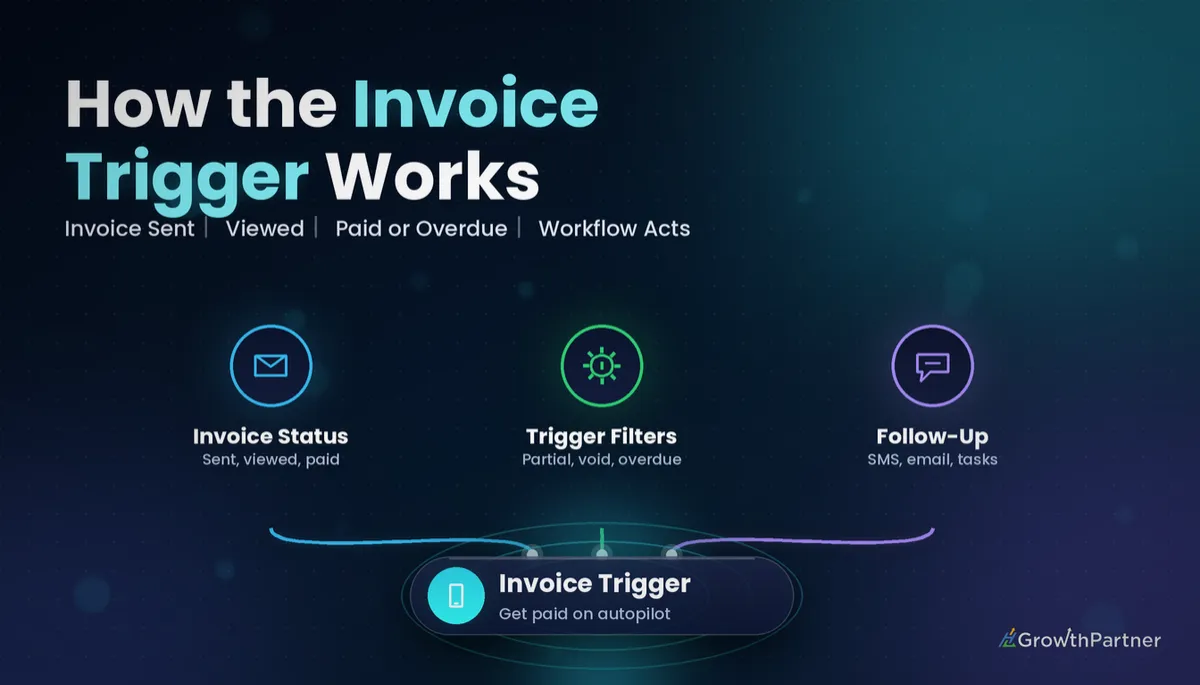
The GoHighLevel invoice trigger starts a workflow whenever an invoice changes status, so your follow-up runs off what the client actually did rather than what someone remembered to check. Sent, viewed, partially paid, paid, overdue or void: each status can kick off its own automation.
This post is part of our workflow trigger series, where we unpack one trigger at a time. Below you will find what the HighLevel invoice workflow trigger does, a status-by-status playbook, a step-by-step build, and the mistakes we see most often when we audit Australian agency and service-business accounts.
| Trigger name | Invoice (documented as "Workflow Trigger - Invoice") |
| Where to find it | Automation > Workflows > Add New Trigger |
| What fires it | A change in invoice status |
| Status filters | Sent, Viewed, Partially Paid, Paid, Overdue, Void |
| Recommended structure | One workflow per status, plus a Paid workflow that removes the contact from reminder workflows |
| Official documentation | HighLevel Help Centre and the HighLevel changelog |
What the GoHighLevel invoice trigger actually does
At its simplest, the trigger listens for an invoice moving from one status to another. When the status matches the filter you have set, the contact attached to that invoice enters the workflow.
That matters because invoices in HighLevel are not just documents. They sit inside the same CRM as your conversations, pipelines, tags and custom fields, which means a status change can drive anything a workflow can do: send an SMS, update an opportunity, notify a team member or add a tag your bookkeeper filters on.
According to HighLevel's official help article, Workflow Trigger - Invoice, the trigger fires on changes in invoice status and can be configured for statuses such as Sent, Paid and Overdue. Later updates added three more status filters, which we cover in the next section.
If you have not used trigger filters much yet, our guide to GoHighLevel workflow trigger filters explains how they narrow a broad trigger down to the exact event you care about.
Every HighLevel invoice workflow trigger status, explained
The HighLevel changelog added Viewed, Partially Paid and Void as invoice workflow status filters. Viewed fires when the customer opens the invoice, Partially Paid fires when a partial payment is made, and Void fires when an invoice is voided.
Here is how we map each status to a workflow in client builds. Treat the actions as a starting point and adjust the tone to suit your brand.
| Status | When it fires | Recommended workflow |
|---|---|---|
| Sent | The invoice is sent to the client | Start the reminder sequence: Wait step, friendly email or SMS nudge, internal task if still unpaid |
| Viewed | The client opens the invoice | Add a "viewed" tag or update a custom field; optionally notify the account manager |
| Partially Paid | A partial payment is made | Send a receipt-style thank you, update the balance note, continue an instalment schedule |
| Paid | The invoice is paid in full | Remove from reminder workflows, send thank you, move the opportunity stage, kick off onboarding |
| Overdue | The due date passes without full payment | Escalating reminders, then an internal task for a personal phone call |
| Void | The invoice is voided | Remove from every invoice workflow, clear related tags, log an internal note |
Viewed is the most underused status in the accounts we audit. Knowing that a client opened the invoice but has not paid tells you whether the problem is a missed email or a hesitation worth a phone call.
How to set up the GoHighLevel invoice trigger, step by step
We recommend building the Paid workflow first, then the reminder workflows. That way the safety net exists before anything starts chasing clients.
1. Create the workflow and add the trigger
Go to Automation, then Workflows, and create a new workflow from scratch. Click Add New Trigger, search for Invoice and select it.
2. Set the status filter
Add a filter for the status you want this workflow to handle, for example Paid. Keep one status per workflow, which is the structure HighLevel's own help recommends.
3. Name the workflow so the team can find it
Use a consistent naming pattern such as "Invoice | Paid | Thank you and onboarding". When you have six invoice workflows, clear names save a lot of hunting during troubleshooting.
4. Add the actions
For a Paid workflow, a typical build looks like this:
- Remove from Workflow: the Sent and Overdue reminder workflows
- Remove the "invoice-unpaid" tag and add "invoice-paid"
- Send a thank-you email or SMS
- Update the opportunity stage in your pipeline
- Create an internal notification for the account manager
5. Build the reminder workflow
For the Sent workflow, add a Wait step, then an If/Else that checks whether the contact still has the unpaid tag before each reminder. Our guide to GoHighLevel workflow If/Else branches walks through how to structure that condition cleanly.
6. Check re-entry settings
Repeat clients receive more than one invoice, so decide whether a contact may enter the same workflow again. Our breakdown of workflow re-entry settings in HighLevel covers when to allow it and when to block it.
7. Test with a real invoice
Create a low-value test invoice against your own contact record, send it, open it, and pay it through your connected payment provider such as Stripe. Watch the workflow execution logs to confirm each status fires the right workflow.
The reminder workflow is only as good as the Paid workflow that switches it off. Build the off switch first.
Stopping duplicate reminders once an invoice is paid
The fastest way to annoy a good client is to send them a "your invoice is overdue" message the day after they paid. It happens when a reminder workflow keeps running because nothing told it to stop.
HighLevel's help recommends a secondary Paid workflow that removes the contact from the initial reminder workflow. That single Remove from Workflow action prevents most duplicate reminders we see in the wild.
For extra protection, add a Goal event inside the reminder workflow itself, or use an If/Else that checks a paid tag before every message. Belt and braces is worth it when money and client goodwill are involved.
If you want a ready-made sequence for the chasing side, our GoHighLevel overdue invoice reminder workflow guide covers timing, wording and escalation in detail.
Using Partially Paid and Viewed without annoying clients
The changelog notes that Partially Paid is useful for instalments. If you take deposits or split a project fee across milestones, this status lets you acknowledge each payment without treating the client as overdue.
A practical Partially Paid build might include:
- A short thank-you that confirms a payment has been received
- A custom field update noting the instalment stage
- An internal task for the bookkeeper if you reconcile in Xero
- A Wait step before the next instalment reminder
For Viewed, keep it internal. Most clients do not want a message saying you saw them open the invoice, so use it to tag the contact and inform your team rather than to message the customer.
Invoice trigger vs payment triggers: which should you use?
The invoice trigger is about the invoice document and its status. Payment-focused triggers react to money arriving, whether or not an invoice was involved.
If you sell through order forms, Text2Pay links or checkout pages as well as invoices, you may want both. Our walkthrough of the GoHighLevel Payment Received trigger explains where that trigger fits and how to avoid two workflows firing for the same payment.
Our rule of thumb: use the invoice trigger when the invoice lifecycle matters, such as reminders, voids and instalments, and use payment triggers when you only care that cash has landed.
Common mistakes to avoid
- Running reminders without a Paid workflow that removes contacts from them, so paid clients keep getting chased.
- Cramming every status into one workflow instead of separate workflows per status, which makes testing and troubleshooting painful.
- Forgetting the Void status, leaving voided invoices stuck in reminder sequences.
- Messaging clients on the Viewed status, which can feel intrusive rather than helpful.
- Leaving re-entry settings on the default without thinking about repeat or recurring invoices.
- Skipping a live test with a real invoice and payment before switching the workflows on.
Or if you just need the software first: grab the 30-day HighLevel trial and book us when you're ready to scale it.
Frequently asked questions
What does the GoHighLevel invoice trigger do?
The GoHighLevel invoice trigger starts a workflow when an invoice changes status. You set a status filter, such as Sent, Paid or Overdue, and the contact on that invoice enters the workflow when the status matches.
Which invoice statuses can trigger a HighLevel workflow?
The HighLevel invoice workflow trigger supports status filters including Sent, Paid and Overdue. HighLevel's changelog also added Viewed, Partially Paid and Void as invoice workflow status filters.
When does the Viewed invoice status fire?
The Viewed status fires when the customer opens the invoice. It is best used for internal actions such as tagging the contact or notifying your team, rather than messaging the client.
How do I stop invoice reminders after a client pays?
Build a separate workflow on the Paid status that uses the Remove from Workflow action to take the contact out of your reminder workflows. HighLevel's help recommends this secondary Paid workflow to avoid duplicate reminders.
Should I use one workflow or several for invoice statuses?
HighLevel recommends separate workflows for each invoice status. Separate workflows are easier to name, test and troubleshoot, and they stop one status from accidentally running actions meant for another.
Can the invoice trigger handle instalment payments?
Yes. The Partially Paid status fires when a partial payment is made, which makes it useful for instalments. You can use it to thank the client, update a custom field and schedule the next reminder.
What should happen when an invoice is voided?
The Void status fires when an invoice is voided. Use it to remove the contact from every invoice reminder workflow, clear related tags and log an internal note so nobody chases a cancelled invoice.
Related Articles on HL Growth Partner
More workflow triggers
 GoHighLevel Workflow Triggers: The Complete Guide
 GoHighLevel Order Submitted Trigger
 GoHighLevel Opportunity Status Changed Trigger
Payments and invoicing
 GoHighLevel Payments: Stripe, Invoices and Subscriptions
 GoHighLevel Xero and QuickBooks Invoice Sync