GoHighLevel Product Completed Trigger: Setup Guide (2026)
 By Dr Priya Jaganathan, GoHighLevel Certified Admin · HL Growth Partner, Australia · Updated 4 November 2026 · 9 min read
How to set up the GoHighLevel Product Completed trigger, filter it to the right course, and turn every finished course into a certificate, a review, an upsell and a happier client.
Some links below are affiliate links — if you sign up through them, HL Growth Partner may earn a commission at no extra cost to you. It never changes what we recommend.
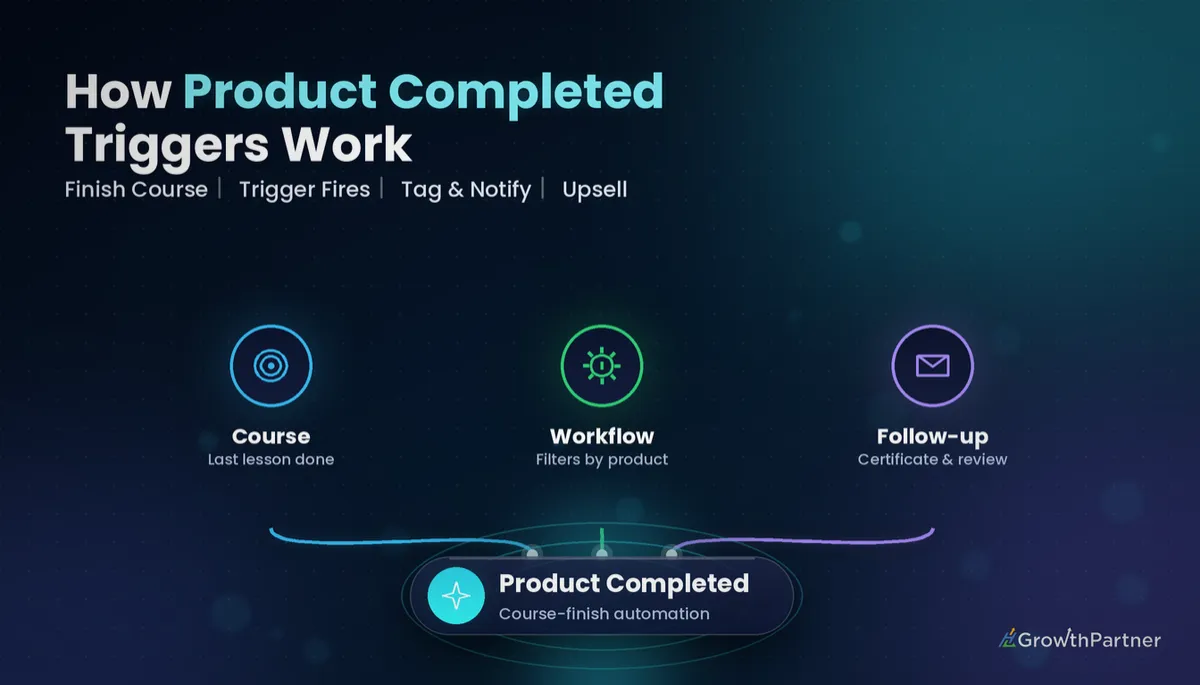
The GoHighLevel Product Completed trigger starts a workflow the moment a learner finishes an entire course (a "product") inside HighLevel Memberships. It is the single best moment in a course business to say well done, ask for a review and offer the next step, and most accounts I audit leave it completely unused.
This guide picks up where our Lesson Completed trigger setup guide left off. Lesson Completed handles the small wins along the way; this is the HighLevel course completion workflow that handles the finish line. You will get the setup steps, six recipes I actually use, a comparison with the neighbouring Memberships triggers, testing tips and a snapshot pattern for agencies.
| Trigger name | Product Completed (HighLevel help centre, 2026) |
| Where to find it | Workflows → Add New Trigger → Courses / Memberships group |
| Fires when | A learner completes a membership product (course) |
| Filter | Product, with operators such as "Is any of" and "Is none of" |
| Multiple products | Supported in one filter (HighLevel changelog, Membership updates) |
| Repeat completions | Can fire each time a product is completed, so guard against duplicates |
What the GoHighLevel Product Completed trigger actually does
In HighLevel Memberships, a product is the course container: categories (modules) sit inside it and lessons sit inside those. The Product Completed trigger watches for the point where a contact has finished the whole product, rather than a single lesson or module.
When that happens, the contact enters your workflow with their normal contact record attached. That means every action you already know, such as Send Email, Add Tag, Update Opportunity, Internal Notification and Wait, is available straight away.
Think of it as your graduation event. Everything you want to happen when a student finishes, from the certificate to the next offer, hangs off this one trigger.
Where it sits in the trigger list
HighLevel groups the course triggers together in the trigger picker. Alongside Product Completed you will see Product Started, Lesson Completed, Category Completed, Product Access Granted and Offer Access Granted, each listed on the official HighLevel list of workflow triggers.
How to set up a HighLevel course completion workflow, step by step
The setup takes about five minutes once your course is published. Build it in a test sub-account first if you are working inside a live client account.
- Go to Automation → Workflows and click Create Workflow, then start from scratch.
- Click Add New Trigger and search for Product Completed.
- Rename the trigger to something readable, such as "Completed: Agency Onboarding Course".
- Click Add Filters, choose Product, set the operator to Is any of, and select the course or courses this workflow should handle.
- Save the trigger, add your actions, then save and publish the workflow.
The steps above follow the official HighLevel help article on the Product Completed trigger, which also recommends testing before you publish.
Filtering by product: one workflow or many?
You can either build one workflow per course or one shared workflow with several products in the filter. HighLevel's changelog confirms the membership triggers accept multiple products in a single filter.
My rule: one workflow per course when the follow-up differs, one shared workflow when it does not. A shared "any course completed" workflow is fine for a Slack ping or a generic tag. The upsell, though, almost always depends on which course was finished.
The "Is none of" operator is handy for exclusions. For example, you might send a review request on every course except a free lead-magnet mini course.
Six Product Completed recipes worth building
1. Congratulations email plus certificate
Send a warm congratulations email within minutes of completion, with the certificate or a link to download it. If you have not configured certificates yet, our guide to GoHighLevel course certificates walks through the template and settings.
Keep the email short: name the achievement, show the certificate, and tell them what to do next. Add a tag such as course-complete-agency-onboarding so you can report on graduates later.
2. Review and testimonial request
A student who has just finished is at peak goodwill. Add a Wait of one to two days, then send an email or SMS asking for a short review, a video testimonial or a Google review.
Give them a single, specific question, such as "What changed for you after the course?". Specific prompts get far better testimonials than "leave us a review".
3. Upsell to the next course or offer
This is where the trigger earns its keep. After a Wait of three to five days, send an email introducing the next course, coaching package or community tier, with a direct checkout or booking link.
Before the offer goes out, add an If/Else branch that checks whether the contact already owns the next product (via a tag or offer access). Our If/Else conditions guide shows how to build that check cleanly.
| Step | Action | Why it matters |
|---|---|---|
| 1 | Add Tag: course-complete | Reporting and segmentation |
| 2 | Send Email: congratulations | Recognition while motivation is high |
| 3 | Wait: 3-5 days | Gives them a moment to apply the course |
| 4 | If/Else: owns next product? | Stops awkward offers to existing buyers |
| 5 | Send Email / SMS: next offer | Turns completion into revenue |
4. Tag and move the pipeline stage
If you track students in a pipeline, use Create/Update Opportunity to move the contact to a "Completed" or "Ready for upsell" stage. Pair it with a tag and, if useful, a custom field holding the completion date.
5. Notify the coach or the team in Slack
Use an Internal Notification to email or text the coach, or send a message to a channel. If your team lives in Slack, our GoHighLevel Slack integration guide covers the connection.
Include the contact name, the course and a link to the contact record. A coach who sends a personal "well done" message within a day makes a bigger impression than any automated email.
6. Invite them into the community
Course completion is a natural point to invite a learner into an alumni or implementation group. Grant access to the group and send the invite email, as outlined in our GoHighLevel Communities guide.
The finish line is the most valuable moment in a course business, and most HighLevel accounts let it pass in silence.
Not on HighLevel yet? Start with a free 30-day trial here — long enough to build everything in this guide before you pay a cent.
Product Completed vs the other Memberships triggers
The course triggers look similar in the picker, but they fire at very different points in the learner journey. Picking the wrong one is the most common reason a course workflow "doesn't work".
| Trigger | Fires when | Best used for |
|---|---|---|
| Product Started | A learner starts a product or course | Welcome nudges, onboarding tips |
| Lesson Completed | A learner completes a lesson | Progress nudges, unlocking bonuses |
| Category Completed | A learner completes a category (module) | Module milestones, mid-course check-ins |
| Product Completed | A learner completes the whole product | Certificates, reviews, upsells, alumni invites |
| Product Access Granted | Access to a product is granted | Login details, first-step emails |
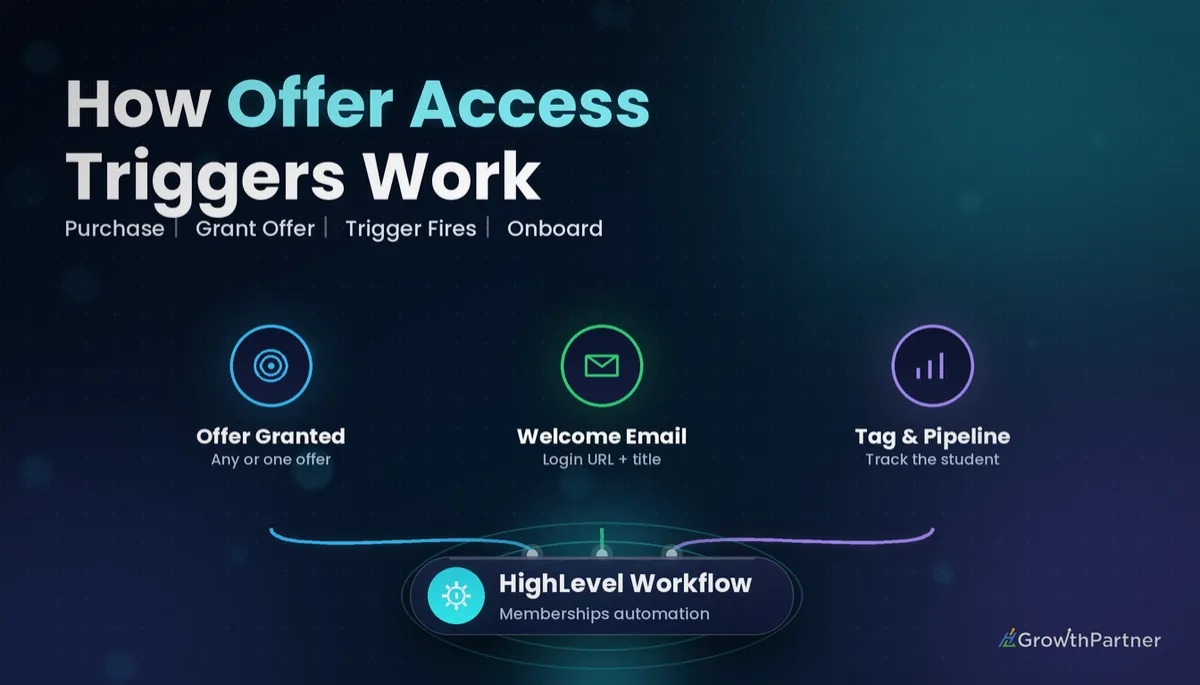
| Offer Access Granted | Access to an offer is granted | Purchase-based onboarding |
Access triggers are about buying; progress triggers are about learning. If your workflow should run after a purchase, use an access trigger. If it should run after effort, use Lesson, Category or Product Completed.
Testing the Product Completed trigger before clients see it
- Create a test product with one category and one or two short lessons, then point a copy of the workflow at it.
- Grant yourself access using a test contact with your own email, log in as that learner and mark the lessons complete.
- Watch the Execution Logs in the workflow to confirm the contact entered and each action ran.
- Shorten Waits during testing to a minute or two, then restore the real delays before publishing.
- Check re-entry settings, because the trigger can fire again if the same product is completed again.
If the contact never enters, the cause is usually an unpublished workflow, the wrong product in the filter, or a lesson left incomplete. Our workflow troubleshooting guide in the Related Articles below covers the wider checklist.
How agencies template the trigger in a snapshot
For agencies selling course or coaching builds, the completion workflow belongs in your snapshot. The structure travels well; only the product selection and copy change per client.
- Build a generic "Course Completed" workflow with the congratulations, review and upsell steps already laid out.
- Use custom values for the business name, review link and next-offer link so each client fills them in once.
- Leave a clear note in the workflow name, such as "SET PRODUCT FILTER", so nobody publishes it unfiltered.
- Keep it in draft in the snapshot and publish only after the client's real course and filter are in place.
Products in the snapshot will not match the client's own courses automatically, so reselecting the product filter after loading the snapshot should be a standard onboarding step.
Common mistakes to avoid
- Leaving the product filter empty, so every course in the sub-account fires the graduation sequence.
- Using Product Completed when you really need an access trigger, then wondering why new buyers get nothing.
- Sending the upsell without an If/Else check, so existing buyers are offered something they already own.
- Forgetting that the trigger can fire again on a repeat completion, which duplicates certificates and offers.
- Testing with real Wait times of several days, then publishing before you have seen the full run.
- Loading a snapshot and publishing the completion workflow before reselecting the client's own product.
Or if you just need the software first: grab the 30-day HighLevel trial and book us when you're ready to scale it.
Frequently asked questions
What is the GoHighLevel Product Completed trigger?
It is a workflow trigger that starts an automation when a learner completes a whole product, meaning a course, in HighLevel Memberships. You find it under Add New Trigger in the Workflows builder and can filter it by one or more products.
How do I filter the Product Completed trigger to one course?
Open the trigger, click Add Filters, choose Product and set the operator to "Is any of", then select the course. You can select several products in the same filter, or use "Is none of" to exclude specific courses.
What is the difference between Product Completed and Lesson Completed?
Lesson Completed fires every time a learner finishes a single lesson, while Product Completed fires once the learner has finished the whole course. Use Lesson Completed for progress nudges and Product Completed for certificates, reviews and upsells.
Can the Product Completed trigger fire more than once for the same contact?
Yes, HighLevel notes the trigger can activate each time a product is completed. Use the workflow's re-entry settings, a tag check or an If/Else condition so certificates and offers are not sent twice.
How do I test a HighLevel course completion workflow?
Create a small test product with one or two short lessons, grant access to a test contact and complete the lessons as that learner. Then check the workflow's Execution Logs and shorten any Wait steps during testing.
Should I use Product Completed or Offer Access Granted for onboarding?
Use Offer Access Granted or Product Access Granted for onboarding, because they fire when someone gains access after buying. Product Completed fires only at the end of the course, so it suits graduation follow-ups rather than welcome sequences.
Can I include the Product Completed workflow in a snapshot?
Yes, the workflow can be saved in a snapshot, but the client's own courses will not match the snapshot's products automatically. Reselect the product filter in each sub-account before publishing the workflow.
Related Articles on HL Growth Partner
More Membership trigger guides
 GoHighLevel Offer Access Granted Trigger: Setup Guide (2026)
 GoHighLevel Offer Access Removed Trigger: Setup Guide (2026)
 GoHighLevel Subscription Trigger: Setup Guide (2026)
Courses and payments
 GoHighLevel Memberships & Courses: Setup Guide (2026)
 GoHighLevel Payment Received Trigger: Setup Guide (2026)