GoHighLevel Lesson Started Trigger: Setup Guide (2026)
 By Dr Priya Jaganathan, GoHighLevel Certified Admin · HL Growth Partner, Australia · Updated 9 November 2026 · 9 min read
How to set up, filter and test the Lesson Started trigger in HighLevel Workflows, plus seven automations that turn a member opening a lesson into timely nudges, coach alerts and clean engagement data.
Some links below are affiliate links — if you sign up through them, HL Growth Partner may earn a commission at no extra cost to you. It never changes what we recommend.
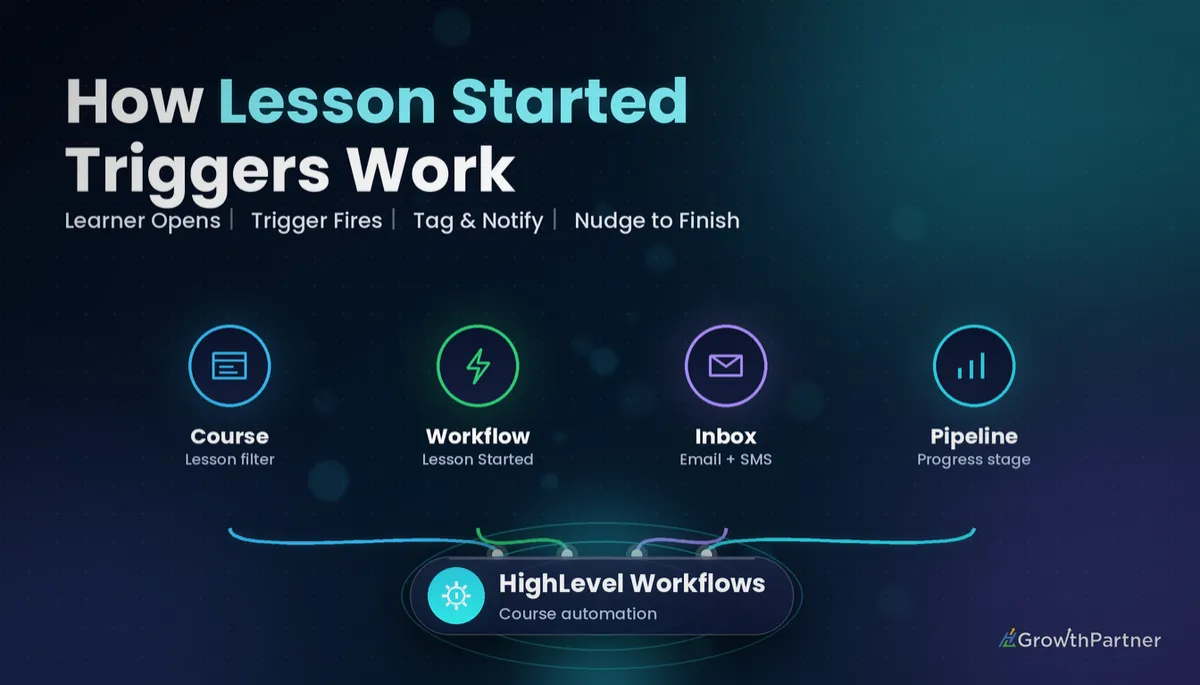
The GoHighLevel Lesson Started trigger fires the moment a member opens a lesson inside your HighLevel course, which makes it the earliest engagement signal you get from the Memberships area. Most course creators only automate the finish line. This trigger lets you act at the start line, while the member is still motivated.
In this guide we cover what the HighLevel lesson started workflow trigger actually does, how it differs from Lesson Completed, Product Started and Category Started, how to set it up and test it without spamming real students, and the automations we build most often for coaches, course creators and agency client portals.
| Trigger name | Lesson Started |
| Where to find it | Workflows → Add New Trigger → Courses (membership) triggers |
| When it fires | When a member starts (opens) a lesson |
| Repeat behaviour | Fires the first time a member starts a given lesson, not on every revisit |
| Filters | Product (course), then category or lesson |
| No filter set | Fires for any lesson started in any course |
What the GoHighLevel Lesson Started trigger actually does
HighLevel's official list of workflow triggers describes Lesson Started as the trigger that runs when a learner starts a lesson. It sits in the Courses group alongside Lesson Completed, Product Started, Category Started and the other membership triggers.
White-label help centres that mirror HighLevel's documentation add two important details. First, the trigger fires the first time a member starts a specific lesson, so a student who rewatches Lesson 3 five times will only enrol in your workflow once for that lesson. Second, "started" means the lesson page was loaded or opened. The member does not have to press play on the video.
Filters: product first, then lesson
With no filter, the trigger fires for any lesson started in any course in the sub-account. That is rarely what you want once you have more than one product live. The recommended pattern is to filter by Product (the course name) first, then narrow to a category or a specific lesson.
If you need different follow-ups for several lessons, you have two options: one workflow per lesson, or one workflow filtered to the product with an If/Else branch on the lesson that was started. The first is easier to read; the second is easier to maintain when the course grows.
Why the first-time rule matters
Because the trigger only fires once per lesson per member, it is ideal for "first touch" messages and data points. It is not suitable for counting every visit or measuring time spent. If you need re-engagement tracking, pair it with the User Login trigger in HighLevel and look at login frequency instead.
Lesson Started vs Lesson Completed, Product Started and Category Started
The Courses triggers look similar in the trigger list, but each one answers a different question. Choosing the wrong one is the most common reason course automations feel mistimed.
| Trigger | Fires when | Best used for |
|---|---|---|
| Lesson Started | A member opens a specific lesson (first time) | Just-in-time resources, start-but-not-finish nudges, drop-off data |
| Lesson Completed | A member marks a lesson complete | Progress rewards, unlocking next steps, completion tags |
| Category Started | A member begins a category (module) | Module welcome messages, module-level coaching |
| Product Started | A member starts any lesson in a product (any product if unfiltered) | Onboarding sequences, "you've begun" confirmations |
| Product Completed | A member finishes the whole course | Certificates, reviews, upsells |
The pairing that matters most is Lesson Started with the Lesson Completed trigger. Together they give you both ends of a lesson, and the gap between them is where students quietly disappear.
Product Started is the better choice for a single onboarding sequence at course level. Lesson Started earns its place when specific lessons carry specific resources, homework or risk of drop-off.
How to set up the HighLevel lesson started workflow trigger
Before you build, make sure the course is published in Memberships and that you have a test contact with access to it. Our GoHighLevel Memberships and Courses setup guide walks through products, categories and offers if you are not there yet.
Step-by-step build
- Go to Automation → Workflows and create a new workflow from scratch.
- Click Add New Trigger and choose Lesson Started from the Courses triggers.
- Rename the trigger to something descriptive, such as "Lesson Started: Module 1 Lesson 1 (Signature Program)".
- Add a filter for Product and select the course.
- Add a second filter for the lesson (or category) you want to watch, then save the trigger.
- Add your actions: tags, emails, SMS, internal notifications, Wait steps or If/Else branches.
- Check workflow Settings, including Allow Re-entry and the sender details, then publish.
Testing without bothering real students
Create a test contact using an email address and mobile number you control, then grant it access to the product. Log in to the client portal as that contact, open the lesson you filtered on and check the workflow's Enrollment History and Execution Logs.
Remember that the trigger fires once per lesson per contact, so a second test with the same contact and lesson will not enrol again. Use a fresh test contact for each round, or test against a different lesson, rather than assuming the workflow is broken.
Most course creators automate the finish line. The Lesson Started trigger lets you show up at the start line, while the student still has momentum.
7 practical Lesson Started trigger automations
These are the builds we deploy most often. Each one starts with the Lesson Started trigger filtered to a product and lesson unless noted.
1. Started-but-not-completed nudge
This is the highest-value use of the trigger. Pair it with a Lesson Completed workflow that adds a tag such as "m1-l1-completed", then build the nudge:
- Lesson Started trigger filtered to the lesson.
- Wait step of two or three days.
- If/Else: does the contact have the "m1-l1-completed" tag?
- Yes branch: end the workflow.
- No branch: send a short, friendly email or SMS that links straight back to the lesson.
Keep the message human. "Saw you started the pricing lesson, here's the one thing most people get stuck on" lands far better than a generic reminder.
2. First-lesson welcome
Filter to the first lesson of the course and send a welcome from the coach: what to expect, how long each module takes and where to ask questions. Because it fires on the first open, it reaches the student at exactly the right moment rather than at purchase, when they may not be ready.
3. Just-in-time resources
When a lesson relies on a workbook, template or checklist, send it by email as the lesson opens. Students get the resource in their inbox for later, and you get a clear record in the conversation history of what was sent.
4. Coach alert for high-value programmes
For premium coaching or mastermind products, add an Internal Notification or Create Task action when a member starts a key lesson, such as the strategy session prep lesson. The coach can then reach out personally, which is exactly what high-ticket clients are paying for.
5. Engagement tags and pipeline stage
Add tags like "course-active" or "module-2-started", or update a custom field with the most recent lesson started. Agencies running client onboarding through a course can also move an opportunity to an "Onboarding in progress" pipeline stage when the first lesson opens.
6. Drop-off analytics
Add a tag for every key lesson started and every key lesson completed. A smart list filtered on "started but not completed" for each lesson shows you exactly where students stall, which tells you which lessons need re-recording, splitting or extra support.
7. Module-specific upsell or booking prompt
When a member starts an advanced lesson, such as a done-for-you or implementation module, send a soft prompt to book a call or upgrade. Filter carefully and keep it to one message, so it reads as relevant help rather than a sales sequence. It works well alongside a Product Completed trigger workflow that handles the end-of-course offer.
Not on HighLevel yet? Start with a free 30-day trial here — long enough to build everything in this guide before you pay a cent.
Using the Lesson Started trigger in agency client portals
Agencies increasingly use HighLevel courses as client portals: onboarding videos, asset checklists and training for client staff. The Lesson Started trigger turns that portal into a live onboarding tracker.
- Onboarding visibility: notify the account manager when a new client starts the "Send us your assets" lesson, so follow-up happens the same day.
- Staff training compliance: tag each client staff member as they start required lessons, then report on who has not begun.
- Snapshot-ready builds: build the workflows once with clear naming, then include them in a snapshot so every new sub-account gets the same onboarding logic.
Pair the portal with access triggers as well. A Product Access Granted workflow can send login details, and Lesson Started confirms the client actually showed up.
Common mistakes to avoid
- Leaving the trigger unfiltered, so every lesson in every course fires the same workflow.
- Testing twice with the same contact and lesson, then assuming the trigger is broken when it does not fire again.
- Using Lesson Started where Lesson Completed is the real goal, such as sending a "well done" message when the student has only opened the page.
- Building a started-but-not-completed nudge without a matching Lesson Completed tag, so the If/Else has nothing to check.
- Sending long sales sequences off a single lesson open instead of one helpful, relevant message.
- Vague trigger and workflow names that make a growing course impossible to audit six months later.
Or if you just need the software first: grab the 30-day HighLevel trial and book us when you're ready to scale it.
Frequently asked questions
What does the GoHighLevel Lesson Started trigger do?
The Lesson Started trigger enrols a contact into a workflow when they start a lesson in a HighLevel course. It fires the first time the member opens that lesson, and you can filter it by product and lesson so it only runs for the content you choose.
Does the Lesson Started trigger fire every time a member opens a lesson?
No. It fires the first time a member starts a specific lesson, so revisits do not re-enrol the contact. To track repeat engagement, use the User Login trigger or tags and custom fields updated by other workflows.
Does the member need to watch the video for Lesson Started to fire?
No. The trigger fires when the lesson page is loaded or opened, not when the video is played or finished. If you need proof the lesson was finished, use the Lesson Completed trigger instead.
What happens if I do not add a filter to the Lesson Started trigger?
Without a filter, the trigger fires for any lesson started in any course in the sub-account. Always filter by product first, then by category or lesson, so each workflow only runs for the content it was built for.
What is the difference between Lesson Started and Product Started?
Product Started fires when a member begins a course as a whole, which suits course-level onboarding. Lesson Started fires for an individual lesson, which suits lesson-specific resources, nudges and drop-off tracking.
How do I send a reminder if a student starts a lesson but does not finish it?
Tag contacts with a Lesson Completed workflow, then build a Lesson Started workflow with a Wait step followed by an If/Else that checks for that tag. Contacts without the tag get a short reminder that links back to the lesson.
How do I test a Lesson Started workflow?
Grant a test contact access to the course, log in to the client portal as that contact and open the filtered lesson. Then check the workflow's Enrollment History and Execution Logs, and use a fresh contact or lesson for each new test because the trigger only fires once per lesson.
Related Articles on HL Growth Partner
More Courses workflow triggers
 GoHighLevel Category Completed Trigger: Setup Guide (2026)
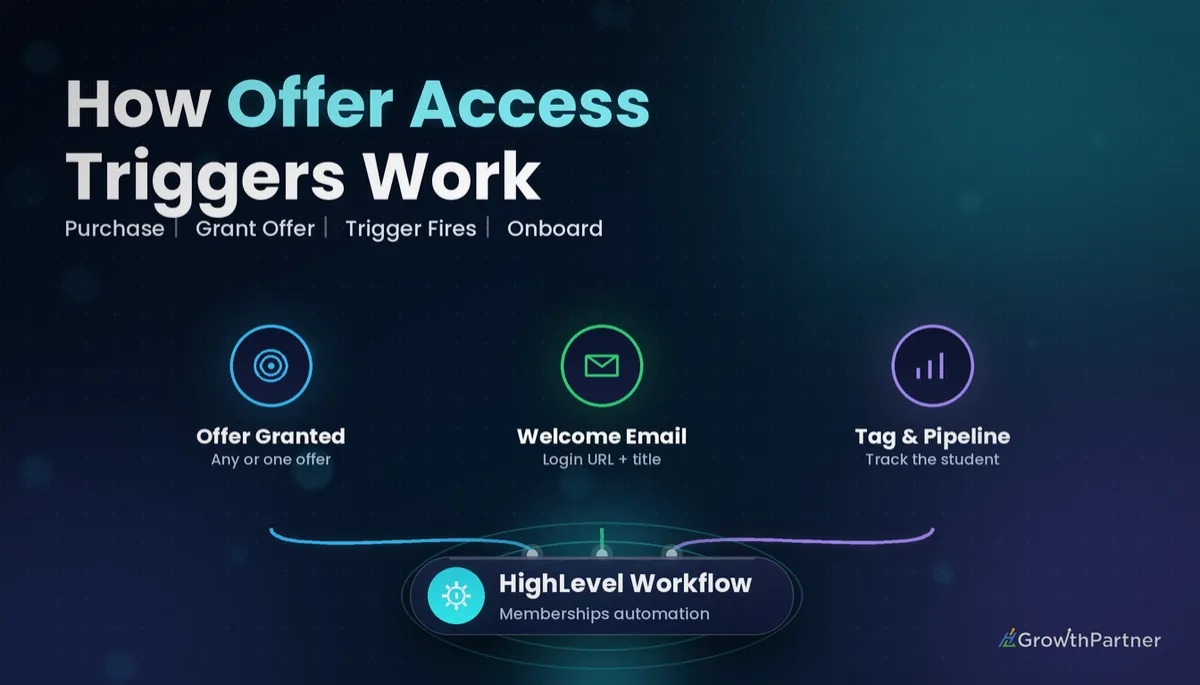 GoHighLevel Offer Access Granted Trigger: Setup Guide (2026)
 GoHighLevel Product Access Removed Trigger: Setup Guide (2026)
Building your course and community
 GoHighLevel Course Certificates: Setup Guide (2026)
 GoHighLevel Communities: Build & Monetise Your Group (2026)