GoHighLevel Category Completed Trigger: Setup Guide (2026)
 By Dr Priya Jaganathan, GoHighLevel Certified Admin · HL Growth Partner, Australia · Updated 5 November 2026 · 8 min read
How to set up the HighLevel Category Completed trigger, which filters to use, how it differs from Lesson and Product Completed, and five module-level automations you can build this week.
Some links below are affiliate links — if you sign up through them, HL Growth Partner may earn a commission at no extra cost to you. It never changes what we recommend.
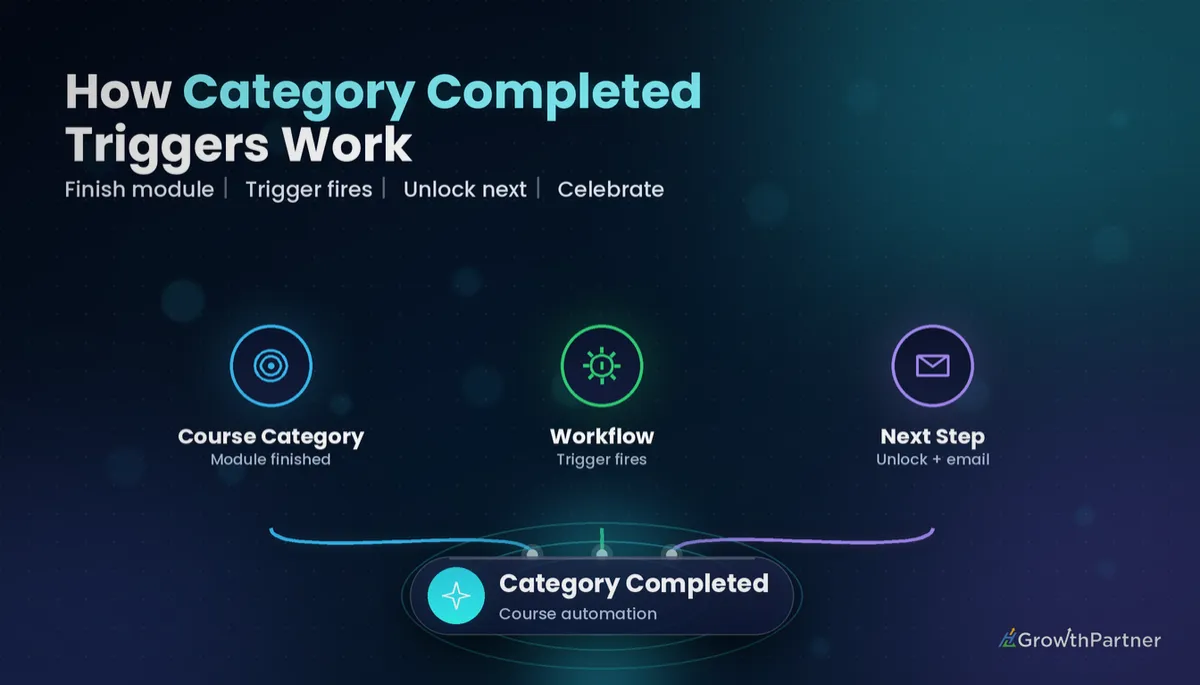
The GoHighLevel Category Completed trigger starts a workflow when a member finishes a whole category (module) inside one of your courses. It sits between the lesson-level and course-level triggers, which makes it the right place for automations that should happen at the end of each module rather than after every lesson or only at the very end.
This guide is the next instalment in our course-trigger series. If you have already built a Lesson Completed workflow, you will find the setup familiar; the difference is mostly about timing and what you choose to do with that milestone.
| Trigger name | Category Completed |
| Trigger group | Courses (in the workflow trigger list) |
| Fires when | A contact completes a selected course category |
| Main filters | Product (course) and Category |
| Multi-select filters | Supported, per HighLevel's membership workflow changelog |
| Sibling triggers | Category Started, Lesson Completed, Product Completed |
What the Category Completed trigger actually listens for
In HighLevel Memberships, a course (called a product) is split into categories, and each category holds lessons. Most course creators use categories as modules: Module 1 Foundations, Module 2 Offer, and so on.
The HighLevel course category completed workflow trigger fires once a contact has completed the lessons in the category you select. Think of it as a module-finish event, not a progress ping.
HighLevel's help article describes it simply as firing when a learner completes a selected course category. It does not publish a detailed rulebook for edge cases such as optional lessons or sub-categories, so test those against your own course structure before relying on them.
The two filters that matter
Once you add the trigger, you narrow it with filters. The two you will use on almost every build are:
- Product — the course the category belongs to. Pick one or several.
- Category — the specific module (or modules) that should fire the workflow.
If you leave the filters empty, the trigger can run for any category completed in any course in the sub-account. That is rarely what you want, so always set both.
HighLevel's changelog notes that Product Completed and Category Completed gained multi-product and multi-category filtering. That lets one workflow cover, say, every module in a course, with If/Else branches handling what happens after each one.
Lesson vs Category vs Product Completed: which one to use
The three completion triggers look alike in the builder, but they suit different jobs. Choosing the wrong level is the most common reason course automations feel spammy or arrive too late.
| Trigger | Fires when | Typical filters | Best for |
|---|---|---|---|
| Lesson Completed | A single lesson is marked complete | Product, Category, Lesson | Quiz follow-ups, worksheet delivery, granular tagging |
| Category Completed | Every lesson in a selected category is complete | Product, Category | Module unlocks, mid-course check-ins, upsell timing |
| Product Completed | The whole course is complete | Product | Graduation emails, final certificates, alumni offers |
A good rule: if the message would make sense after a two-minute lesson, use Lesson Completed. If it only makes sense after a chunk of real work, use Category Completed. If it is a finish-line moment, the Product Completed trigger is the better fit.
Set it up in under ten minutes
Before you start, make sure your course has clean category names. If your modules are still called Category 1 and Untitled, rename them first; you will thank yourself when you are picking filters. Our memberships and courses setup guide covers structure if you are building from scratch.
Step by step
- Go to Automation > Workflows in the sub-account and click Create Workflow, then Start from Scratch.
- Click Add New Trigger and search for Category Completed, or scroll to the Courses group.
- Rename the trigger to something readable, such as Module 2 complete, Growth Program.
- Add a Product filter and select the course.
- Add a Category filter and select the module (or modules) that should fire this workflow.
- Save the trigger, add your actions, then publish the workflow.
Exact labels shift slightly between HighLevel releases, so if a filter name looks different in your account, look for the closest Product and Category options. The logic stays the same.
Testing without annoying real students
Create a test contact with an email you control and grant it access to the course through an offer or manually. Log in to the Client Portal as that contact, complete every lesson in the target category, then check the workflow's Execution Logs.
If nothing fires, the usual culprits are a missing filter value, an unpublished workflow, or a lesson that was not actually marked complete. Re-entry settings also matter: if your test contact has already run through the workflow, check whether Allow Re-entry is switched on before you test again.
Five Category Completed recipes worth building
These are the patterns we set up most often for coaches and course creators. Each one is a single workflow with the Category Completed trigger at the top.
1. Drip-unlock the next module
If you want progress-based access instead of date-based drip, keep later modules in a separate offer and grant it when the previous module is done. Trigger on Module 1, then use the Grant Offer (membership access) action for the Module 2 offer.
Pair this with an Offer Access Granted workflow to send a short welcome to the new module, so the unlock feels like a reward rather than a silent change.
2. Congratulate and ask for a review
The end of a meaty module is when goodwill is highest. Send a short congratulations email or SMS, then a link to your review or testimonial form two hours later using a Wait step.
Keep it to one ask. A module-level review request often gets better feedback than one sent at the end, because the content is still fresh.
3. Tag and move a pipeline stage for coaching upsell
Pick the module where students typically hit the limits of self-paced learning, often the implementation module. When that category completes:
- Add a tag such as module-3-complete.
- Create or update an opportunity in your coaching pipeline at a Warm stage.
- Send a soft invitation to a call, with your booking calendar link.
The best upsell moment is not when someone buys. It is when they finish the module that shows them how much more there is to do.
4. Notify the coach
For cohort programs or high-ticket courses, use an Internal Notification action to email or SMS the coach, or create a Task on the contact. Include the contact name and the module name in the message so the coach can follow up personally without opening the CRM first.
5. Re-engage stalled members and nudge certificates
Category Completed is also useful in reverse. When Module 1 completes, add a tag, wait seven days, then use an If/Else to check whether a Module 2 completion tag has appeared. If it has not, send a gentle check-in.
If you issue module-level certificates, the same trigger can remind members to download them. HighLevel supports category completion certificates, and our course certificates guide walks through the template side.
Not on HighLevel yet? Start with a free 30-day trial here — long enough to build everything in this guide before you pay a cent.
How it plays with drip settings
HighLevel lets you drip categories and lessons by a delay after enrolment or by a set date. That drip schedule controls when content becomes visible; it does not change what counts as complete.
In practice, a dripped category cannot complete until its lessons are released and finished. So if Module 3 drips on day 21, your Module 3 Category Completed workflow will not fire before then, however keen the student is.
Avoid stacking two unlock systems on the same module. If you use the Grant Offer recipe above for progress-based access, remove the date-based drip on those categories, or members can end up waiting on both conditions.
For trigger names, filters and behaviour, check HighLevel's own Category Completed trigger help article and the membership workflow updates changelog, as both are updated when the builder changes.
Common mistakes to avoid
- Leaving the Product or Category filter blank, so the workflow fires for every module in every course.
- Using Category Completed for messages that belong after a single lesson, which delays them by days.
- Combining date-based drip and progress-based offer unlocks on the same category.
- Testing with a contact that has already been through the workflow while re-entry is switched off.
- Sending a sales message at every module, which trains students to ignore your emails.
- Renaming or rebuilding categories after the workflow is live without re-checking the filter values.
Or if you just need the software first: grab the 30-day HighLevel trial and book us when you're ready to scale it.
Frequently asked questions
What does the GoHighLevel Category Completed trigger do?
It starts a workflow when a contact completes a selected category, or module, inside a HighLevel course. You narrow it with Product and Category filters so it only fires for the modules you choose.
Where do I find the Category Completed trigger in HighLevel?
Go to Automation, then Workflows, create or open a workflow and click Add New Trigger. Search for Category Completed or look in the Courses group of the trigger list.
What is the difference between Category Completed and Product Completed?
Category Completed fires when one module of a course is finished. Product Completed fires only when the whole course is finished, so it suits graduation messages and final certificates.
Can one workflow cover several course categories?
Yes. HighLevel added multi-product and multi-category filtering to the Category Completed trigger, so you can select several modules in one trigger and branch with If/Else actions afterwards.
Does drip content affect the Category Completed trigger?
Drip controls when lessons become visible, not what counts as complete. A dripped category cannot be completed until its lessons are released and finished, so the trigger fires no earlier than the drip date.
How do I unlock the next module only after the previous one is complete?
Put the next module in its own offer, then trigger a workflow on Category Completed for the current module and use the Grant Offer action. Remove date-based drip on that module so members are not waiting on two conditions.
Why is my Category Completed workflow not firing?
Check that the workflow is published, that the Product and Category filters match the module, and that every lesson was actually marked complete. Also check the re-entry setting if your test contact has run through the workflow before.
Related Articles on HL Growth Partner
More course and membership triggers
 GoHighLevel Offer Access Removed Trigger: Setup Guide (2026)
 GoHighLevel Subscription Trigger: Setup Guide (2026)
Workflow foundations
 GoHighLevel Workflow Triggers Explained: The Complete 2026 Reference
 GoHighLevel Workflows: Triggers, Actions & Recipes (2026)